
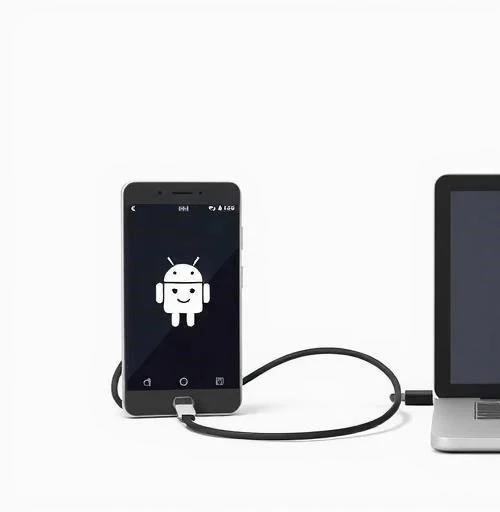
Fastboot is a special low-level mode used by Android devices, including Xiaomi, Redmi, and POCO phones․ It allows a computer to communicate with the phone’s bootloader before Android starts․ Fastboot is mainly intended for maintenance and software installation—not for everyday use․ Seeing the Fastboot screen does not automatically mean your phone is broken․
What does Fastboot do?
Android normally loads when you switch on your phone․ In Fastboot mode, the device pauses before starting the operating system and waits for certain commands from a connected computer․ Depending on the model and bootloader status, these commands can be used to check device information, install or repair system images, or unlock the bootloader․
Fastboot is different from Recovery mode․ Recovery is a separate environment on the phone for tasks such as installing an official update or clearing data․ Fastboot generally relies on a computer and specialized tools․ It is also not the same as Safe mode, which starts Android while temporarily disabling many third-party apps․
Why is a Xiaomi phone showing the Fastboot screen?
- A button combination was pressed․ On many Xiaomi devices, holding Power and Volume Down during startup opens Fastboot․ A tight case, a stuck button, or accidental pressure can trigger it․
- The phone did not start Android normally․ A failed update, damaged system files, or a software problem may prevent normal startup․
- The bootloader or system is being serviced․ Someone may have deliberately entered Fastboot to diagnose the device or install firmware․
The image of a small figure working on an Android mascot is a common Xiaomi Fastboot screen․ It is a mode indicator, not a message that the phone has been hacked or that data has already been erased․
How to exit Fastboot safely
- Press and hold the Power button for about 10–20 seconds, until the phone restarts․ The exact timing can vary by model․
- If it returns to Fastboot, check that the Volume Down button is not stuck and remove the case․ Then try the long press again․
- If the phone starts normally, let it finish booting․ If it repeatedly returns to Fastboot, avoid repeated random button combinations and consider whether the problem began after an update, drop, or repair․
A forced restart normally does not erase personal files․ However, avoid selecting options that say Wipe data or Factory reset unless you understand that they can delete local data․ If the phone remains stuck, cannot enter Android, or contains important unbacked-up files, contact Xiaomi support or a reputable repair service before attempting a reset or firmware flash․
Using Fastboot with a computer
Advanced users and technicians may use Xiaomi’s supported tools or Android platform tools on a computer․ The computer needs the appropriate drivers, and the phone must be recognized correctly․ Commands and firmware are model-specific: an image for a different device or regional variant can cause serious boot problems․ Make sure the exact model and software version are known before doing anything․
Unlocking the bootloader is a separate, deliberate procedure․ It can reduce security, affect warranty or support eligibility depending on local policy, and typically triggers a data wipe․ Flashing firmware can also erase data or make the phone unusable if interrupted or performed incorrectly․ Do not follow instructions that ask you to flash files from an unknown source or bypass device security․
Fastboot, bootloader, and data: key points
- Fastboot is a maintenance interface; it is not Android itself․
- Simply reaching the Fastboot screen usually does not delete files․
- Restarting is the safest first step when you entered it accidentally․
- Unlocking, resetting, or flashing can erase data and carries risks․
- Exact procedures differ among Xiaomi, Redmi, and POCO models․
When should you seek help?
Get professional assistance if the phone cannot leave Fastboot after a restart, the Power or volume buttons appear damaged, the device keeps rebooting, or the problem followed an unsuccessful update or flash․ Tell the technician the exact model and what happened immediately before the screen appeared․ If the phone still boots occasionally, back up important photos and files as soon as possible․
In short: Fastboot on a Xiaomi Android phone is a low-level mode for communication with the bootloader and device servicing․ It is often entered accidentally and can usually be exited with a forced restart․ More complex fixes should be attempted only with model-specific instructions and a clear understanding of the risk to your data․



9 Comments. Оставить новый
A useful guide for anyone who unexpectedly sees the Fastboot screen. The advice to try a long Power-button press is easy to follow.
The comparison between Fastboot, Recovery, and Safe mode is especially helpful. They can be easy to confuse.
The article does a good job distinguishing normal troubleshooting from more advanced bootloader and firmware work.
A concise and reassuring introduction. The distinction between a temporary button press and a possible software issue is useful.
Good explanation of why Fastboot exists and when it is used. It makes a technical phone mode much less intimidating.
I appreciate the practical explanation of how a tight case or stuck volume button might trigger Fastboot.
This is a helpful overview for Xiaomi, Redmi, and POCO owners. The possible causes are presented in a straightforward way.
Clear, calm, and informative. I especially liked the reminder that the Fastboot image is not proof of hacking or data loss.
This clearly explains what Fastboot is and reassures readers that seeing the screen does not automatically mean their phone is damaged.