
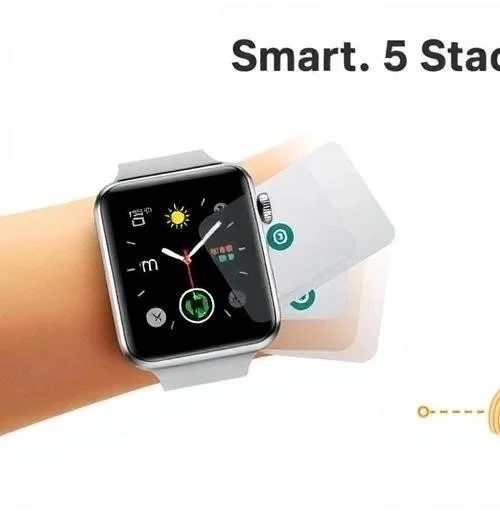
The Smart Stack is a scrollable collection of widgets on Apple Watch. It gives you quick access to useful information and app actions without requiring you to open each app or dedicate a watch face complication to it. Apple introduced the feature in watchOS 10‚ bringing a more flexible‚ glanceable view to the watch.
How it works
From most watch faces‚ turn the Digital Crown to open the Smart Stack‚ then scroll through its cards. Depending on your watchOS version‚ widgets may show items such as weather‚ upcoming calendar events‚ reminders‚ activity progress‚ or information from compatible apps. Some widgets can also surface Live Activities‚ so relevant updates are easier to check at a glance.
The stack can adapt to your routine and context. For example‚ an upcoming event may become more prominent as it approaches. This makes the feature more than a static list: it can help bring timely information forward. However‚ what appears depends on your settings‚ installed apps‚ location permissions‚ and watchOS version.
How it differs from complications
A complication is a small item placed directly on a watch face‚ where space is limited and the available choices depend on that face. Smart Stack widgets live in a separate‚ scrollable view. The distinction matters: complications are best for information you want visible constantly‚ while the stack suits details you check occasionally or that change during the day. The two features complement rather than replace one another.
Customizing the stack
To manage widgets‚ open the stack and use the on-screen controls available in your watchOS version to add‚ remove‚ reorder‚ or pin supported items. Pinning keeps a chosen widget easy to find instead of relying only on automatic ordering. You can also adjust which apps provide widgets on your iPhone or watch. If a widget is missing or shows outdated information‚ check that the app is installed and updated‚ review its permissions—especially location access for weather—and restart or update the watch if needed.
Is it useful?
For many people‚ yes: the Smart Stack reduces taps and keeps changing information within easy reach‚ especially on a face with few complications. Its value depends on choosing a small set of genuinely useful widgets; a crowded stack can be slower to browse than simply opening an app. Treat it as a customizable shortcut‚ not a replacement for every app or watch face. Availability and controls vary across Apple Watch models and software versions‚ so update watchOS when possible and check the settings on your own device.




9 Comments. Оставить новый
The article does a good job of explaining how the stack can adapt to context, while also noting that its contents depend on settings and permissions. That qualification keeps the description practical rather than making the feature sound identical for every user.
I like that the article presents Live Activities as something that may appear, rather than promising they will always be available. That careful wording reflects how app support and settings can affect the experience.
The explanation clearly distinguishes the Smart Stack from watch-face complications. That comparison helps readers understand why the two features can be useful together rather than treating one as a replacement for the other.
The distinction between glanceable information and details checked only occasionally is a strong way to explain when to use complications versus Smart Stack widgets. It gives readers a practical basis for choosing what belongs where.
The article gives a balanced account of the Smart Stack: it highlights timely, convenient information while acknowledging that personalization and availability depend on the user’s setup. That balance makes it a helpful introduction.
The examples of weather, calendar events, reminders, and activity progress make the feature easy to picture. I also appreciate the reminder to check app installation, updates, and permissions when a widget is missing or stale.
The overview is organized around how the feature works, how it differs from complications, and how it can be customized. This structure makes the information easy to scan while still giving enough context to understand its purpose.
This is a useful overview for someone new to watchOS. The instructions for opening the stack are simple, and the article appropriately avoids implying that every watch face or software version behaves in exactly the same way.
The point about pinning widgets is especially helpful because it explains how users can balance automatic suggestions with quick access to preferred information. A brief note that controls vary by watchOS version also makes the guidance more dependable.