
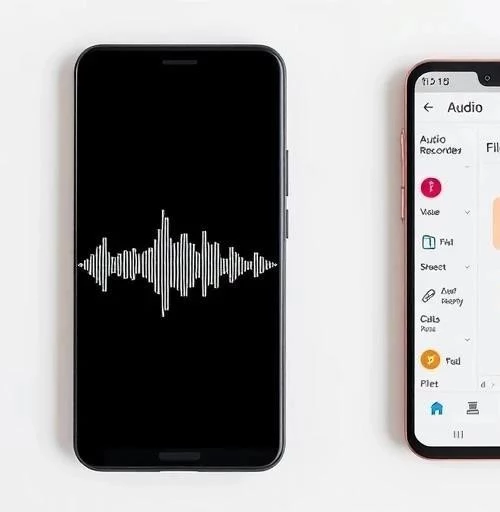
A voice recording can feel like a message in a bottle: you press Record, capture a thought, and later wonder where the little digital bottle went. On most Xiaomi phones, recordings made with the built-in Recorder app are saved in the phone’s internal storage, usually inside a folder named MIUI/sound_recorder. The exact location can vary with your phone model, MIUI or HyperOS version, region, and the recorder app you used—but a few reliable routes will help you find it.
The usual folder: start here
Open Xiaomi’s File Manager app and browse to:
Internal storage > MIUI > sound_recorder
Depending on the system version, the folder may appear as MIUI/sound_recorder from the storage home screen, or its name may be shown with slightly different capitalization. Look for audio files with extensions such as .m4a, .aac, or .mp3. The format and filename depend on the recorder version and recording settings.
If you do not see the folder immediately, use File Manager’s search icon and try sound_recorder, record, or part of the recording’s name. Switch to internal storage before searching; a search limited to Downloads or a particular category can leave the audio hiding just outside the flashlight beam.
Find a recording from inside the app
- Open Recorder (sometimes called Sound Recorder or simply Recordings).
- Go to the recordings list and locate the clip by its name, date, or duration.
- Tap the recording’s menu—often the three-dot icon—and look for Details, File information, Share, or Open in File Manager.
Not every Xiaomi version offers a visible file path. If the app shows only playback and sharing options, share the clip to a trusted file manager or save a copy to Downloads. That gives you a clear, easy-to-find copy without changing the original.
When the usual path is empty
First check that you are looking in Internal storage, not an SD card, cloud account, or a similarly named folder. Then confirm that the clip is still listed in Recorder. A recording saved by another app—WhatsApp, a meeting app, a third-party recorder, or a call-recording feature—may live in that app’s own folder instead of MIUI/sound_recorder.
- Search by file type: In File Manager, search for audio files or try extensions such as
.m4aand.mp3. - Sort by date: Open likely audio folders and sort by newest first. The most recent recording may have a timestamp rather than a memorable title.
- Check app-specific folders: Browse folders named after the app, such as a messaging or meeting app. Some Android versions restrict access to certain app folders, so they may not appear in ordinary file browsing.
- Check the recycle bin: If the clip was deleted, look in File Manager’s trash or the Recorder app’s deleted-items area, if available.
Copy it to a computer or send it safely
Once you find the file, long-press it and choose Share, Copy, or Move. To transfer it by cable, connect the Xiaomi phone to a computer, unlock the phone, and select File transfer in the USB notification. Open the phone’s internal storage on the computer and browse to MIUI/sound_recorder. You can also copy the recording to a folder such as Documents/Voice recordings to make future backups easier.
For private conversations, remember that an audio file can reveal more than its filename suggests. Check the recipient before sharing, and avoid uploading sensitive recordings to an unfamiliar service. A second copy on a computer or trusted backup is useful; a public link is not the same thing as a backup.
What about call recordings?
Call recordings are not always stored beside ordinary voice memos. Their location can depend on the dialer, Xiaomi software version, and local rules. Check the Phone app’s call history or recording section first, then use its menu to share or view details. Some versions place call audio in a separate subfolder, while others manage it through the dialer and may limit direct browsing. Do not assume that a missing file means the call was never recorded: verify the call’s recording controls and permissions.
A quick map
Built-in voice memo: usually Internal storage/MIUI/sound_recorder.
Call audio: check the Phone app; it may use a separate location.
Third-party recording: check that app’s own library or storage folder.
Still lost? Search internal storage, inspect Recorder’s file details, or share a copy to Downloads.
Think of the folder as the recorder’s backstage room: the app is the stage, while File Manager opens the door behind the curtain. On most Xiaomi phones, MIUI/sound_recorder is the first door to try. If it is not there, use the app that created the recording as your guide—the phone’s software version may have moved the scenery, but the recording should still have a trail.

6 Comments. Оставить новый
The app-based route is a clever addition. Finding a clip through Recorder and checking its details can be much less intimidating than wandering through folders like an explorer without a map.
A helpful guide with a light touch. The flashlight-beam comparison gives the instructions a little personality without dimming the important point: check the right storage location before assuming your recording has vanished.
Clear, calm, and genuinely useful. The article avoids pretending every Xiaomi phone behaves identically, which is a refreshing bit of honesty in a world where tech instructions often arrive wearing a one-size-fits-all hat.
I appreciate the small details: file extensions, search terms, and the warning that the path can vary by software version. Those specifics turn this from a vague tip into something a reader can actually try.
This article makes digital housekeeping feel manageable. Its best advice may be the simplest: if the original path is unclear, save a copy somewhere familiar. A tiny precaution can spare a surprisingly long search.
The “message in a bottle” image makes a routine file hunt feel oddly poetic. I especially like the practical reminder to search internal storage first—sometimes the recording isn’t lost; it’s just hiding behind the wrong door.