
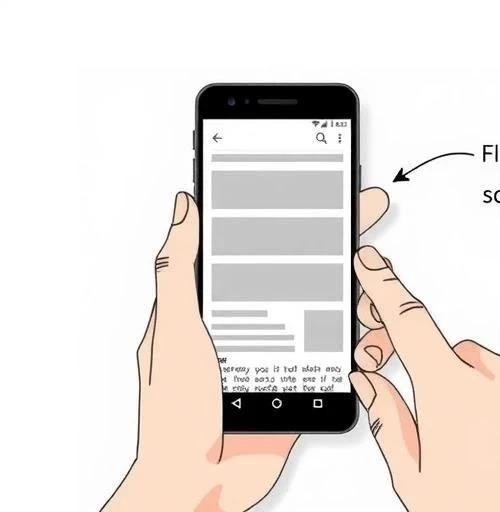
A regular screenshot is a postcard: it captures exactly what fits on the screen. A long screenshot is more like a paper scroll, unrolling a web page, chat, settings list, or article into one tall image. On most Xiaomi phones, you can create one with a built-in scrolling screenshot feature—no extra app or elaborate ritual required.
The exact labels and icons may vary slightly depending on your phone model and whether it runs MIUI or HyperOS. The basic sequence is much the same: capture the screen, tap the scrolling option, let the page move, and save the result.
The quick method: capture, then scroll
- Open the page you want to capture. Scroll to the point where the image should begin, usually the top of an article or conversation.
- Take a normal screenshot. The common Xiaomi shortcut is to press the Power and Volume Down buttons together. Hold them briefly, then release. On many models, you can also swipe down with three fingers if that gesture is enabled.
- Look for the screenshot preview. A small thumbnail or toolbar should appear, often near a corner of the display. Tap the option labelled Scroll, Scrolling screenshot, or similar. It may look like a pair of arrows pointing down.
- Let the phone move down the page. The screen may scroll automatically while a preview grows. On some versions, you need to tap or drag a control to continue. Watch the preview: it is your little paper map of what has been captured.
- Stop at the right place. Tap Done, Stop, or the checkmark when the desired content is included. If the phone offers a crop screen, adjust the top and bottom edges.
- Save or share. Choose Save if prompted. The finished image usually appears in Gallery or Photos, in the Screenshots album.
Tip: The scrolling control is easiest to use immediately after taking the screenshot. If you wait until the preview disappears, the phone may save only the ordinary, screen-sized image. Take another screenshot and tap the scrolling option while the toolbar is still visible.
Where the feature works best
Long screenshots are ideal for content that behaves like one continuous vertical page: a browser article, a long settings menu, a product listing, or a message thread. They turn a sequence of separate screens into one image you can send, keep, or annotate.
But the feature is not a magic camera that can stitch together every moving thing on your phone. Some apps use unusual layouts, load content in separate panels, or deliberately block screenshots. A game, map, social-media feed, or banking app may not offer scrolling capture, may stop partway through, or may produce a result with missing sections. In those cases, the limitation is often how the app displays its content—not a broken Xiaomi phone.
If you use the three-finger gesture
On many Xiaomi devices, swiping down with three fingers takes a screenshot without pressing physical buttons. To check whether it is enabled, open Settings and search for Screenshot or Three-finger screenshot. Depending on your software version, the setting may be under Additional settings, Gestures and shortcuts, or another similarly named menu.
Once the gesture works, the long-capture routine is simple: swipe with three fingers, tap the scrolling option in the preview, and stop when you have enough. If the gesture does nothing, use the Power-plus-Volume Down buttons instead; button shortcuts are generally available even when gesture settings differ.
When the scroll button does not appear
- Check the preview toolbar. The option may be represented by an icon rather than words. Tap the screenshot thumbnail to reveal additional controls.
- Try a supported page. Test the feature in a long web page or Settings list. If it works there but not in one particular app, that app may not support scrolling capture.
- Start near the top. Some pages behave more reliably when capture begins at the page’s beginning, rather than halfway down.
- Wait for content to load. If images or text are still appearing as the page moves, the screenshot can contain blank spaces or abrupt joins. Let the page settle, then try again;
- Update and restart. A restart can clear a temporary glitch. If the feature is missing everywhere, check for a system update in Settings. Menu names and availability vary by model and software release.
- Check free storage. A tall image can be much larger than a regular screenshot. If the phone is nearly full, make space and repeat the capture.
How to get a cleaner, more readable result
Think of the screenshot as a tiny document, not merely a picture. Before capturing, close floating windows, hide notification banners, and scroll the page so its first useful heading sits neatly near the top. If the app has a reading mode or a way to reduce clutter, use it. A clean starting screen makes the final image easier to follow.
Move steadily. Rapid scrolling can make a page load unevenly or cause the capture to stop at an awkward point. If your Xiaomi scrolls automatically, resist the urge to tap repeatedly; let the preview catch up. Stop just after the last useful sentence or item, rather than collecting a long tail of empty space.
Very long images can become inconvenient to open, upload, or read. If the result is unwieldy, capture two shorter sections instead. For a conversation, a pair of clearly overlapping screenshots may be easier to understand than one exceptionally tall image. Keep a little overlap between sections so no important line gets lost.
Find, crop, and share the finished image
Open Gallery or Photos and look in Screenshots. If it is not immediately visible, sort by newest or check the Albums list. Tap the image to view it; use the editor’s crop tool to remove unwanted borders or excess blank space. A tall screenshot may look small in the gallery grid, so open it before deciding that the text is unreadable.
To send it, use Share from the image viewer and choose a messaging, email, or storage app. Some services compress images, which can make small text fuzzy. If legibility matters, send the original file or share it through a cloud-storage link. For lengthy material that others need to search or copy, a document or shared web link may be more useful than an image.
A quick privacy check before sharing
A long screenshot can reveal more than you intended: names, addresses, order numbers, private messages, or a notification that appeared midway through capture. Review the entire image from top to bottom before sending it. Crop or blur sensitive details with the editor, and remember that a cropped copy may not erase the original screenshot saved in your album.
The short version
Open a long page, take a screenshot with Power + Volume Down (or the three-finger gesture), tap Scroll in the preview, and stop when the page is complete. If that button is missing, test another app, check the screenshot toolbar, and make sure the page has finished loading. Xiaomi’s long screenshot feature is at its best when the content scrolls as one continuous page—and when you give the little digital scroll a moment to unfurl.
2 Comments. Оставить новый
A useful guide with the tone of a friend leaning over to help, not a manual barking commands. Mentioning MIUI and HyperOS differences is a thoughtful touch; it makes the instructions feel adaptable rather than pretending every Xiaomi screen is identical.
The “paper scroll” image gives this everyday phone trick a little magic. I especially like the reminder to watch the growing preview—one small detail that can save a reader from capturing half a page and calling it a panorama.