
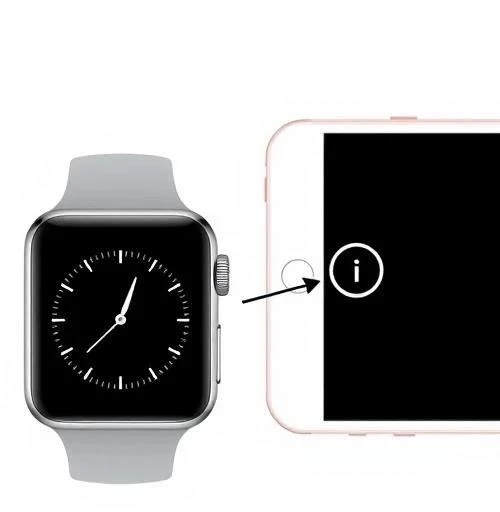
The small “i” inside a circle is an information button․ Its location depends on what you are doing: pairing an Apple Watch, identifying it, or managing a watch that is already connected․ It is not a permanent icon on the watch face, so it may not be visible during everyday use․
During initial pairing
When you first set up an Apple Watch, bring it close to your unlocked iPhone and follow the pairing instructions․ The watch should display a moving pairing animation, while the iPhone shows a viewfinder․ If the camera does not recognize the animation, tap Pair Apple Watch Manually on the iPhone․
At this point, look at the Apple Watch’s pairing screen for the circled i, usually shown near the lower-right corner of the display․ Tap it to reveal the watch’s name․ On your iPhone, select that name from the list, then follow the prompts to continue pairing․ The icon is part of the setup process; it will not necessarily remain visible after setup is complete․
If the watch is already paired
To find the information button for a connected watch, use the Watch app on your iPhone:
- Open the Watch app while your iPhone is unlocked․
- Tap All Watches at the top of the My Watch screen․ On some layouts, the list of watches is shown directly․
- Find the watch you want to manage․
- Tap the circled i next to that watch’s name;
This opens its information and management options․ Depending on your setup and software version, you may see details such as the watch’s name and options to manage or unpair it․ Be careful when choosing Unpair Apple Watch: unpairing disconnects the watch and starts a removal process․ It is not the same as simply checking the watch’s information․
Why you might not see it
- You are looking at the watch face․ The information icon is not normally displayed there․ Return to the pairing screen if you are setting up the watch, or look in the iPhone’s Watch app if it is already paired․
- Setup has already finished․ The on-watch button appears in the pairing flow, not as a permanent control․ For a paired watch, use All Watches in the iPhone app․
- The iPhone is showing the camera viewfinder․ If automatic pairing is not working, choose Pair Apple Watch Manually on the iPhone․ Then look for the information button on the watch’s pairing display․
- You have more than one watch or a different app screen open․ Check that you are in the Apple Watch app and select the correct watch from the list before tapping its information button․
- The screens look different․ Apple may adjust wording or layout between software versions․ Follow the setup prompts on both devices and look for the circled lowercase “i,” rather than expecting a particular menu position in every version․
What the icon does—and does not do
The “i” means information․ During setup, it helps you identify the watch so you can connect the right device․ In the iPhone app, it opens details and management options for a selected watch․ It does not turn on the watch, open the Control Center, or act as a general settings button on the watch face․
It is also easy to confuse this icon with other symbols on Apple Watch․ The Digital Crown is the round, rotating button on the side of the watch; the side button is below it․ Neither is the “i” icon․ The information button is a symbol shown on the display, and its appearance depends on the current screen․
Quick answer
For first-time pairing: look on the Apple Watch’s pairing screen, usually near the lower-right corner, after choosing manual pairing on the iPhone․ For a watch that is already paired: open the iPhone’s Watch app, tap All Watches, and select the circled i beside the watch’s name․ If neither location shows it, check whether you are in the correct setup or management screen․
In short, there is no single place where the “i” icon is always visible․ Its location is tied to the task: on the watch during manual pairing, or beside the watch’s name in the iPhone app when managing a paired device․
4 Comments. Оставить новый
This is a practical guide for locating the circled information button. I especially appreciate the warning that unpairing is a separate action with consequences, rather than just a way to view watch details.
The distinction between the pairing screen and the Watch app is helpful because it explains why the information icon may not appear in every situation. The steps are clear and easy to follow.
The article does a good job of covering both new setup and an already-paired watch. Mentioning that screen layouts can vary also makes the instructions more realistic for readers using different software versions.
The organized sections make it straightforward to identify which instructions apply. A brief note about what to try if the Watch app does not show the expected option could make the guidance even more useful.