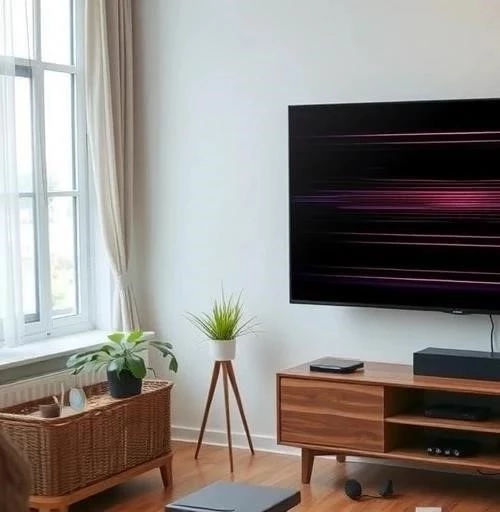
A flickering picture on a Xiaomi television can look like a failing screen, but the symptom does not always mean the panel is damaged. The cause may be a loose cable, unstable power, an image-processing setting, an app, or a fault in the TV’s backlight or electronics. The most useful first step is to identify when the flicker happens: on every screen, only in one app, or only with a particular external device.
Start by identifying the type of flicker
Notice whether the whole screen goes black, brightness pulses, horizontal lines appear, or the image briefly tears. Check whether the sound continues during a blackout. Also open the TV’s home screen or settings menu. If the menu flickers too, the cause is more likely to be the television, its power supply, or its display settings. If only one channel, app, HDMI input, or video flickers, investigate that source first.
Common causes and practical checks
- Loose or faulty connections. A poorly seated HDMI cable, damaged lead, or unreliable adapter can interrupt the picture. Turn off the TV and connected device, reconnect the cable securely, and try another HDMI port. If possible, test with a known-good cable. Avoid sharply bending cables or pulling them by the wire.
- Unstable power. A loose plug, overloaded extension, or faulty power strip can cause brief blackouts or brightness changes. Make sure the power cord is firmly connected. Test the TV from a suitable wall outlet, without the extension, if it is safe to do so. Do not use a damaged cord or outlet.
- Picture processing and brightness features. Automatic brightness, energy-saving options, local dimming, motion smoothing, or HDR processing may make brightness appear to pulse, especially when the scene changes. Temporarily turn off these features in the picture settings and compare. Menu names vary by model, so change one option at a time and note the original setting.
- Software or app problems. An outdated system, a temporary software hang, or a malfunctioning streaming app may produce unstable playback. Restart the TV fully by switching it off, unplugging it for about a minute, then reconnecting it. Check for system and app updates. If the problem is limited to one app, update or reinstall that app before considering a factory reset.
- Signal or source issues. Weak broadcast reception, a streaming connection that cannot keep up, or a malfunctioning console or set-top box can cause interruptions that resemble screen failure. Try another channel, another app, or a different source. For streaming, test the connection and lower the video quality temporarily. If only one external device is affected, check its settings and cables.
- Display or internal hardware fault. Flickering across menus and all inputs, persistent lines, uneven patches, or a screen that repeatedly goes dark can indicate a failing backlight, panel, power board, or internal connection. These parts are not safe or practical for most owners to repair themselves.
A sensible troubleshooting order
- Restart the TV and check whether its home screen flickers.
- Test a different app, channel, input, and HDMI cable.
- Temporarily disable automatic picture and energy-saving features.
- Install available updates, then retest before changing more settings.
- If the issue remains, record a short video of it and note the model, input, and conditions. Contact Xiaomi support or an authorized repair service.
When to stop and seek service
Unplug the television and seek professional help if you smell burning, hear unusual electrical noises, see sparks, or notice excessive heat. Do not remove the rear cover: internal components can retain dangerous voltage even after the TV is unplugged. If the television is under warranty, avoid opening it or using an unauthorized repairer, since that could affect coverage. A factory reset should be a last software step, because it erases settings and account information; it will not fix a defective backlight or power board.
When a Xiaomi TV flickers, isolate the source before assuming the screen has failed. A restart, cable swap, different input, or picture-setting test can quickly reveal a simple cause. If the flicker persists across the menus and every source, or comes with lines and repeated blackouts, arrange a professional diagnosis rather than attempting an internal repair.