
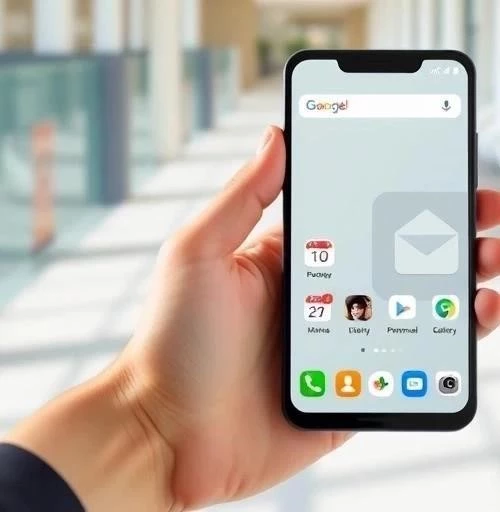
“Work mode” on a Xiaomi phone is a feature that separates work-related apps and information from your personal phone use․ On supported devices, it is usually an Android work profile managed through Xiaomi’s version of Android, such as MIUI or HyperOS․ It can provide a distinct set of work apps, accounts, notifications and security rules without requiring a second physical phone․ The exact name, location and available controls vary by device, software version, region and whether an employer manages the phone․
The distinction matters: Work mode is not simply a productivity timer or a setting that makes the screen look different․ It is a way to create a boundary between two kinds of digital activity․ That boundary can be valuable, but it also has privacy and management implications․ Before switching it on, users should understand what it separates, who controls it and what it does not guarantee․
How the feature works
A work profile creates a separate environment for approved work apps and data․ For example, a company may provide a work version of email, a calendar, a browser or a document app․ Work copies are marked with a small briefcase badge, which helps distinguish them from personal copies․ The profile can also have its own accounts and app settings․ Depending on the organization’s configuration, a work app may not be able to share files or information freely with personal apps․
Work mode can generally be turned off when you are not working․ When paused, work apps stop running and work notifications are silenced; personal apps normally continue to operate․ This is more meaningful than merely muting alerts, because pausing the profile can prevent its apps from accessing work data in the background․ However, the precise behavior depends on the phone’s software and the policies set by an administrator․
Why Xiaomi users may want it
- Clearer separation: Work email, files and communication apps do not have to share the same app space as personal accounts․
- Fewer after-hours interruptions: Pausing the profile can silence work notifications without muting personal calls or messages․
- Stronger organizational controls: An employer can require a screen lock, set rules for work apps or remove managed work data when access ends․
- One-device convenience: Users may be able to handle both personal and business tasks on one phone, rather than carrying two․
These advantages make Work mode useful for people whose employer supports Android work profiles․ Still, it should not be treated as a complete solution to work-life balance․ A person can keep opening the work profile after hours, and some organizations may require urgent notifications to remain available․ The feature helps enforce a boundary; it cannot decide when a user should stop working․
Work mode is not the same as other Xiaomi features
Xiaomi offers other features that may sound similar, but they solve different problems․ Second space creates a separate phone space that can be useful for personal separation or sharing a device․ Dual apps creates another instance of certain apps, often to use two accounts․ Focus mode, where available, limits access to distracting apps․ These features do not necessarily provide an employer-managed Android work profile or its administrative controls․
Therefore, seeing two copies of an app does not prove that Work mode is enabled․ Look for the briefcase badge on work apps, a Work tab in the app drawer, or a Work mode switch in the quick settings panel․ The labels and icons are not identical across every Xiaomi model, so the phone’s settings and software version are more reliable than instructions written for another device․
How to find and enable it
- Open Settings and search for “work profile,” “work mode” or “managed profile․” Xiaomi changes menu names between software releases, so searching is often the quickest method․
- Check the quick settings panel by swiping down from the top of the screen․ On supported phones, a Work mode tile may let you pause or resume the profile․
- If your employer supplied setup instructions, follow them․ The organization may require a management app, work account or enrollment process before the profile can be created․
- After setup, check for work apps marked with a briefcase and confirm that work notifications and accounts behave as expected․
If no work-profile option appears, that does not necessarily mean the phone is broken․ The feature may be unavailable on that software build, hidden until an organization starts enrollment, or disabled by the employer․ Update the phone if appropriate and ask the organization’s IT team which devices and setup methods it supports․ Avoid installing unknown management apps or changing security settings just to force the feature to appear․
Privacy and control: what users should know
A work profile can improve privacy by keeping managed work data apart from personal apps, but it does not make a company-managed phone completely private․ An administrator may be able to manage work apps, enforce security rules and remove work data․ Depending on the enrollment type and device, the organization may also have broader management capabilities․ What an administrator can see is determined by the Android management arrangement and the organization’s policy, not merely by the Xiaomi label “Work mode․”
On a personally owned phone enrolled with a work profile, the profile is designed to isolate work data from personal data․ That is a useful safeguard, but users should still read the setup notice and employer policy rather than assume that every detail is invisible to IT․ Ask specifically whether the organization can view installed personal apps, device information, location, browsing activity or only activity and data inside managed apps․ The answer depends on the management configuration and the app being used․
It is equally important to understand that separating profiles does not make every transfer impossible․ Depending on policy, copying text, opening links or sharing files between work and personal apps may be permitted, restricted or blocked․ A work document saved into a personal app may fall outside the controls intended to protect it․ Users should follow their organization’s data-handling rules even when the phone allows an action․
Common problems and practical fixes
If work notifications stop arriving, first confirm that Work mode is not paused․ Then check notification permissions, battery restrictions, internet access and the organization’s app policies․ Xiaomi’s battery-management features can sometimes limit background activity, although a managed work app may be governed by administrator settings․ Do not disable security controls without checking with IT․
If the Work mode tile is missing, open the quick settings editor and see whether the tile can be added․ If it is absent there too, the phone or profile may not support that control․ If work apps disappear, check whether the profile has been paused; pausing normally hides or disables its apps until it is resumed․ For enrollment errors, contact the administrator rather than repeatedly removing and adding the profile, since doing so may erase locally stored work data․
Bottom line
Work mode on Xiaomi is best understood as a managed boundary for professional apps and data, not as a universal privacy shield or a simple “do not disturb” button․ When supported and configured appropriately, it can make one phone more practical by separating work from personal use and allowing work activity to be paused․ Its real value depends on the management setup, the organization’s rules and the user’s habits․ Check your specific device and employer policy, use the profile for work data, and pause it when you want a clearer break․
8 Comments. Оставить новый
The explanation makes a useful distinction between a work profile and a simple productivity setting. That helps readers understand why the feature can affect app access and data separation, not just notifications.
It is sensible to point out that work apps may have limits on sharing with personal apps. That detail helps readers think about everyday tasks, such as moving a document between accounts, before enabling the feature.
This overview presents the privacy implications in a balanced way. A separate profile can create a useful boundary, but readers should not mistake that boundary for a guarantee about what an employer can or cannot manage.
The article is easy to follow because it first explains how the profile works and then gives reasons someone might want it. That structure makes a technical Android feature understandable to ordinary users.
The article gives a measured introduction without suggesting that work mode will solve every work-life boundary problem. Its emphasis on checking device support and management policies is especially useful.
The briefcase badge is a clear practical detail for people who might otherwise confuse personal and work versions of an app. Small visual cues can make a separate profile easier to use correctly.
I appreciate the reminder that Xiaomi menu names and controls can vary by device and software version. It keeps the guidance realistic instead of implying that every phone will have identical settings.
The section on pausing work mode is helpful because it explains more than the effect on alerts. The qualification about administrator policies is important, since the behavior may not be the same on every managed phone.