
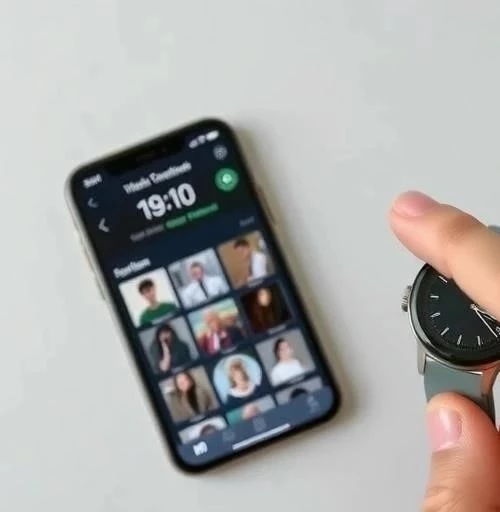
An Apple Watch face is a tiny stage: time‚ color‚ complications and personal style all competing for a few square centimeters. When it refuses to change‚ it can feel as if the watch has forgotten who is in charge. Usually‚ though‚ the cause is ordinary—a gesture‚ setting or sync delay—not a broken display. Try these checks in order‚ from quickest to more involved.
First‚ make sure you’re changing the face the way you expect
To switch faces on many recent versions of watchOS‚ touch and hold the current face until it shrinks‚ then swipe left or right through your saved faces and tap the one you want. If the gallery does not appear‚ keep your finger down for a moment longer. A brief tap may simply wake the screen.
You can also change the face from the paired iPhone. Open the Watch app‚ tap Face Gallery‚ choose a design and its details‚ then add it to your collection. To make it current‚ select it under My Watch or use the watch’s face gallery. Adding a face does not always mean it has immediately become the active one.
Check whether a Focus is switching it back
This is a common hidden culprit. A Focus—such as Sleep‚ Work or Personal—can be linked to a particular watch face. When that Focus turns on‚ the linked face may appear; when it turns off‚ another face may return. On iPhone‚ open Settings > Focus‚ select each Focus and look for its customization options. Check whether a watch face is assigned‚ and remove or change the link if it is not what you want.
Also check schedules and automations. A Focus can activate automatically at a time‚ location or when you open an app. The watch may seem to be ignoring your choice when it is actually following a rule you set earlier. If the face changes at predictable times‚ look for a schedule before troubleshooting the hardware.
Distinguish a face problem from a screen problem
If the display is dim‚ black or showing only the time‚ the face may have changed but the screen may be asleep or in a restricted display mode. Raise your wrist‚ tap the screen‚ and check whether Theater Mode or a sleep-related setting is active. On supported models‚ Always On settings can also affect what appears while your wrist is down. These settings alter visibility; they do not necessarily replace the selected face.
Likewise‚ a complication changing its information is not the same as the face changing. Weather‚ activity or calendar data may refresh slowly‚ or show a dash when an app cannot provide current information. If the layout and background are still the same‚ investigate that complication or its app rather than rebuilding the face.
Look for a swipe or accidental touch
Depending on your watchOS version and settings‚ swiping from the edge of the screen may move between faces‚ while a long press opens the face editor. A sleeve‚ water or an unintentional touch can trigger something you did not mean to do. If the face changes unexpectedly‚ check whether accidental-touch protection or Water Lock is relevant‚ and notice whether the change happens during a particular activity.
If you cannot edit or remove a face‚ press and hold it until the editing controls appear. Some options are available only after entering that view. Make sure you are pressing the face itself‚ not a complication‚ which may open its app instead.
Refresh the connection and software
When a face added on iPhone never appears on the watch‚ keep both devices nearby‚ make sure Bluetooth and Wi-Fi are available‚ and allow a little time for them to sync. Open the Watch app again and confirm that the watch is paired and connected. Then restart both devices: turn the Apple Watch off and on‚ and restart the iPhone. A restart is a simple way to clear a temporary software hiccup without erasing your settings.
Next‚ check for watchOS and iOS updates in the Settings apps. Install updates only when convenient‚ with the watch charged and the iPhone nearby. If the problem began just after an update‚ restarting and checking the face gallery again may be enough; do not assume that a reset is the first or only fix.
If nothing works
Try a fresh test: add a simple built-in face‚ select it directly on the watch‚ and see whether it stays active. If it does‚ the issue may involve a particular face‚ complication or customization. Re-create that face or remove and add it again from the iPhone’s Watch app. If even a basic face will not change‚ inspect Screen Time or device-management restrictions‚ especially on a family-managed or work-managed watch.
As a last resort‚ unpairing and pairing again can rebuild the connection‚ but it takes time and should follow a backup. Before doing that‚ note which faces and complications you want to restore. If the watch remains stuck‚ its screen does not respond to touch‚ or settings are unavailable‚ contact Apple Support or visit an authorized service provider.
The quick diagnosis
- It changes at certain times: check Focus links and schedules.
- The iPhone-added face is missing: check pairing‚ connection and sync.
- Only the information looks wrong: check the complication or its app.
- Nothing responds: restart‚ update‚ then seek support if needed.
In short‚ the watch face is rarely being stubborn for no reason. It may be obeying a Focus‚ waiting for a sync‚ or simply showing a sleeping screen. Find the pattern‚ change the setting that controls it‚ and your little wrist-sized stage should return to its chosen scene.


8 Comments. Оставить новый
The quick gesture reminder saved me from tapping the screen like I was trying to wake a sleepy cat. Simple, useful, and nicely paced.
I like the advice to notice when the face changes. A watch that switches at the same hour every day is practically leaving a breadcrumb trail.
The distinction between adding a face and making it active is a small detail with big “oh, that’s why” energy.
This reads like a patient detective walking through the case one clue at a time. I’m checking my Focus settings before blaming the watch.
A practical guide with a surprisingly human idea at its center: sometimes the device isn’t malfunctioning—it’s following yesterday’s instructions.
The Focus connection is the plot twist this guide needed. My watch wasn’t being stubborn; it was obeying a tiny schedule I had forgotten existed.
Clear, calm, and refreshingly free of “your device is doomed” panic. The watch gets treated like a gadget with habits, not a mysterious black box.
The best troubleshooting starts with the least dramatic explanation. This article does that well and gives readers a sensible path instead of a pile of random fixes.