
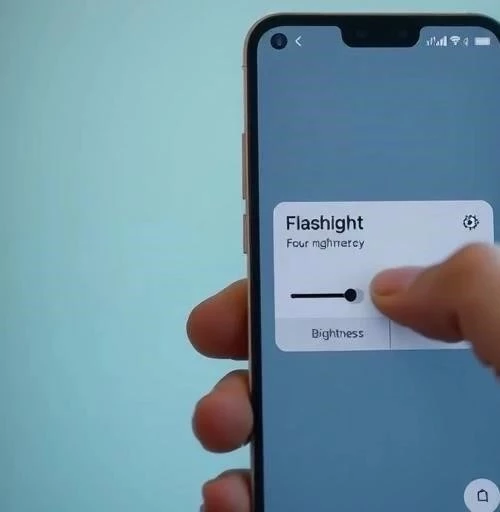
On some Xiaomi, Redmi, and POCO phones, the flashlight intensity can be adjusted from the Control Center. The exact controls depend on the phone model and the version of MIUI or HyperOS. If your phone does not show a brightness slider, it may not support adjustable LED intensity through its built-in controls.
Try the Control Center
- Unlock the phone and open the Control Center. On many recent Xiaomi phones, swipe down from the upper-right edge of the screen. On some versions, swipe down from the top of the screen and switch to the Control Center if needed.
- Tap the flashlight icon to turn the light on.
- Press and hold the flashlight icon; If an intensity slider appears, drag it down to reduce the brightness.
- Tap outside the control or close the panel. Check the light in a safe direction, away from your eyes.
On some software versions, pressing and holding the tile opens its controls without first turning the flashlight on. If that happens, move the slider to the desired level and follow any on-screen prompt. The icon’s position and the gesture can differ between devices, so try both tapping and long-pressing the tile.
If there is no brightness slider
Check for system updates under Settings > About phone > MIUI version or the corresponding HyperOS update section. The labels and menu locations vary. Install an available official update, restart the phone, and check the Control Center again. An update may change the interface, but it cannot guarantee that a model without intensity control will gain the feature.
You can also search Settings for “flashlight” or “torch” to see whether your software provides a related option. Xiaomi does not use one universal menu path for flashlight brightness, and many phones offer only an on/off switch. If the long-press gesture and Settings search reveal no adjustment, the built-in controls on that device may not allow the camera LED to be dimmed.
Other options and limitations
Some third-party flashlight apps offer brightness controls, but their ability to change LED intensity depends on the phone’s hardware and software. An app cannot reliably add support if the device does not expose that function. Review permissions and the developer before installing anything, and avoid apps that request access unrelated to a flashlight. Do not grant broad permissions just to test a brightness slider.
If you need a softer light and the LED cannot be adjusted, use the phone’s screen instead: lower display brightness and open a plain white screen, or use a reputable screen-light feature. This produces diffuse light, but it is not the same as dimming the flashlight and may be less useful outdoors. Do not place paper, tape, fabric, or other material over the LED. Covering the light can trap heat, damage the phone, or create a safety risk.
Quick checks
- Make sure you are long-pressing the flashlight tile in the Control Center, not just the lock-screen shortcut.
- Try opening the Control Center from the other supported swipe area if the phone has separate notification and control panels.
- Restart the device if the controls appear unresponsive, then test the tile again.
- Use the lowest slider setting that is comfortable, and avoid shining the LED directly into anyone’s eyes.
In short: turn on the flashlight and long-press its Control Center tile to look for an intensity slider. If no slider is available after checking the relevant system controls and updates, the model or software may support only fixed-brightness operation. There is no single Xiaomi setting that works on every device.


2 Comments. Оставить новый
The explanation is practical and avoids promising that an update will add a feature to every device. The safety reminder to point the light away from the eyes is also useful.
The article gives clear steps for checking whether a Xiaomi phone supports adjustable flashlight intensity. It appropriately notes that controls and menu locations can vary by model and software version.