
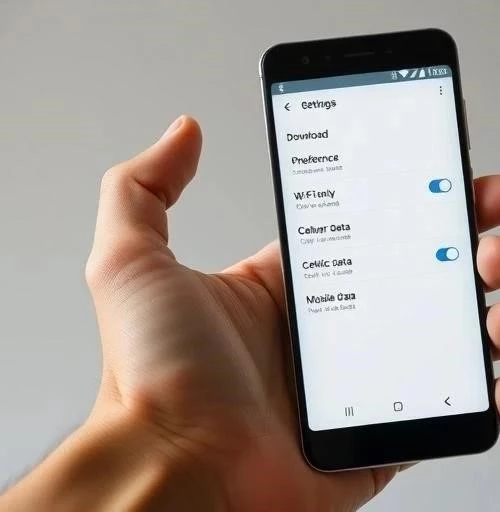
If a Xiaomi phone waits for Wi‑Fi before downloading an app, update, or file, the restriction is usually set in the app that is doing the download. MIUI and HyperOS do not always provide one switch that controls every download. Check the relevant app’s settings first, then confirm that it is allowed to use mobile data.
Change the setting in GetApps
For apps downloaded through Xiaomi’s GetApps store, open GetApps and tap the profile or account icon. Open Settings, then look for a download preference such as Download using Wi‑Fi or Download over Wi‑Fi only. Turn the option off, or choose Any network if that choice is shown. Menu names and locations can vary by GetApps version and region.
Check Google Play Store
If the download comes from Google Play, open the Play Store and tap your profile picture. Go to Settings → Network preferences → App download preference, select Over any network, and confirm. If you also want updates to use mobile data, check Auto-update apps in the same section and select the option that suits you. These preferences are separate, so changing one may not change the other.
Allow mobile data for the app
A Wi‑Fi-only preference may be off while Xiaomi’s data controls still block the app. Open Settings → Apps → Manage apps, select the relevant store or download app, and open Restrict data usage or Data usage. Allow Mobile data. On some versions, the same controls appear under Security → Data usage or Settings → SIM cards & mobile networks. Check that mobile data is enabled for the active SIM, too.
Other downloads and updates
- Browser: Open the browser’s settings and check its download options for a Wi‑Fi-only restriction.
- Messaging apps: In apps such as Telegram, review Data and Storage or Automatic media download. Choose which file types may download on mobile data.
- System updates: Open Settings → About phone and check the updater’s menu. If it offers a download-over-Wi‑Fi option, change it there; availability depends on the model and software version.
If the download still waits
Turn Wi‑Fi off briefly and test mobile data in another app. If mobile data works, return to the downloading app, pause and resume the download, or close and reopen it. Restarting the phone can help apply a changed preference. Also check for a data limit, Data Saver, Battery Saver, or a metered connection setting that may restrict background activity. Menu wording differs across Xiaomi models, regions, and MIUI or HyperOS releases; use Settings search for terms such as “download,” “data usage,” or “Wi‑Fi only.”


1 Comment. Оставить новый
The article clearly explains that download restrictions can be controlled separately by each app and by Xiaomi’s data settings. The reminder that menu names vary by version and region is helpful.