
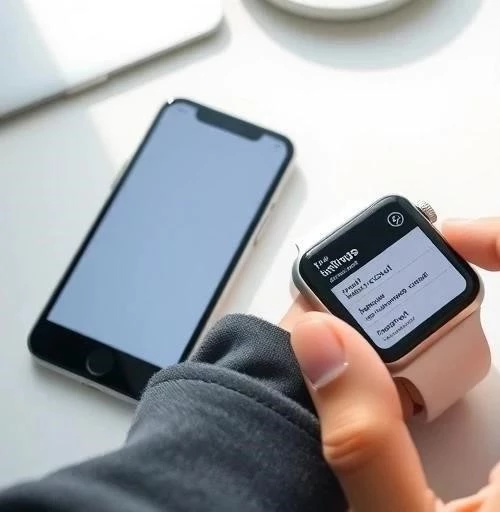
An Apple Watch does not have a separate Apple ID setting that can simply be changed on the watch․ It uses the account connected to its paired iPhone․ If you want to use another account, sell or give away the watch, or resolve an Activation Lock message, the right steps depend on whether you can access the paired iPhone and the Apple ID password․
Before you begin
Keep the watch and iPhone close together, turn on Bluetooth and Wi-Fi, and make sure both devices have enough battery power․ Unpairing through the Watch app creates a backup of the watch on the iPhone and normally erases the watch․ This is the recommended method when the iPhone is available․
Activation Lock is an anti-theft feature linked to the Apple Account (formerly called Apple ID) used to set up the watch․ Erasing the watch alone does not remove this lock․ You need the account credentials or help from the person or organization that owns the account․
Unpair the watch using the paired iPhone
- Open the Watch app on the iPhone and tap My Watch․
- Tap All Watches, then tap the information button next to the watch you want to remove․
- Choose Unpair Apple Watch․ If it is a cellular model, select whether to keep or remove the cellular plan․ If you are giving the watch away, contact your carrier about transferring or cancelling the plan․
- When prompted, enter the password for the Apple Account associated with the watch․ This disables Activation Lock․
- Wait for the unpairing and erase process to finish․ You can then set up the watch again and sign in with the desired account․
If the watch is paired with a family member’s iPhone, use that iPhone and the account used for its setup․ The person who manages the watch may need to complete the process;
If you no longer have the paired iPhone
You can erase the watch from its settings, but this does not by itself remove Activation Lock․ On the watch, open Settings > General > Reset > Erase All Content and Settings, then confirm․ If asked, enter the watch passcode․ After the erase, setup may still request the Apple Account and password previously used with the watch․
If you own the account, use Apple’s Find My service on another device or at iCloud․com/find․ Sign in, select the Apple Watch in your device list, and follow the available instructions to erase it and remove it from the account․ The exact options can differ depending on the device’s connection status․ If it is offline, a remote erase may remain pending until the watch connects․ Make sure you also remove the watch from the account after erasing it․
If you forgot the Apple Account password
Reset the password through Apple’s official account recovery process at iforgot;apple․com, or use a trusted Apple device․ After changing the password, try the unpairing or account-removal steps again․ Do not share your password or verification codes with anyone offering to unlock the watch․
If the watch belongs to someone else
Ask the previous owner to unpair it using their iPhone or remove it from their Apple Account through Find My․ They may be able to do this remotely; you do not need their password if they complete the removal themselves․ Once the lock is cleared, restart setup and sign in with your own account․
If you bought the watch second-hand and cannot contact the owner, contact Apple Support and ask what documentation is required․ Keep your proof of purchase available․ Apple may be unable to remove Activation Lock without sufficient evidence of ownership․ A factory reset, passcode reset, or unofficial unlocking service cannot legitimately bypass the protection․
Check that removal is complete
Start the setup process․ If the watch reaches the pairing screen without asking for another person’s Apple Account, it is ready to configure․ If it displays Activation Lock, the watch is still linked to an account․ Return to the owner and have them remove it before completing the purchase or setup․
6 Comments. Оставить новый
The distinction between the paired iPhone’s account and the watch itself is presented in a straightforward way.
The article clearly distinguishes between unpairing an Apple Watch and erasing it, which is useful when changing accounts or preparing the device for someone else.
The step-by-step instructions are easy to follow, and the reminder to keep the devices nearby and charged is practical.
The article provides a helpful overview of the recommended process when the paired iPhone is available and notes the account credentials that may be required.
The explanation of Activation Lock helps clarify why erasing the watch alone may not be enough to set it up again.
Including guidance about cellular plans adds a useful detail for readers who may be transferring or giving away a cellular model.