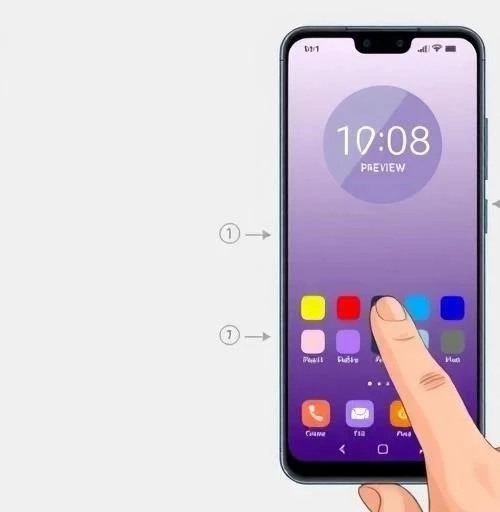
You can usually change the clock’s appearance through Xiaomi’s Themes app or the lock-screen settings. The exact options depend on your phone model and whether it runs MIUI or HyperOS: some versions let you choose a clock color directly, while others only offer preset styles. These steps cover the most common options.
Change the lock-screen clock
- Open Settings and tap Lock screen. On some phones, the relevant option is called Wallpaper & personalization or Always-on display & Lock screen.
- Look for Lock screen clock format, Clock style, or a similar setting. Tap it to preview the available designs.
- If a style offers color choices, select the shade you want and tap Apply. Some layouts automatically adjust the clock color to contrast with your wallpaper, so a separate color picker may not appear.
If you cannot find a clock-style setting, try the Themes app. Open Themes, browse or search for a lock-screen theme, and check its preview before downloading. Apply the theme, or choose Customize theme if available. Depending on the software version, you may be able to apply only its lock screen rather than changing icons and other system elements too.
Change a home-screen clock widget
If you mean the clock on your home screen, touch and hold an empty area, then tap Widgets; Select a clock widget and add it to the screen. To change its color, tap the widget and look for settings, or open the Clock app and check its menu. Xiaomi’s built-in widgets may have limited color controls. A third-party clock widget can offer more choices, but review its permissions and ads before installing it.
Always-on display
For the clock shown while the screen is off, go to Settings > Always-on display & Lock screen > Always-on display. Choose a preset design or color if your device provides those controls, then preview and apply it. The feature may be unavailable on some models, and its settings can differ by region and software release.
If the color does not change
- Check that you changed the correct clock: lock screen, home-screen widget, or always-on display.
- Try another wallpaper or clock layout. Automatic contrast and theme colors can override a manual choice.
- Apply the change, lock and unlock the phone, and restart it if the old design remains.
- Install system and Themes app updates. Menu names and available options can change after an update.
In short, start with the clock’s own settings, then try a compatible theme. If there is no color picker on your Xiaomi, that is usually a limitation of the current model or software—not a fault with the phone. Avoid unofficial system modifications just to recolor the clock; they can cause display problems or affect updates.