
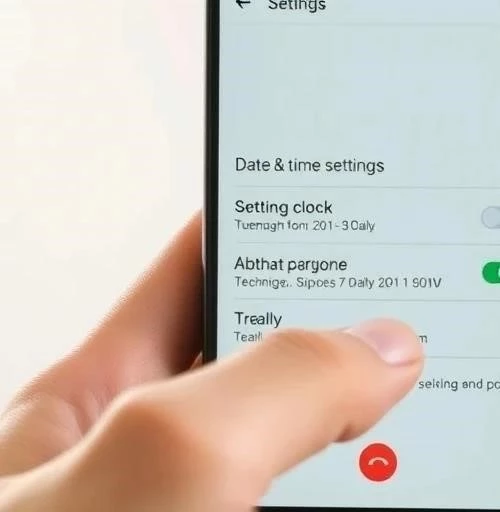
“Change the clock” can mean setting the correct time, choosing a 12- or 24-hour format, or changing how the clock looks on the screen. These are separate settings, so start with the result you want. The menu names vary slightly between MIUI and HyperOS versions, but the steps below work on most Xiaomi, Redmi, and POCO phones.
Set the correct time and date
- Open Settings and tap Additional settings or System. On some versions, date and time appears directly in Settings.
- Choose Date & time.
- To let the phone set the time automatically, turn on Set time automatically or Use network-provided time. Enable automatic time zone as well, if shown.
- To enter the details yourself, switch automatic time off, then tap Set date, Set time, or Time zone and make your selections.
Automatic time is usually the best choice: it keeps the clock aligned with your mobile network and adjusts for travel or daylight-saving changes where applicable. Manual settings are useful if the network supplies the wrong time, but remember to update them when you change time zones. If the automatic option is unavailable, connect to a network and restart the phone before trying again.
Switch between 12-hour and 24-hour time
Go to Settings > Additional settings/System > Date & time, then turn Use 24-hour format on or off. With the option enabled, the clock shows, for example, 18:30; with it disabled, it shows 6:30 with AM or PM. If you cannot find the setting, search Settings for “24-hour” or “time format.” The change generally applies to the status bar, lock screen, and many apps, although some apps have their own display preferences.
Change the clock on the lock screen
If the time is correct but its appearance is not, look for a display or personalization setting rather than changing the system time. Open Settings > Always-on display & Lock screen, then tap Lock screen clock format or a similarly named option. Select a layout and preview it before leaving the menu. Depending on the software version and theme, you may be able to choose a digital or other supported design. Some layouts appear only when the screen is awake, and always-on display styles may be controlled separately.
You can also open the Themes app and apply a compatible theme. However, a theme can change more than the clock, including icons, colors, and the lock-screen background. If you only want a different clock, selecting a clock format in Settings is the more precise option. If no format control appears, update the system software or try the default theme; available designs vary by model and region.
Add or change a home-screen clock
Touch and hold an empty area of the home screen, tap Widgets, and choose a clock widget. Drag it into place; resize it if the widget offers handles. To remove one, press and hold it and drag it to Remove. This changes the home screen only—it does not alter the time shown in the status bar or lock screen.
If the time still looks wrong
- Check the selected time zone, especially after travel, and confirm automatic time is enabled if appropriate.
- Restart the phone and install available system updates.
- If only one app is incorrect, check that app’s settings; it may use a separate clock or time-zone preference.
In short, use Date & time for accuracy and format, and lock-screen, theme, or widget settings for appearance. Keeping those controls separate prevents a cosmetic change from accidentally leaving your phone with the wrong time.



7 Comments. Оставить новый
The article clearly separates correcting the time from changing its format or appearance. That distinction should help readers avoid changing the wrong setting when they only want a different lock-screen clock.
The examples comparing 18:30 with 6:30 AM make the 24-hour setting easy to understand. It is also helpful to point out that individual apps may use separate display preferences.
Including both MIUI and HyperOS in the introduction makes the advice more relevant across Xiaomi devices. The note that menu labels can vary also sets a reasonable expectation for readers.
The automatic time guidance is practical and well explained. Mentioning that automatic time zones can help when traveling adds useful context without making the instructions complicated.
The instructions are organized around common goals, which makes them easy to scan. A final note about checking the exact menu path for a particular device model could make the guidance even more dependable.
The article appropriately distinguishes system time from lock-screen styling. That clarification matters because changing the clock’s appearance will not fix an incorrect time.
The troubleshooting suggestion to connect to a network and restart the phone is a useful next step if automatic time is missing. It gives readers something concrete to try before changing settings manually.