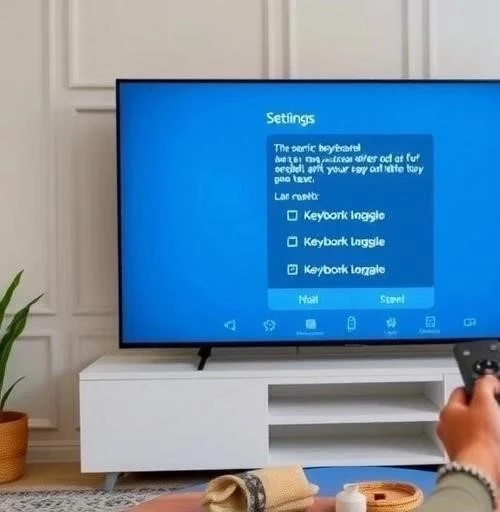
Changing the keyboard language on a Xiaomi TV is useful when you need to search for a film, enter a Wi-Fi password, or type in an app. The setting can be easy to miss because the language used by the keyboard is not always the same as the language of the TV’s menus. For example, you can keep the interface in English and add Russian as a second keyboard language. The exact menu names vary slightly between Xiaomi TV models and Android TV or Google TV versions, but the steps below cover the usual options.
Change the language of the on-screen keyboard
- Press the Home button on the Xiaomi remote.
- Open Settings. Depending on the model, this may appear as a gear icon in the upper-right corner or within the main apps screen.
- Look for Device Preferences, System, or a similar menu, then select Keyboard or Language & input.
- Choose the active keyboard, commonly Gboard or Android TV Keyboard.
- Open Languages (sometimes called Keyboard languages), choose Add keyboard, and select the language and layout you want.
- If prompted, confirm the layout. Return to an app with a text field to test it.
On some Google TV versions, the route is Settings > System > Keyboard > Gboard > Languages. On other Xiaomi TVs, keyboard options are under Device Preferences > Keyboard. If you do not see those exact labels, browse the System and input settings rather than changing the TV’s general language immediately. The firmware and pre-installed keyboard determine which menu is available.
Switch between languages while typing
Adding a language does not always make it active automatically. Open a search box or another text field so the on-screen keyboard appears. Look for a globe icon or a language indicator on the keyboard and select it to cycle through the enabled layouts. Some versions of Gboard let you switch by holding the space bar and choosing a language from the list. Use the remote’s arrow keys and the centre/select button to navigate; a mouse is not required.
If there is no globe or language indicator, open the keyboard’s settings using its gear icon, if present, and check that more than one layout is enabled. The switch control can differ by keyboard version, so do not assume that every Xiaomi TV uses the same shortcut. The important distinction is that the language must first be added to the keyboard settings; only then can you switch to it in a text field.
Keyboard language and TV menu language are different
The TV’s system language controls menus, notifications, and some default app text. The keyboard language controls the characters and layout used when you type. If you only want to enter text in another language, add a keyboard layout and leave the system language unchanged. Changing the system language is a separate option, usually found under Settings > Device Preferences or System > Language; Changing it may alter the whole interface, so it is not necessary just to type in a different alphabet.
Using a physical keyboard
You can also connect a USB or Bluetooth keyboard if typing with the remote is inconvenient. Plug a USB keyboard into the TV, or pair a Bluetooth model through Settings > Remotes & Accessories (the wording may vary). Then check the TV’s keyboard or input settings for available layouts. Some external keyboards follow their own hardware layout, while others use the layout selected by the TV.
Common computer shortcuts such as Alt+Shift or Ctrl+Space may switch languages on some setups, but they are not guaranteed to work on every Xiaomi TV or keyboard. If a shortcut does nothing, use the on-screen language selector or inspect the keyboard settings. Also check the printed key labels: a software layout can change what a key types without changing the symbols physically printed on the keyboard.
If the language option is missing or does not work
- Check the active keyboard. Open the keyboard list and select the keyboard that appears when you type. Its settings may be separate from those of another installed keyboard.
- Restart the TV. After adding a layout, restart the television and test the keyboard again. This can resolve a setting that has not taken effect.
- Check for software updates. The keyboard menus and available languages can depend on the TV’s firmware. Look for updates in the system settings.
- Test another text field. An individual app may provide its own search or input screen. If the language works elsewhere, the issue may be specific to that app.
- Review the layout selection. A language can have several layouts. Choose the intended one rather than assuming the first option is correct.
If a keyboard app offers no language controls, use the options provided by the TV’s installed keyboard and firmware. Avoid installing unofficial software simply to add a layout; unsupported apps may not work properly with a TV remote. Menu wording can change across models, so consult the on-screen help or the manual for your specific Xiaomi TV if the paths above do not match.
Quick summary
To change the typing language, open the keyboard or language-and-input settings, add the required layout, and switch to it from the on-screen keyboard while typing. Change the system language only if you also want the TV menus to use another language. These steps keep the two settings clear and usually solve the problem without resetting the television or changing its other preferences.