
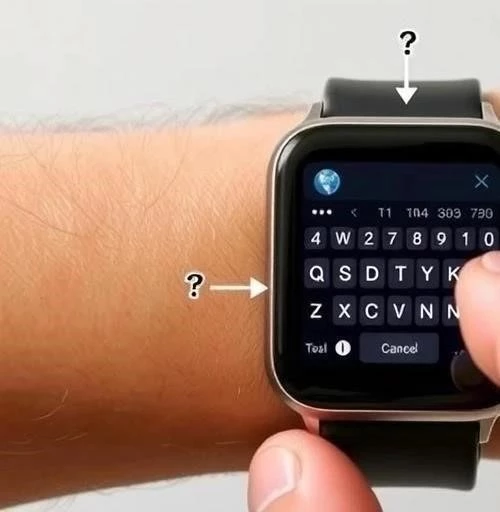
You can switch the language used for typing on Apple Watch without changing the language of the entire watch․ In most cases, first add the keyboard language on the iPhone paired with your watch, then select it from the keyboard when you enter text․
Add a keyboard language on your iPhone
- On the paired iPhone, open Settings․
- Tap General, then Keyboard․
- Choose Keyboards and tap Add New Keyboard․
- Select the language you want to use; If there are several layouts, choose the one you prefer․
This adds the keyboard to your iPhone’s available keyboards․ It does not, by itself, change the iPhone’s display language or the language used throughout Apple Watch․
Switch languages while typing on Apple Watch
- On your watch, open an app that lets you enter text, such as Messages, and start a reply․
- When the on-screen keyboard appears, look for the globe key․
- Tap the globe to move to another installed keyboard․ If a language menu appears, tap the language you want․
- Type your message․ The selected layout and, where supported, its typing suggestions will be used․
The globe key may cycle through your available keyboards rather than open a list․ Tap it again to continue switching․ To return to the previous language, keep cycling until that keyboard appears․
If the language or keyboard is missing
- Add it on the iPhone first․ Open Settings > General > Keyboard > Keyboards and confirm that the language is listed․
- Check the watch model and software․ The built-in text keyboard is not available on every Apple Watch model or in every language and region․ If you do not see an on-screen keyboard, use an available input method such as Dictation or Scribble․
- Close and reopen the message screen․ If the new keyboard does not appear, restart both devices and check again that the iPhone is paired with the watch․
- Look for the globe key․ It may only be shown when more than one keyboard is available․ With one keyboard installed, there may be nothing to switch to․
Keyboard language is not watch language
Changing the keyboard affects text entry; it does not translate messages or change menus, dates, or system labels․ To change the watch’s display language, adjust the language settings for Apple Watch in the Watch app on your iPhone, if that option is available, or change the iPhone’s language settings․ Those changes are separate from adding a keyboard․
Using Dictation or Scribble
If you dictate instead of typing, the spoken language may be controlled separately from the keyboard layout․ Check the language options shown when Dictation starts, if available․ Scribble lets you draw letters on the screen and may offer fewer language options than the keyboard․ Availability varies with watch model, watchOS version, and region․
In short: add the desired keyboard on the paired iPhone, open a text field on Apple Watch, then use the globe key to select or cycle to that language․ If it is unavailable, check keyboard support for your watch and region․

9 Comments. Оставить новый
Useful and easy to follow. Mentioning Dictation and Scribble gives readers alternatives when the text keyboard is unavailable.
Helpful explanation of the globe key and how it cycles through keyboards. That detail could save users some confusion.
I like that this distinguishes keyboard language from the overall device language. The instructions are concise and useful.
A clear and practical guide. I especially appreciate the reminder that adding a keyboard does not change the watch’s display language.
The advice to add the keyboard on the paired iPhone first is useful. The article also sets realistic expectations about supported input methods.
Good troubleshooting tips, especially checking whether the watch model and region support the on-screen keyboard.
This explains the process without making it sound more complicated than it is. The note about needing multiple keyboards for the globe key to appear is particularly helpful.
A straightforward guide with helpful details for when a newly added language does not appear right away.
The step-by-step instructions make switching languages easy to understand, even for someone who has never changed keyboard settings before.