
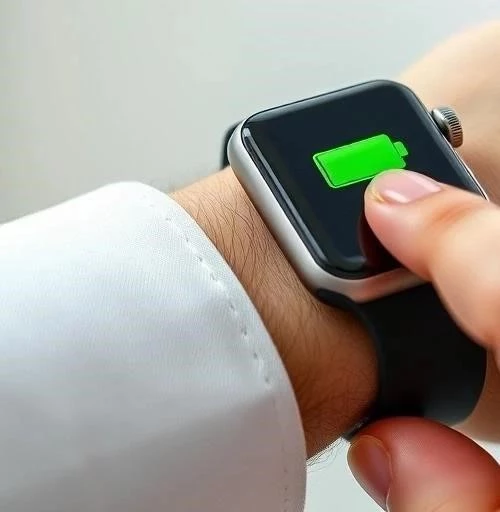
Knowing your Apple Watch’s battery level helps you decide whether it can last through the day, a workout, or a night of sleep tracking. There are several ways to check it; the quickest is on the watch itself, while an iPhone can show the level remotely when the devices are connected.
Check on the watch
- Open Control Center. On current watchOS versions, press the side button once. On older versions, swipe up from the bottom of the watch face.
- Read the percentage. The battery indicator appears in Control Center. Tap it to see the exact charge percentage and, when available, battery options such as Low Power Mode.
This is usually the most reliable method because it displays the watch’s own current reading. If Control Center does not open as expected, check your watchOS version: the gesture changed in watchOS 10.
Add a battery complication
For a glanceable reading, add a Battery complication to a compatible watch face. Touch and hold the face, tap Edit, move to the complication settings, select a position, and choose Battery. Press the Digital Crown to save. The percentage then appears on the face without opening a menu. Face options vary, so the complication may not be available in every position or design.
This is convenient if you check often, but it uses space that could show another detail. You can keep Control Center as your quick check if you prefer a less crowded face.
Check from your iPhone
Add Apple’s Batteries widget to the iPhone Home Screen or Today View: touch and hold an empty area, tap the add-widget control, search for “Batteries,” choose a size, and add it. When the iPhone and Apple Watch are paired and connected, the widget can show the watch’s charge alongside the phone’s. The watch may not appear if it is out of range, disconnected, or unavailable, so confirm on the watch when the number matters.
Ask Siri or check while charging
Raise your wrist or hold the Digital Crown and ask, “What is my Apple Watch battery percentage?” Siri can answer without navigating menus, although availability depends on settings and network conditions. When the watch is on its charger, its screen displays charging information; the charging symbol and percentage help confirm that power is being received.
What to do with the reading
If the level is low, enable Low Power Mode from Control Center’s battery panel or the Settings app. It can extend use by limiting certain background features, but some functions may update less often. For a more accurate sense of battery health, open Settings > Battery > Battery Health (the wording can differ by software version). A low daily percentage is not itself a health diagnosis: usage, signal, workouts, and age all affect how quickly the charge falls.
In short: use Control Center for an exact, fast check; add a complication for constant visibility; and use the iPhone widget when you want to see the watch’s charge from your phone.
8 Comments. Оставить новый
I appreciate the practical explanation of when the iPhone widget may not show the watch. Being out of range or disconnected is an important limitation to mention, and the advice to verify on the watch when accuracy matters is sensible.
The note that watch-face options vary is a useful qualification. It keeps the instructions realistic and helps readers understand that a missing complication may be due to the face or position they selected.
The comparison between using a battery complication and opening Control Center makes the trade-off easy to understand. Readers can choose convenience without overlooking the cost of giving up space on the watch face.
The organization works well: readers can quickly find the method that fits their situation, whether they are wearing the watch, customizing a face, or using the paired iPhone. The version-specific detail also adds value.
The article clearly separates the quickest check from the more glanceable options. Pointing out that the Control Center gesture changed in watchOS 10 is especially useful, since older instructions may otherwise confuse readers.
This is a helpful guide because it gives several ways to check the charge instead of assuming everyone wants to use the same method. The steps are specific enough to follow without making a simple task seem complicated.
I like that the article identifies checking directly on the watch as the most reliable option. The widget is convenient, but the explanation makes clear why a remote reading should not always be treated as definitive.
This article offers practical guidance while setting reasonable expectations about connectivity and compatibility. It is particularly useful for someone who wants a quick battery check but also wants to know what to try if the expected indicator is not available.