
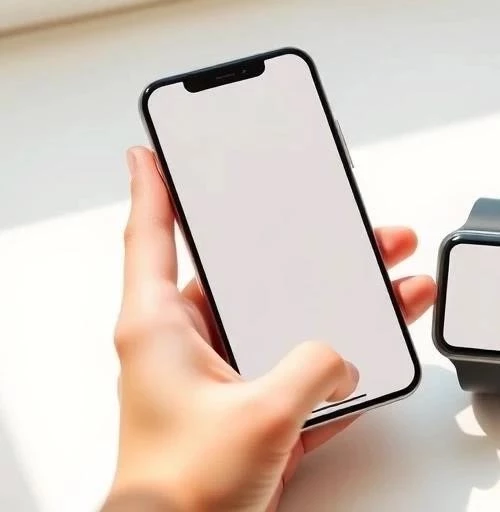
Pairing a Galaxy Watch8 with a compatible Android phone lets you receive notifications, manage calls, track workouts and sync health data. The easiest way to set it up is with Samsung’s Galaxy Wearable app. Keep the watch and phone close together, charge both devices, and allow a few minutes for setup and updates.
Before you start
- Confirm that your phone meets the compatibility and software requirements shown in the Galaxy Wearable app or on Samsung’s support pages. Requirements can vary by phone, region and software version.
- Turn on Bluetooth on the phone and connect the phone to Wi-Fi or mobile data. An internet connection may be needed to download the app, plug-ins or updates.
- Make sure the watch has enough battery. If it is new, remove it from the charger after it has powered on and keep it near the phone.
- Have your Google account details ready. A Samsung account may also be requested for Samsung services or particular features.
Pair the Watch8 with an Android phone
- Install Galaxy Wearable. On a Samsung phone, look for Galaxy Wearable in the Galaxy Store or Google Play. On another Android phone, use Google Play. Check that the publisher is Samsung Electronics, then install or update the app.
- Switch on the watch. Press and hold its Home/Power button until the Samsung logo appears. Select a language and follow the first-screen prompts if they appear.
- Start pairing. Open Galaxy Wearable on the phone and tap Start, Add new device or the plus icon. Choose Galaxy Watch8 if asked to select a model. If Android displays a nearby-device prompt, allow it and choose the watch.
- Match the codes. A pairing code should appear on both screens. Check that the numbers match, then confirm on the phone and watch. Do not approve a code if the devices show different numbers.
- Grant permissions and sign in. Follow the prompts for nearby devices, Bluetooth, notifications, contacts, calls and other features you want to use. Read each request: permissions determine what the watch can access. Sign in to the requested Google or Samsung account when prompted.
- Finish setup. Accept the terms, choose which apps and settings to sync, and install any recommended update. Keep the devices close, connected and powered while setup completes; the watch may restart. Then explore Galaxy Wearable to adjust watch faces, tiles, apps and notifications.
Set up calls, messages and notifications
In Galaxy Wearable, open the watch settings and look for Notifications or Watch settings. Select the phone apps whose alerts you want on your wrist. Android may also ask you to grant notification access in the phone’s settings. For calls, allow the relevant phone and contacts permissions and make sure Bluetooth is connected. If you cannot answer a call from the watch, check its call settings and confirm that call audio is enabled for the watch in the phone’s Bluetooth settings.
Some features depend on the phone, carrier, country, app permissions or Samsung account. Health features may ask you to complete setup in Samsung Health. A compatible LTE Watch8 can require a separate carrier plan and activation; pairing over Bluetooth does not automatically activate cellular service. Follow the carrier’s instructions if you want the watch to use mobile data without the phone nearby.
Can you connect Watch8 to an iPhone?
Galaxy Watch8 is designed to pair through Galaxy Wearable on a compatible Android phone. It does not offer the normal iPhone pairing experience available with some older Samsung watches. If you use an iPhone, check Samsung’s current compatibility information before buying or attempting setup; installing a different app or enabling Bluetooth alone will not make an unsupported pairing work.
If pairing does not work
- Watch not found: Keep the devices close, turn Bluetooth off and back on, and reopen Galaxy Wearable. Make sure the watch is awake and not already connected to another phone.
- No pairing code or a failed code: Cancel the attempt on both devices and start again from Galaxy Wearable. Confirm that the displayed codes match before approving.
- App hangs or setup stops: Restart the phone and watch, update Galaxy Wearable and Android, and try again on a reliable internet connection. Allow the app to run during setup instead of closing it.
- Watch was previously paired: A watch can remain associated with its former phone. If it belongs to you, disconnect it from the old phone or reset it using the watch’s settings, then pair it afresh. A reset erases watch data that has not been backed up; do not reset someone else’s device.
- Notifications are missing: Check notification access, app-specific alert settings, Do Not Disturb, battery restrictions and the watch’s connection status. Menu names vary between Android versions and phone brands.
After the first connection
Leave Galaxy Wearable installed: it manages the connection, updates and many watch options. Keep Bluetooth enabled for routine syncing, and open the app if the watch has been disconnected for a while. Review backup and sync settings, install updates from trusted sources, and adjust alerts so the watch shows only what you need. If these steps fail, consult Samsung Support with the phone model, watch model and software versions.

3 Comments. Оставить новый
Clear and easy to follow. The article does a good job explaining what to have ready and how to begin pairing through Galaxy Wearable.
I appreciate the practical preparation checklist. Mentioning that requirements can vary by phone and region helps set realistic expectations before setup.
The step-by-step instructions make pairing feel straightforward, and the reminders about matching the codes and checking permissions are especially useful.