
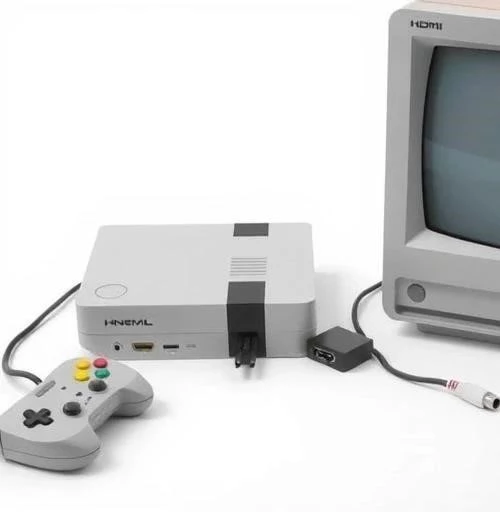
You can often connect a PlayStation to an older television, even if the TV has no HDMI socket. The right method depends on two things: which PlayStation you have and which connections the television supports. Older sets may have composite, component, SCART, or antenna inputs; newer PlayStation consoles generally output digital video through HDMI. In many cases, a small converter bridges the difference.
Before buying anything, inspect the sockets on the back or side of the TV and identify your console model. A cable that fits physically is not always enough: the TV and console must also support compatible video signals. This guide explains the common connection options, how to set them up, and what to try if you get sound but no picture—or no signal at all.
Identify your PlayStation and your TV inputs
Check the PlayStation
Look at the console’s model name and available video ports. The original PlayStation and many PlayStation 2 models can use analog AV cables. Some PlayStation 2 consoles also support component video. PlayStation 3 models commonly have HDMI and may also support analog AV output. PlayStation 4, PlayStation 5, and most later hardware rely on HDMI for video.
There can be model and regional differences, so check the labels on your actual console and consult its manual if you are uncertain. Do not assume that a cable for one generation will work with another just because the plug looks similar.
Check the television
Look for the following inputs. Their names may be printed beside the sockets or shown in the TV’s input menu.
- HDMI: A flat, wide digital port. If the TV has one, use it with an HDMI cable.
- Composite AV: Usually a yellow video socket plus red and white audio sockets. Some TVs use a 3.5 mm adapter instead of full-size RCA sockets; use the adapter specified for that TV.
- Component video: Five RCA sockets, typically green, blue, and red for video, plus red and white for audio. Component video is analog but can provide a sharper picture than composite when both devices support it.
- SCART: A wide, rectangular connector common on older European televisions. It may carry composite or, with compatible equipment, RGB video.
- Antenna / RF: A threaded or push-in aerial socket used for broadcast television. This is not the same as an AV input; it requires a suitable RF modulator or compatible console accessory.
Do not confuse a socket marked OUT with an input. You need a TV input, often marked AV IN, VIDEO IN, COMPONENT IN, or simply identified by an input label.
Choose the connection method
Option A: Connect directly with HDMI
If both the PlayStation and TV have HDMI, this is the simplest option. Connect one end of an HDMI cable to the console and the other to the TV. Select the matching HDMI input using the TV remote. If the TV has several HDMI ports, note which one you used, such as HDMI 1 or HDMI 2.
This method works for HDMI-equipped PlayStation models, including PS3, PS4, and PS5. It does not work with a television that has no HDMI input unless you add a compatible converter. A passive cable with an HDMI plug at one end and RCA plugs at the other usually cannot convert a digital HDMI signal into analog video by itself.
Option B: Use composite AV for a console with analog AV output
If your PlayStation supports analog AV and the TV has yellow, red, and white inputs, use a compatible AV cable; Connect yellow to the TV’s video input, then connect red and white to the matching audio inputs. If the TV has only one audio socket, check its manual to learn whether it expects left audio, mono audio, or a special adapter.
- Turn off the console and TV before connecting the cables.
- Connect the AV cable to the console’s AV output, if it has one.
- Match each RCA plug to the same-color input. Yellow carries picture; red and white carry sound.
- Turn on the TV and choose the relevant AV, Video, or Composite source.
- Turn on the PlayStation and wait for its startup screen.
Composite is convenient, but its picture is relatively soft, and small text may be difficult to read on a CRT or low-resolution LCD. It is suitable for many older games, but do not expect the sharpness of a modern HDMI display.
Option C: Use component video
If the TV has green, blue, and red component video sockets and the console supports component output, a component cable may give a better picture than composite. The three video plugs must go to the matching Y, Pb, and Pr inputs. Connect the separate red and white audio plugs as well. Be careful: the red video plug and red audio plug serve different purposes, even though they are the same color. Follow the labels on the TV, not color alone.
After connecting, select Component in the TV’s input menu. Some PlayStation systems require you to configure video output settings before component video appears. If the console was previously set to a resolution or signal type the television cannot display, use the console’s video reset procedure or temporarily connect it to a compatible screen and change the output settings. Check the manual for your exact model before resetting.
Option D: Use a SCART input
For a PlayStation that outputs analog AV, a compatible SCART cable or RCA-to-SCART adapter can connect to a TV with SCART. The adapter must be set to IN if it has an input/output switch. A SCART connector does not guarantee that the television will receive the best possible signal: the cable, console, adapter, and TV must all support the same signal format. If the picture is missing, rolling, or black and white, check the adapter direction and the TV’s selected source.
For a newer HDMI-only console, an ordinary SCART adapter is not enough. You need an active HDMI-to-SCART converter that accepts HDMI as its input and produces a signal your television supports. Verify the direction before ordering: a SCART-to-HDMI converter works in the opposite direction and will not solve this connection.
Option E: Convert HDMI to analog
For a PS4, PS5, or another HDMI-only console connected to a TV with composite, component, or SCART inputs, use an active HDMI-to-analog converter. “Active” means the device contains electronics that translate the digital HDMI signal into an analog format; it is not just a plug or passive wire.
Choose a converter that has HDMI input and the exact analog output your TV accepts. For example, an HDMI-to-composite converter provides yellow, red, and white RCA plugs. A converter for component video provides the appropriate component outputs. These types are not interchangeable. Some converters need power from USB, so connect their power lead as instructed. If the converter has a PAL/NTSC switch, select the standard supported by the television and game setup.
Converters may reduce resolution, introduce a little delay, or make the image less sharp. A basic HDMI-to-composite unit is inexpensive and simple, but it can struggle with some output formats. A higher-quality scaler may offer better image processing and more resolution options, but it costs more. Read the specifications and recent compatibility information for your exact console and TV before purchasing.
HDMI converters can also have copy-protection or format compatibility limitations. If the picture disappears when a game or menu changes, try a converter that explicitly supports the console’s output format, use a shorter known-good HDMI cable, and check for firmware or compatibility notes from the converter manufacturer. Do not assume that a device advertised only as “AV to HDMI” can convert HDMI to AV; conversion direction matters.
Option F: Connect through an antenna socket
If the TV has only an antenna input, you will generally need an RF modulator that accepts the console’s output and sends a compatible signal to the TV’s aerial socket. For an HDMI-only PlayStation, the chain may require an HDMI-to-analog converter followed by a suitable RF modulator. This adds equipment and can reduce picture quality, so use a direct AV input or a purpose-built converter whenever possible.
An RF connection may require tuning the television to the channel or frequency specified by the modulator. Follow its instructions and keep the console and modulator away from loose or damaged cables. Do not connect a console directly to an antenna socket unless the console or an approved accessory is designed to provide RF output.
Set the TV and console to the correct inputs
After wiring everything, use the television remote’s Input, Source, or TV/AV button. Choose the input that matches the connection: AV or Video for composite, Component for component video, SCART or AV for SCART, and the correct HDMI number for HDMI. A TV may show a blank screen until you choose the right source, even when every cable is connected correctly.
Start with the console’s basic video output rather than forcing a high resolution. Older televisions may only accept standard-definition signals, and an analog converter may support a limited range of formats. If you can access the PlayStation’s display settings, choose a format that the TV or converter supports. For older consoles, consult the model-specific instructions for resetting video output; button combinations and startup procedures vary.
On a CRT television, the edges of the picture may be slightly cropped. This is called overscan and is common on older sets. If the console or game offers a display-area adjustment, use it to keep important menus and text visible. A CRT may also display a curved or slightly soft image by design; that does not necessarily mean the connection is faulty.
Troubleshooting common problems
The TV says “No signal” or shows a black screen
- Confirm that the TV is set to the input where the cable is connected.
- Check that the cable is fully seated at both ends and that you are using an input rather than an output.
- For a converter, verify that HDMI is connected to its input and the analog cable to its output. Check its power indicator and USB power connection.
- Try another HDMI port or a known-good cable. If possible, test the PlayStation on a modern TV to confirm that it outputs a picture.
- Check whether the console is set to an unsupported resolution. Reset its video output using the instructions for that model.
- If using component, make sure the TV is on Component rather than Composite. If using SCART, check the adapter’s direction switch.
The picture appears in black and white
This often points to a mismatch between video standards, an incorrect input selection, or a cable plugged into the wrong socket. Check any PAL/NTSC setting on the converter and confirm that the TV supports the signal being sent. For composite, the yellow plug must go to the video input; for component, all three video connections must be in their labeled sockets.
There is picture but no sound
Check the red and white audio connections and raise the TV volume. Make sure the audio plugs are connected to audio inputs, not component video sockets. If the converter has an audio-output or format setting, follow its instructions. Some TVs route sound differently when a particular input is selected, so check the TV’s audio menu too.
The sound works but the image is unstable
A rolling, flickering, or distorted picture may mean the TV and console are using incompatible video standards, or that a cable or converter is faulty. Test one connection at a time, avoid loose adapters, and check whether the converter supports the console’s resolution and refresh rate. A long chain of adapters can create more points of failure; use the shortest practical setup.
The picture is too blurry or text is hard to read
Composite video is the lowest-quality common AV option. If your console and TV both support component video, try it. If the console is HDMI-only, consider a better-quality scaler designed for retro or analog displays, while remembering that the TV’s own resolution limits detail. Changing a TV’s sharpness setting may help, but excessive sharpness can add halos rather than genuine detail.
Safety and buying advice
Turn off equipment before plugging or unplugging AV cables, especially when using older or loose sockets. Do not force a connector into a port. Keep power adapters ventilated and use the voltage and power supply specified by the manufacturer. If the TV has cracked casing, exposed wires, a damaged mains lead, or a burning smell, stop using it and have it inspected by a qualified technician; CRT televisions can contain hazardous high voltages even when switched off.
Before buying an adapter, write down the console model and the exact TV input labels. Then check three details: signal direction (HDMI-to-AV versus AV-to-HDMI), output type (composite, component, SCART, or RF), and supported video formats (including PAL or NTSC where relevant). A low-cost adapter with the wrong direction will not work, regardless of whether its plugs physically fit.
For the simplest setup, use a direct cable when the console and TV share a compatible connection. For an HDMI-only console and an analog TV, choose a powered, correctly directed HDMI-to-analog converter. If you have only an antenna input, use a compatible RF solution and expect lower picture quality; Keep the TV manual and converter instructions nearby, since menus and supported formats differ from model to model.
Quick connection guide
- TV has HDMI: Connect the PlayStation with HDMI and select the matching HDMI input.
- TV has yellow, red, and white AV: Use a compatible analog AV cable for a console that supports it, or an active HDMI-to-composite converter for an HDMI-only console.
- TV has component inputs: Use a compatible component cable for a console that supports component output, or a suitable HDMI-to-component converter for an HDMI-only console.
- TV has SCART: Use a compatible analog SCART connection, or an active HDMI-to-SCART converter for an HDMI-only console.
- TV has only antenna: Use a suitable RF modulator; an HDMI-only console may need an additional HDMI-to-analog stage.
In short: identify the ports first, match the signal types, and select the correct TV input. A direct connection is best when available. When the PlayStation’s HDMI output must meet an older analog television, use a powered converter with the right direction and output—not just a cable that looks like it fits.


2 Comments. Оставить новый
This guide makes it clear that the right connection depends on both the PlayStation model and the TV’s available inputs. The reminder to check the actual ports before buying a cable is especially useful.
A practical overview for anyone connecting an older console to an older television. I appreciate the explanation of composite, component, and HDMI, along with the warning that a plug fitting does not guarantee signal compatibility.