
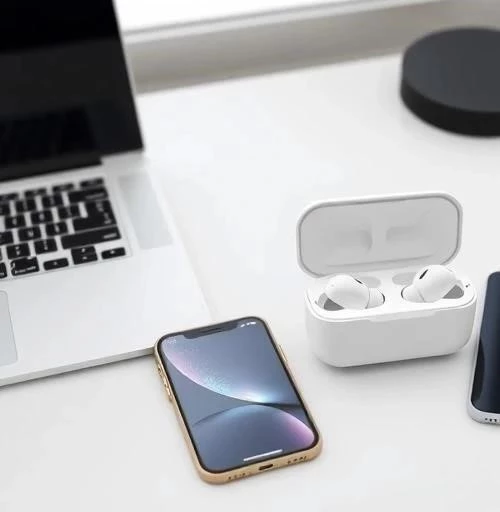
The Huawei FreeBuds 5i support connections to two Bluetooth devices at the same time. This feature is often called dual-device connection or multipoint. For example, the earbuds can remain connected to a phone and a laptop, letting you listen to audio from one device and respond to a call on the other. The earbuds do not play two audio streams simultaneously: normally, one source is active at a time.
The exact menus differ between phones, tablets and computers, but the basic process is the same: pair the FreeBuds 5i with the first device, put the earbuds into pairing mode again, then pair them with the second device. Once both pairings are saved, the earbuds can maintain connections to both devices.
Before you start
- Charge the earbuds and charging case. A low battery may interrupt pairing or use.
- Keep both devices nearby, with Bluetooth switched on.
- If the earbuds are already connected to another device, disconnect them temporarily if pairing mode does not start as expected.
- Make sure the devices are using current software. Firmware updates can improve connection stability and compatibility.
Step 1: Pair the FreeBuds 5i with the first device
- Place both earbuds in the charging case and open the lid. Leave the earbuds inside.
- Press and hold the function button on the case for about two seconds, until the indicator flashes white. This puts the earbuds into Bluetooth pairing mode.
- On the first device, open the Bluetooth settings and search for available devices.
- Select HUAWEI FreeBuds 5i from the list. Confirm the pairing request if the device displays one.
- Wait for the device to show that the earbuds are connected. You can then test audio or a call.
On some Huawei phones, a connection prompt may appear when the open case is nearby. Follow the on-screen instructions if it appears. If no prompt is shown, pair through the phone’s Bluetooth settings instead. The prompt is a shortcut; it does not replace the standard Bluetooth pairing process.
Step 2: Pair with the second device
- Keep the first device paired. If necessary, pause its audio, but do not remove the FreeBuds 5i from its saved Bluetooth list.
- Put the earbuds back in the case and open the lid.
- Hold the case function button for about two seconds, until the indicator flashes white again.
- On the second device, open Bluetooth settings and search for nearby devices.
- Choose HUAWEI FreeBuds 5i and accept the pairing request if prompted.
- Allow a few seconds for the connection to complete. The earbuds should now be paired with both devices.
The wording and location of Bluetooth controls vary by operating system. On a phone or tablet, look under Settings and then Bluetooth or Connected devices. On a computer, open the Bluetooth or device settings and choose the option to add a new device. Keep the case open and close to the second device while searching.
How switching between devices works
With both devices connected, the FreeBuds 5i can receive audio from either one, but they generally play only one audio source at a time. To move from music or a video on the first device to audio on the second, pause playback on the first device and start playback on the second. Depending on the devices and their software, switching may happen automatically or you may need to select the earbuds as the audio output manually.
Calls can affect which device is heard. If a call arrives while audio is playing on the other connected device, the earbuds may give priority to the call. After the call ends, audio may resume, but behavior can vary with the phone, computer, app and Bluetooth settings. If the sound continues to come from the wrong device, pause the current source and select HUAWEI FreeBuds 5i in that device’s audio-output menu.
A device can remain connected even when it is not playing sound. That is useful when keeping a phone available for calls while listening to a computer. However, a device may take over audio when an app starts playback or a call begins. Close or pause unused media apps if switching becomes confusing.
Check the connection and manage paired devices
Open the Bluetooth settings on each device and check the status beside HUAWEI FreeBuds 5i. A saved pairing does not always mean that the device is currently connected. If one device shows the earbuds as disconnected, tap the device name to connect. You can also check the connection in Huawei’s AI Life app where it is available for your phone and region. App menus and features may differ by software version.
If you want to stop using one device, disconnect the earbuds from its Bluetooth menu. This normally leaves the saved pairing in place, so you can reconnect later. To remove the pairing completely, choose the option to forget or unpair the FreeBuds 5i on that device. Removing a saved pairing is different from merely disconnecting; if you forget the earbuds, you will need to pair them again before using that device.
Troubleshooting
The second device cannot find the earbuds
Check that the case lid is open and the earbuds are inside, then hold the function button until the indicator flashes white. Make sure the earbuds are not already connected to another nearby device in a way that prevents the new pairing attempt. Turn Bluetooth off and on again on the second device, repeat the search, and keep the devices close to the case. If the earbuds still do not appear, close and reopen the case and try pairing mode once more.
The earbuds connect to only one device
Confirm that each device has completed pairing with the FreeBuds 5i; appearing in a Bluetooth list alone is not confirmation of an active connection. Connect from the Bluetooth settings on the device that is not currently connected. If the earbuds keep returning to the first device, temporarily disconnect them there, connect them to the second device, and then check whether both show a connection. Restarting Bluetooth on both devices can also resolve a temporary connection issue.
Audio does not switch as expected
Pause playback on the device that is currently producing sound before starting audio on the other one. Check the output selector in the app or operating system and choose the FreeBuds 5i. Some applications retain control of audio in the background, so close them if needed. Calls and system sounds can also change the active audio source.
Pairing remains unreliable
Charge the case and earbuds, restart the devices, and check for available system or earbud firmware updates. If necessary, remove the FreeBuds 5i from the Bluetooth lists of both devices and pair them again, one at a time. As a last resort, reset the earbuds: place them in the case with the lid open and hold the case button for around ten seconds, until the indicator flashes red and then white. A reset clears connection information, so both devices must be paired again. Indicator behavior can vary with the state of the earbuds; consult the current Huawei instructions if it differs.
Frequently asked questions
Can FreeBuds 5i connect to a phone and a laptop?
Yes. Pair the earbuds with each device separately using the case button and each device’s Bluetooth settings. The two devices can then remain connected, subject to their compatibility and software.
Can both devices play sound through the earbuds at once?
No. Dual-device connection keeps two devices connected, but it is not a way to mix two audio streams. Pause one source or switch the selected output before listening to the other.
Do I need the AI Life app?
No. Bluetooth settings are sufficient for pairing and basic use. The AI Life app may provide additional device information or settings where supported, but it is not required to connect the earbuds to two devices.
Pair the FreeBuds 5i with the first device, then put them back in pairing mode and pair them with the second. Keep Bluetooth enabled on both devices and use their audio controls to select which source plays. If connection or switching fails, verify the pairings, reconnect from Bluetooth settings, update software, or reset and pair again.


2 Comments. Оставить новый
The article presents the pairing steps in a clear sequence and explains that the earbuds switch between audio sources rather than playing both simultaneously. The preliminary checks are also useful for troubleshooting.
The instructions are easy to follow and distinguish the initial pairing process from connecting a second device. A note that device menus may vary helps set appropriate expectations.