
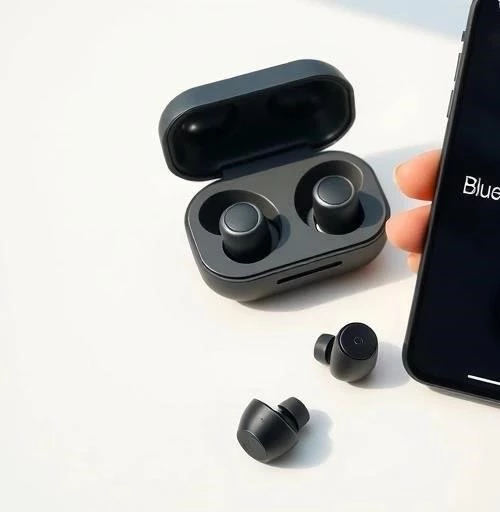
Xiaomi Redmi AirDots connect to an iPhone through standard Bluetooth. You do not need a Xiaomi app or an Apple account: put the earbuds into pairing mode‚ select them in the iPhone’s Bluetooth settings‚ and confirm the connection. The instructions below suit most original Redmi AirDots models; names and button behavior can vary slightly between versions.
Before you start
- Charge the earbuds and their case. If the battery is very low‚ pairing or playback may fail.
- Keep the earbuds close to your iPhone while setting them up.
- If they have already connected to another phone‚ switch Bluetooth off on that device temporarily. The earbuds may reconnect to it automatically.
Pair the AirDots with your iPhone
- Open the charging case and take out both earbuds. On most models‚ they turn on automatically. If yours have physical buttons‚ press and hold them as described in the model’s instructions.
- Wait a few seconds for the earbuds to pair with each other. A light may flash while they connect; the exact color and pattern depend on the model.
- On your iPhone‚ open Settings > Bluetooth and switch Bluetooth on. Stay on this screen while the phone searches for nearby devices.
- Under Other Devices‚ tap the AirDots entry. It may appear as “Redmi AirDots‚” “Mi True Wireless EBs Basic‚” or a similar name. Some versions show a name ending in “_R.”
- Wait until the device appears under My Devices as Connected. Play a song or video to check the sound in both earbuds.
Once paired‚ the AirDots usually reconnect to that iPhone when you take them out of the case‚ provided Bluetooth is on and they are not connected to another device. To disconnect‚ put them back in the case or tap their name in the Bluetooth menu. To use them with a different phone‚ disconnect them from the iPhone first.
If the AirDots do not appear
- Put both earbuds in the case‚ close it briefly‚ then take them out and search again. Make sure the case and earbuds have charge.
- Turn iPhone Bluetooth off and on‚ or restart the iPhone. Keep the earbuds near the phone and away from other devices that may claim the connection.
- If the AirDots are listed but will not connect‚ tap the information button beside their name‚ choose Forget This Device‚ then pair them again from the beginning.
- If only one earbud works‚ place both in the case and allow them to synchronize with each other before selecting the Bluetooth device. Also check that the audio balance is centered in Settings > Accessibility > Audio & Visual.
Resetting the earbuds
If ordinary steps do not help‚ reset the AirDots and pair them again. On many original models‚ put both earbuds in the case‚ then press and hold their buttons for about 15 seconds‚ until the indicator flashes to signal a reset. Release the buttons‚ remove the earbuds‚ and repeat the pairing steps. Button combinations differ across generations‚ so check the instructions for your exact model if this method does not work. After a reset‚ the old Bluetooth entry may remain on the iPhone; choose Forget This Device before reconnecting.
Tip: AirDots are Bluetooth headphones‚ not AirPods‚ so they will not appear in the iPhone’s AirPods setup animation. Pair them through Settings > Bluetooth. You can still use them for music‚ videos‚ and calls; available controls and microphone behavior depend on the AirDots version.

5 Comments. Оставить новый
Helpful to mention that the earbuds need a little time to connect to each other before selecting them in the iPhone settings.
The reminder to temporarily turn off Bluetooth on other devices is helpful. That can prevent the earbuds from reconnecting somewhere else during setup.
Clear, practical instructions. I especially appreciate the note that the device name and light patterns can vary between AirDots versions.
A straightforward guide for pairing these earbuds with an iPhone, without suggesting that an extra app or account is needed.
The troubleshooting tips are useful, and the article appropriately notes that button behavior may differ across models.