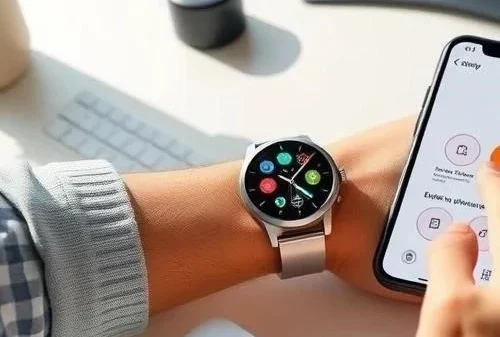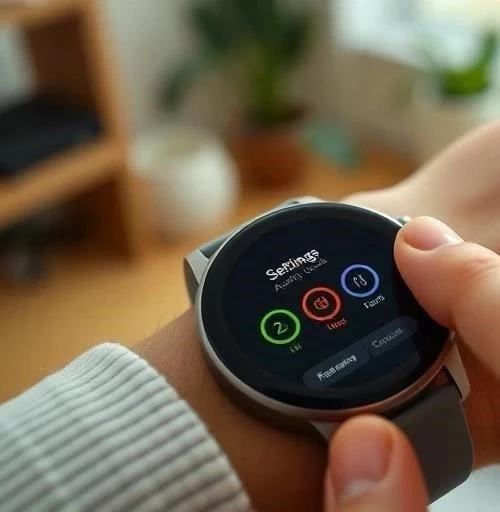
Apple Watch’s Activity settings let you tailor the three rings to your routine, rather than treating one target as suitable for everyone. Adjusting realistic goals can make progress easier to track and help keep reminders useful. Menu names may vary slightly by watchOS version, but the main controls are in the Activity app and the Watch app on iPhone.
Change your daily ring goals
- Open the Activity app on your Apple Watch—the app with the three colored rings.
- Scroll down using the Digital Crown or swipe up, then tap Change Goals.
- Adjust the Move goal, which measures active calories, and tap Next.
- Set your daily Exercise minutes and Stand hours, confirming each with the on-screen controls. Tap Done when finished.
On some versions, you can change one goal at a time by tapping the plus or minus buttons. If you cannot find the option, update watchOS where practical and check that you are using the Activity app, not a workout screen. Your chosen targets apply to future tracking; changing them does not rewrite past ring totals.
Choose which alerts you receive
To manage prompts, open the Watch app on your paired iPhone, tap My Watch, then Activity. Depending on your software, you can turn coaching, goal completions, progress updates, stand reminders, and special challenge alerts on or off. Some notification options are also available on the watch under Settings > Activity.
Keep alerts that genuinely help you, such as a stand reminder during a desk-bound day, and disable those that interrupt work or rest. Turning off a notification does not normally turn off activity tracking or stop the rings from updating; it only changes when the watch nudges you.
Make the settings work for you
Start with goals you can meet consistently, then raise them gradually if they feel too easy. The Move target is personal, while Exercise and Stand goals encourage different kinds of daily movement; changing one does not automatically adjust the others. A missed ring is information, not a verdict, so avoid setting targets that encourage unsafe overexertion.
If you use a wheelchair, review the accessibility and health settings on your watch and iPhone, since those can affect how activity is recorded. Also check that the watch fits securely and that your personal details in the Health app are current. These steps improve the usefulness of tracking, although Apple Watch measurements are estimates, not medical advice.
In short: use Activity to change ring targets and the Watch app’s Activity section to tune alerts. Revisit both after a change in schedule, fitness, or preference. A setup that reflects your real life is more valuable than a demanding goal you are unlikely to maintain.