
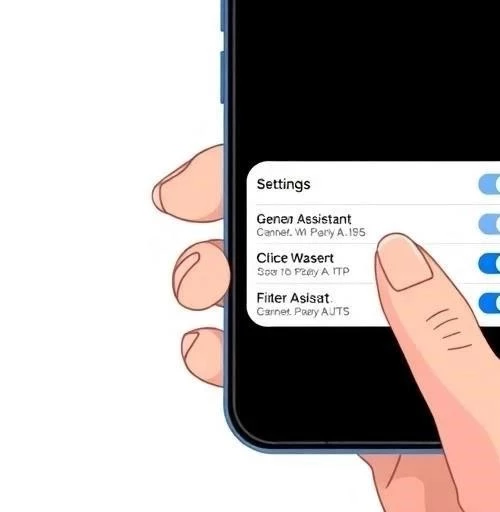
“Huawei Assistant” can refer to more than one feature. Most often, it means HUAWEI Assistant·TODAY, a screen of cards that appears when you swipe right from the home screen. It can show shortcuts, search, calendar items, news, and other information. It is not the same thing as Celia, Huawei’s voice assistant. The steps depend on which feature you want and on your phone’s EMUI or HarmonyOS version, so first identify your goal. This distinction matters: enabling the TODAY screen will not, by itself, turn on voice commands.
Enable HUAWEI Assistant·TODAY
On many Huawei phones, you can choose the leftmost home-screen page from the home-screen settings. Try these steps first:
- Go to the home screen and touch and hold an empty area. On some models, pinching inward on the screen opens the same editing view.
- Tap Home screen settings or Settings. The wording varies by device and software version.
- Choose Feed, Assistant, or a similarly named option.
- Select HUAWEI Assistant·TODAY instead of another available feed, such as Google Discover.
- Return to the home screen and swipe right from the first home-screen page to check that the panel appears.
On some devices, especially phones running EMUI 10 or EMUI 10.1 without Google Mobile Services, HUAWEI Assistant·TODAY may already be selected. In that case, there may be no separate activation step: swipe right from the home screen to open it. On phones that were released or updated with Google services, the left-hand page may instead be assigned to Google Discover. If the Huawei feed is offered in the settings, selecting it changes which panel opens; it does not necessarily remove Google services or alter the rest of the phone.
If the home-screen menu looks different
Huawei changes menu names and locations across models, regions, and software releases. If you do not see “Feed,” open the main Settings app and use its search field to look for Assistant·TODAY, Home screen, or Feed. You can also open the home-screen editing view and check its settings icon. Do not assume that a missing option means the phone is faulty: the feature may be named differently, unavailable in that software build, or controlled by a different launcher.
Customize the TODAY panel
After you enable the panel, open it by swiping right from the first home-screen page. Depending on your phone and region, it may contain cards for search, shortcuts, calendar information, weather, news, or services. Available cards are not identical everywhere. Look for a settings, profile, or edit control within the panel to manage its content. Follow the on-screen instructions to add, remove, or rearrange cards.
Some versions let you pin up to four icons or shortcuts for quick access. If this option appears, use it for apps or content you open often rather than filling the panel with items you rarely use. A useful feed should reduce the number of taps needed to reach relevant information; if it becomes cluttered, remove cards that do not help. A card may also require permission or an internet connection before it can display current information.
Enable Celia voice assistance
If you want to speak to your phone, you are looking for Celia, not the TODAY feed. On supported devices, open Settings and look for HUAWEI Assistant, Celia, or Smart assistance. Open the relevant menu, enable the assistant, and follow the prompts to choose any available activation method. Depending on the model and software, this may include an on-screen shortcut, a button action, or a voice-wake option.
If a voice-wake feature is offered, enable it in Celia’s settings and complete the voice-training steps shown on the screen. Check that the selected language and region are supported, and grant microphone permission if requested. The assistant’s commands and services can vary by country, language, account, and device. If Celia does not appear in Settings or the setup screen says it is unavailable, your phone, region, or software version may not support it. Installing or switching on Assistant·TODAY will not make Celia available when the device does not offer it.
Huawei Assistant and Google Assistant are not interchangeable
A Huawei phone with Google Mobile Services may still use Google Discover or Google Assistant, while the Huawei home-screen feed may be available as another choice. The left-side feed setting controls the page shown when you swipe from the home screen; it does not automatically change the phone’s default voice assistant. Similarly, setting Celia up does not necessarily replace Google Assistant for every system shortcut. If your goal is to change a default assistant, look separately in Settings for Default apps or Assist app. The available choices depend on the device and installed services;
Troubleshooting
- The swipe-right page does not open: Make sure you are on the first home-screen page, then swipe right from the home screen itself. If it still does not appear, check the home-screen feed setting and select HUAWEI Assistant·TODAY if it is listed.
- Assistant·TODAY is not listed: Search Settings for “Assistant” or “Feed,” check for system and Huawei app updates, and restart the phone. If the option remains absent, it may not be supported by your launcher, region, or software version.
- The panel opens but cards are missing: Check the panel’s card settings, network connection, and any requested permissions. Some services or content are not available in every country.
- Celia does not respond: Confirm that Celia is enabled, check microphone permission and voice-wake settings, and test a supported language. A voice assistant may require an internet connection for some requests.
- Google Discover keeps appearing: Return to the home-screen feed settings and choose the Huawei feed, if offered. If the setting is unavailable, the phone may not allow that feed choice in its current configuration.
Updating can help if a supported feature is missing or behaving incorrectly. Check Settings > System & updates for a system update, and use AppGallery to check for updates to Huawei apps where available. Menu names can differ. Avoid installing assistant packages from unfamiliar websites: unofficial downloads may be incompatible, unsafe, or unable to provide the system integration the feature requires.
How to turn it off
To stop the TODAY panel from appearing, return to the home-screen settings and choose another available feed or disable the feed page, if your model provides that option. This changes the home-screen panel; it does not necessarily uninstall Huawei apps. To stop Celia from listening for a wake phrase, open Celia’s settings and switch off voice wake-up. If you want to disable Celia entirely, use the assistant’s own settings where available rather than changing the TODAY feed.
In short
For the Huawei information screen, touch and hold an empty part of the home screen, open its settings, select Feed, and choose HUAWEI Assistant·TODAY; then swipe right to use it. For voice commands, find Celia in Settings and enable it if your phone and region support it. Because Huawei’s menus and service availability vary, searching Settings for the feature name is often the quickest way to find the correct option. Keeping the two functions separate makes setup clearer and helps you avoid changing the wrong assistant setting.


5 Comments. Оставить новый
The article clearly distinguishes HUAWEI Assistant·TODAY from Celia, which helps prevent confusion between a home-screen feed and a voice assistant. The steps are practical, and the note that menus vary by software version is especially useful.
The distinction between the TODAY panel and Celia is the article’s strongest point, and the instructions are presented in a sensible order. The text appears to end mid-sentence, though, so the final section may need to be checked for completeness.
I appreciate that the instructions begin by asking readers to identify which feature they mean. The explanation of how Google Discover may affect the leftmost home-screen page adds helpful context without suggesting that changing the feed removes Google services.
This is a useful troubleshooting guide because it explains that some phones may already have Assistant·TODAY enabled. That detail could save readers from searching for an activation option that their device does not provide.
The article gives accessible steps for finding the home-screen feed setting and offers alternatives such as using Settings search. Its caution about different menu labels across models makes the guidance more reliable.