
A factory reset removes personal information and returns a Huawei phone to its initial setup screen. It can be useful before selling or giving away a device, or when troubleshooting persistent software problems. The exact menu names and button combinations vary between models and versions of EMUI or HarmonyOS, but the general process is similar.
Important: A factory reset permanently deletes data stored on the phone. Back up anything you want to keep and make sure you can access the accounts associated with the device before continuing. A reset is not the same as simply deleting a few files: it removes installed apps, settings, and local user data.
What to check before resetting
- Back up important files. Save photos, videos, documents, contacts, messages, and other information you may need. Depending on your device and region, you can use Huawei Cloud, a computer, an external storage device, or another backup service. Check that the backup completed and that its contents can be accessed.
- Back up app information separately. Some apps do not include their data in a general phone backup. Check their own backup or transfer options, and make sure you know your login details. Authenticator apps, banking apps, and secure messaging apps may need extra preparation.
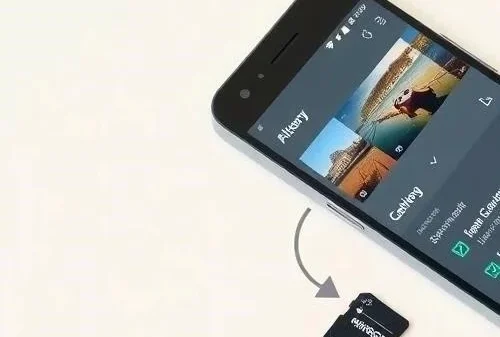
- Check storage cards and SIMs. A reset may leave files on a removable microSD card untouched. Copy anything you need from it. Remove the SIM card before handing over the phone. If you use an eSIM, check the reset screen and your carrier’s instructions to determine whether the eSIM profile will be removed.
- Know your account credentials. Make sure you know the password for the Huawei ID and any Google account associated with the phone. Account verification may be required after a reset, especially if the reset is performed with the buttons rather than through Settings.
- Charge the phone; Keep the battery sufficiently charged, or connect the device to power. Do not interrupt the process once the reset has started.
- Plan for a transfer or sale. If possible, remove accounts from the phone before resetting it. This can reduce the chance that the next owner will be asked to verify your account during setup.
Method 1: Reset from Settings
Use this method when you can unlock the phone and open its settings. The labels differ by model, software version, and language. If the path below does not match your screen, open Settings and search for Reset, Factory reset, or Erase all data.
- Open Settings.
- Find the reset controls. On many Huawei phones, the path is System & updates > Reset. On other versions, it may be under System, Backup & reset, or a similarly named section.
- Tap Reset phone, Factory data reset, or Erase all data.
- Read the on-screen summary. Check which categories will be deleted and whether there is an option related to erasing internal storage or formatting a memory card.
- Enter the screen-lock PIN, password, or pattern if prompted. Confirm that you understand the data will be erased.
- Tap the final confirmation button and allow the phone to restart. The process may take several minutes. Keep the phone powered on and do not press buttons unnecessarily.
When the reset finishes, the initial welcome or setup screen should appear. If you are keeping the phone, follow the setup steps and restore your backup if appropriate. If you are giving it to someone else, stop at the welcome screen rather than signing in with your own accounts again.
Method 2: Reset using Recovery mode
Recovery mode can be useful if the phone will not start normally, the Settings app cannot be opened, or the screen lock prevents access. This method deletes local data just like a factory reset from Settings. The button combination and menu wording can vary, so consult the instructions for the specific model if these steps do not work.
- Turn the phone off. If it is unresponsive, hold the Power button until it shuts down or restarts, if possible.
- With the phone off, press and hold the appropriate buttons to open Recovery mode. On many Huawei models, this involves holding Power and Volume Up together. Some models use a different procedure or require a cable connection.
- Release the buttons when the Huawei logo or Recovery screen appears.
- Use the touchscreen or volume and Power buttons to select Wipe data/factory reset, Clear data, or a similar option.
- Follow the prompts to confirm. Some versions ask you to enter a displayed confirmation phrase or verify the Huawei ID previously used on the device.
- If the Recovery menu returns to its main screen, choose Restart or Reboot system.
Do not select an option unless you understand what it does. Recovery menus may include tools that erase data or change system software. If the phone asks for an account password that you do not know, do not try to bypass the check. Recover access through the relevant official account-recovery process.
Method 3: Erase a phone remotely
If the phone is lost or stolen, a remote erase may be available through a service that was set up on the device in advance. Huawei’s device-finding features depend on the model, region, software, account settings, and network connection. Some phones may also support Google’s device-finding service if it was available and enabled. Sign in to the relevant official service and check whether the device appears as eligible for erasure.
A remote command may remain pending until the phone connects to the internet. It cannot guarantee that an offline or damaged device will receive the command. If the device is stolen, contact your mobile carrier to suspend the SIM or eSIM and consider changing important account passwords. Do not assume that a remote lock or erase has succeeded until the service confirms it.
What is erased, and what may remain?
A factory reset normally removes user accounts from the local installation, downloaded apps, settings, and files stored in the phone’s internal user storage. It does not cancel online subscriptions, delete information held by apps’ servers, or remove files that you previously copied to a computer or cloud account. Those services must be managed separately.
Removable storage can be treated differently from internal storage. A microSD card may retain photos and documents even after the phone has been reset. If you are keeping the card, back it up and format it using the phone’s storage settings or another suitable device. If you are selling the card, erase or securely format it separately, or keep it rather than handing it over. A SIM card is not normally erased by a factory reset.
Many modern phones use encryption, which helps protect data stored on the device. A reset removes access to the previous user’s local data, but no general instruction can guarantee how every model, software version, or storage medium handles every remnant. For particularly sensitive information, use the manufacturer’s documented process, keep removable storage, and follow your organization’s data-handling rules.
Before selling or giving away the phone
- Make and verify a backup, then transfer anything you need to another device.
- Remove screen locks and unlink wearable devices or accessories if necessary.
- Sign out of and remove your Huawei ID and any Google account from the phone through Settings, where available. Menu labels vary. This helps avoid account-verification problems for the next owner.
- Check whether the device has a work, school, or family management profile. Follow the administrator’s instructions before erasing it.
- Remove the SIM and decide whether to keep or separately erase the microSD card. Check what will happen to any eSIM profile.
- Run the factory reset from Settings and wait until the welcome screen appears.
- Do not enter your own account details during the new-owner setup. If you accidentally do, remove the account and reset the device again before handing it over.
Removing accounts before a reset is especially useful when the phone will change owners. Android devices may have theft-protection or account-verification features that request credentials previously used on the device after an untrusted reset. The precise behavior depends on the model and software. If a verification screen appears, the former owner should complete the official sign-in or account-recovery process; a factory reset does not legitimately remove ownership checks.
If the reset does not work
- The Settings path is different: Use the Settings search field to look for “reset” or “erase.” You can also check the user guide for the exact model and software version.
- The phone will not enter Recovery: Confirm that it is fully powered off and try the model-specific button combination. Button timing varies. If a physical button is damaged, seek service support.
- The phone restarts repeatedly: Keep it connected to power and allow the reset to finish. If it remains stuck, avoid repeatedly interrupting it; contact Huawei support or an authorized service provider.
- An account is requested: Enter the credentials previously associated with the phone or recover the account through its official service. Do not use unofficial unlocking tools or share account passwords with a third party.
- The reset option is unavailable: A work or school administrator may manage the device, or a security policy may restrict changes. Contact the organization’s administrator.
- The screen is broken or the phone is unresponsive: A remote erase may be possible only if the necessary service was enabled and the phone can connect. For a device containing sensitive information, consult an authorized repair or support provider.
Frequently asked questions
Will a factory reset remove everything from my Huawei phone?
It removes most user data stored in the phone’s internal user area, along with apps and settings. It may not erase a microSD card, a SIM, cloud backups, or information stored on online services. Check each storage location separately.
Can I reset the phone without the screen-lock code?
Recovery mode may let you initiate a reset without unlocking the normal interface, but the phone may still request previously associated account credentials afterward. A reset is not a way to bypass ownership verification.
Does resetting delete my Huawei Cloud or Google backup?
Usually, a local factory reset does not itself delete a backup stored in an online account. The backup may remain available when you sign in again, subject to that service’s settings and retention rules. Confirm that the backup exists before resetting.
How long does the process take?
It often takes several minutes, but timing depends on the model, storage, and software state. Allow extra time for the first restart and setup screen. Do not interrupt the process simply because the display appears unchanged for a short period.
To erase a Huawei phone, back up important information, check accounts and removable storage, then use Settings > System & updates > Reset or the corresponding menu on your model. If the phone cannot be opened normally, use its model-specific Recovery procedure and select the factory data wipe option. For a sale or handover, remove your accounts where possible, take out the SIM, handle the memory card separately, and leave the device at the welcome screen. Menu names and available services can vary, so verify the steps against the instructions for the exact Huawei model.

6 Comments. Оставить новый
The pre-reset checklist is practical, especially the reminders to verify backups and prepare app-specific information.
The article clearly explains why a factory reset may be useful and emphasizes that it permanently removes local data.
The article offers a useful overview while encouraging readers to check device-specific and carrier instructions where needed.
The guidance appropriately notes that menu names and reset procedures can differ across Huawei models and software versions.
Including account credentials, SIM cards, and eSIM considerations makes the advice relevant to preparing a device for transfer.
The distinction between a factory reset and deleting individual files helps set clear expectations for readers.