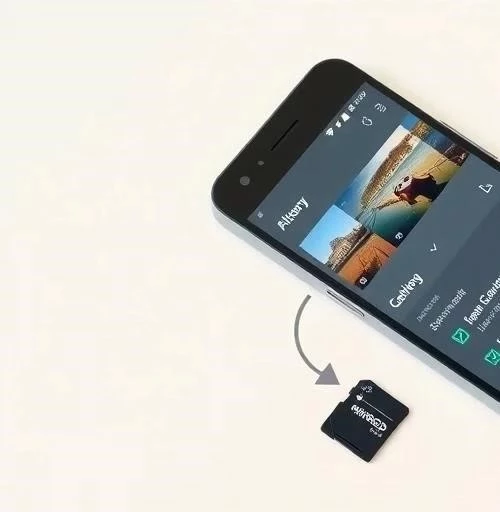
On most Xiaomi phones‚ screenshots are saved to the phone’s internal storage by default. Selecting an SD card as the camera’s storage location usually does not change where screenshots go: camera photos and screenshots are managed separately. If your phone supports a microSD card‚ the dependable approach is to take the screenshot first and then move or copy it to the card using the File Manager.
Check that your phone supports a microSD card
Not every Xiaomi‚ Redmi‚ or POCO model has a memory-card slot. Check the device specifications or inspect the SIM tray for a separate microSD position. If the phone has no slot‚ a memory card cannot be installed internally; you can instead transfer screenshots to a computer or‚ where supported‚ use an external USB-C card reader.
If there is a slot‚ insert a compatible card while following the device’s instructions. Open the notification or go to Settings > About phone > Storage (the wording can vary) to check that the card is detected. If the phone asks you to format it‚ remember that formatting erases its existing contents. Back up important files before proceeding. Choose portable storage if you want to remove the card and read it on other devices.
Take and locate a screenshot
Use your phone’s usual screenshot method. On many Xiaomi models‚ this means pressing Power and Volume down together briefly‚ or using a three-finger swipe if that gesture is enabled. The exact shortcuts depend on the model and software version.
Open the File Manager app and look in internal storage for a folder named Pictures/Screenshots‚ DCIM/Screenshots‚ or‚ on some software versions‚ a Xiaomi screenshot folder. Folder names and locations can differ between MIUI and HyperOS releases. The Gallery app’s Screenshots album can also help you confirm that the image was saved.
Move screenshots to the SD card
- In File Manager‚ open the folder containing the screenshots. If you cannot find it‚ take a new screenshot first‚ then check the recently updated folders or search for “Screenshots.”
- Press and hold a screenshot to select it. Select additional images if needed. For a large batch‚ use the app’s Select all option only after checking that the folder contains no files you want to leave behind.
- Tap Move or Cut. If you want to keep a copy in internal storage‚ choose Copy instead.
- Return to the storage list and open the SD card. Create a folder such as Pictures/Screenshots if you want the files organized‚ then open that folder.
- Tap Paste or Move here. If Android asks for permission to access the card‚ review the location shown and approve access to the intended folder.
Afterward‚ open the destination folder or Gallery and check that the images are present. If you used Copy‚ open a copied image before deleting the original. This helps prevent accidental loss if the transfer did not finish correctly.
Can screenshots be saved directly to the card?
Many Xiaomi software versions do not provide a built-in setting to make the SD card the default screenshot destination. A setting for saving camera photos to the card generally applies only to the camera. Likewise‚ changing an album’s display or backup settings does not necessarily change where new screenshots are created.
Check your model’s current settings and help information in case its software offers a screenshot storage option. If no such option is available‚ move or copy screenshots after capturing them. File-management or automation apps may offer ways to organize files‚ but their behavior depends on Android permissions and software updates; test any method with nonessential images before relying on it.
When the SD card or files do not appear
- The card is not listed: Restart the phone and check Storage settings. Reinsert the card only if it is safe to do so. If the phone still does not detect it‚ check whether the card is compatible and readable in another device.
- Move or paste is unavailable: Confirm that the card is mounted and that File Manager has permission to use it. Some cards are read-only‚ damaged‚ or formatted in a way the phone cannot use.
- The screenshot folder is missing: Capture a new screenshot‚ then search internal storage again. A Gallery album is a view of media‚ not always the actual folder name.
- The image does not show in Gallery: Check the destination in File Manager first. Refresh or reopen Gallery; media indexing may take a short time. Also check that the file format is supported.
Keep your screenshots safe
A memory card is useful for freeing internal space‚ but it is not a backup by itself. Cards can be misplaced or fail. Keep important screenshots in another location‚ such as a computer or a trusted cloud service‚ and avoid removing the card while files are being transferred. In short‚ unless your specific Xiaomi model offers a direct screenshot-location control‚ the practical method is to save the screenshot normally and move or copy it to the SD card through File Manager.