
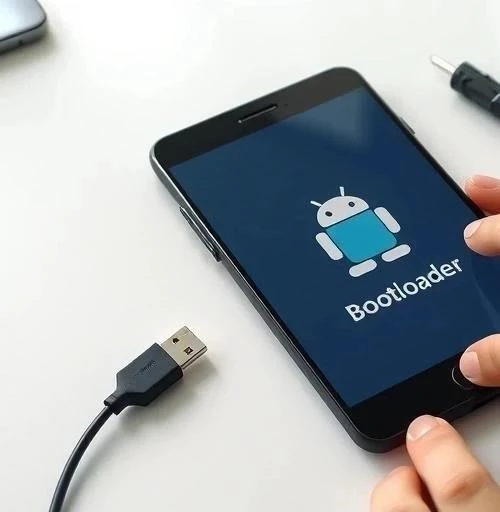
Seeing the Fastboot screen on a Xiaomi phone can be alarming‚ but it does not automatically mean the device is broken. Fastboot is a maintenance mode used to communicate with a phone from a computer. It may appear after a button combination is pressed accidentally‚ after a restart‚ or during a software update. Try the steps below in order‚ starting with the least risky.
Force-restart the phone
Press and hold the Power button continuously for about 10–20 seconds‚ until the screen turns off and the Xiaomi logo appears. Release the button when the phone begins to restart. A brief press may not work‚ so keep holding it. This normally does not erase your data.
Check the buttons and case
On many Xiaomi models‚ holding Volume Down while turning on the phone opens Fastboot. Remove the case and check that the Volume Down button is not stuck‚ jammed‚ or being pressed. Press each volume button gently a few times‚ then try the force-restart again. If a button feels damaged‚ stop trying repeated button combinations and arrange a repair.
Charge the device
If the phone does not restart‚ connect it to a reliable wall charger for at least 30 minutes. Then hold Power again. A low battery or unstable power can interrupt startup. Use a known-good cable and adapter‚ and check the charging port for visible debris without inserting metal objects.
Try Recovery mode carefully
On many models‚ with the phone off‚ hold Power + Volume Up until the recovery menu appears. The exact method can vary by model and software version. If you see a menu‚ use the volume buttons to move and Power to select. Choose Reboot or Reboot to system if available. Do not choose Wipe data or Factory reset unless you accept losing locally stored information.
If it returns to Fastboot
Disconnect USB cables and accessories‚ then try restarting once more. If you have access to a computer‚ you can check whether it detects the phone‚ but avoid running commands you do not understand. Fastboot commands that erase partitions‚ unlock the bootloader‚ or flash firmware can delete data or make the phone unusable if the files do not match the exact model and region.
If the problem began during an update‚ do not interrupt an active installation. If the phone repeatedly returns to Fastboot‚ displays an error‚ or cannot enter Recovery‚ contact Xiaomi support or an authorized service center. Ask about data-preserving diagnosis before approving a reset or firmware reinstall. Backups may be unavailable if the phone cannot boot.
Important precautions
- Do not unlock the bootloader or flash a random ROM as a first troubleshooting step.
- Never relock a bootloader after installing unofficial or mismatched firmware.
- A factory reset usually erases data stored on the phone; it is not the same as a simple restart.
- Give the technician the exact model name and describe what happened before Fastboot appeared.
When to seek help
Get professional assistance if a button is stuck‚ the phone was dropped or exposed to liquid‚ it becomes unusually hot‚ or it remains in Fastboot after the steps above. If it starts normally‚ check that your important photos and files are backed up and install updates only through the phone’s official updater.
In short: remove the case‚ make sure the volume button is free‚ charge the phone‚ and hold Power to restart. Avoid data-wiping options and unofficial firmware tools until you know the cause.


9 Comments. Оставить новый
Good advice to charge the phone and use a known-good cable before assuming there is a serious software problem.
This is a clear, reassuring guide. Starting with a force-restart and checking for a stuck volume button makes sense before trying anything more involved.
The troubleshooting steps are practical and easy to follow, especially the reminder to remove the phone case in case it is pressing a button.
This is concise and reassuring. A model-specific note or link to Xiaomi support would be a useful extra for readers whose recovery menu looks different.
A helpful step-by-step overview for a stressful situation. The least risky solutions are presented first, which is exactly what I would want.
I like that the guide points out that button combinations can vary by model. That helps avoid treating one set of instructions as universal.
The article explains Fastboot in a calm way and helps readers understand that seeing this screen does not necessarily mean the phone is broken.
I appreciate the warning about not choosing “Wipe data” or “Factory reset” unless you are prepared to lose stored information.
The safety tips are useful, particularly the advice not to insert metal objects into the charging port or run unfamiliar computer commands.