
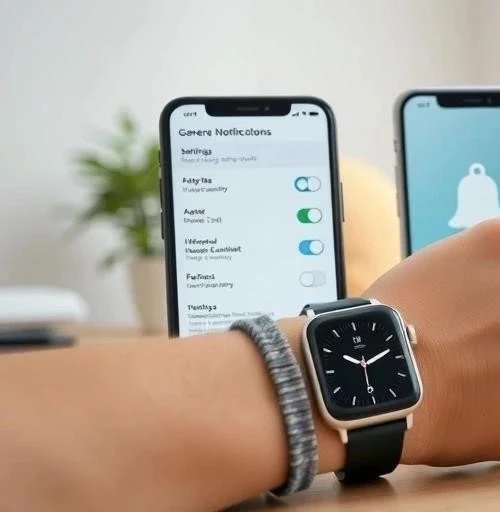
When VK alerts stop appearing on an Apple Watch, it is tempting to blame the watch or the VK app. In practice, notifications pass through several settings: VK must generate the alert, the iPhone must be allowed to receive it, and Apple’s notification system must route it to the watch. A failure at any point can explain the silence. Check the steps below in order; this is more reliable than immediately reinstalling apps or resetting the watch.
Check where notifications are being delivered
Apple Watch does not always show an alert at the same time as the iPhone. In the usual setup, notifications go to the iPhone when it is unlocked and in use. When the iPhone is locked or asleep, alerts can appear on the watch, provided the watch is being worn, unlocked, and connected. So first lock the iPhone, wear the watch, and ask someone to send a VK message. If the alert appears on the phone while you are actively using it, that may be normal behavior rather than a fault.
Also check that the watch is unlocked. A locked watch, or one that is not being worn, may not receive notifications as expected. If wrist detection or the passcode has been changed, test again after unlocking the watch and confirming that it is on your wrist.
Allow VK notifications on the iPhone
The watch usually depends on the iPhone’s notification settings for third-party apps. On the iPhone, open Settings > Notifications > VK (the exact label can vary by iOS version). Turn on Allow Notifications and, if available, enable delivery to the Lock Screen, Notification Center, and banners. Check that alerts are not set to silent delivery or hidden by an unusual banner style.
Then open VK itself and review its notification preferences. Make sure message alerts, group or community alerts, and other types you expect have not been disabled in the app. If VK notifications do not arrive on the iPhone at all, the Apple Watch is unlikely to be the cause: solve the iPhone or VK settings issue first. A watch cannot display an alert that the phone never receives.
Review the Watch app’s notification settings
On the iPhone, open the Watch app and choose Notifications. Find VK in the app list, if it is listed. Enable its alerts or select the option to mirror iPhone notifications. Some apps offer their own notification controls, while others simply follow the iPhone’s settings. The absence of a separate VK switch does not by itself prove that the watch is incompatible; check whether iPhone alerts are enabled and test with the phone locked.
Do not confuse notification previews with notification delivery. Privacy settings may hide message text on the watch, but the alert can still arrive. If the watch vibrates without showing message content, inspect preview and privacy options rather than turning every notification setting off and on.
Check Focus, Silent Mode, and connections
Focus, Do Not Disturb, Sleep, or another active mode can silence or limit alerts. Review Focus settings on both devices and check whether VK is allowed. If “Share Across Devices” is enabled, a Focus mode activated on one device may affect the other as well. Silent Mode or muted haptics can also make an alert easy to miss, even when it is delivered. Check the watch’s sound and haptic settings and try a test notification in a quiet environment.
Next, confirm that the iPhone and watch are connected. Keep them near each other, check the connection indicator in Control Center, and make sure Bluetooth is enabled on the iPhone. Connection problems can interrupt notification delivery, although they are not the only possible cause. If other apps also fail to alert you, this points more strongly to a general connection, Focus, or Apple Watch setting than to VK alone.
Update and test before resetting
Restart the iPhone and Apple Watch, then test again with the iPhone locked. Install available updates for iOS, watchOS, and VK, since outdated software can sometimes cause notification problems. If only VK is affected while other apps work, revisit VK’s in-app notification controls and the iPhone’s VK permissions. Reinstalling VK may help in some cases, but first confirm that you can sign in again and that your account details are available.
Unpairing or erasing the watch should be a last resort, not the first troubleshooting step. It takes more time and may not help if the real cause is a disabled iPhone alert or an active Focus mode. Consider it only after simpler checks fail, ideally after confirming that notifications from several apps are also affected.
The most common explanations are that the iPhone is unlocked, VK notifications are disabled on the phone, the Watch app is not mirroring them, or Focus is silencing alerts. Test with the iPhone locked and the watch unlocked and worn, then check settings from VK outward: app preferences, iPhone notifications, Watch notifications, Focus, and connectivity. This method identifies whether the problem is specific to VK or affects the whole Apple Watch notification system.
4 Comments. Оставить новый
This is a helpful overview for readers who are unsure whether a missing alert is caused by VK or by the Apple Watch setup. The article appropriately avoids recommending a reset too early and explains how to tell whether the problem is already present on the iPhone.
The troubleshooting order is clear and practical: verify how Apple routes alerts, then check iPhone permissions, and finally review VK’s own preferences. One useful addition might be a reminder to check Focus or Do Not Disturb settings, which can also silence notifications.
The article makes a useful distinction between notifications arriving on the iPhone and being routed to the watch. Testing with the phone locked and the watch unlocked is a sensible first step because it can prevent readers from treating normal Apple behavior as a fault.
I appreciate that the guidance starts with simple checks before suggesting more disruptive fixes. The explanation that the iPhone’s notification settings affect the watch is especially helpful, since it directs readers to troubleshoot the source of the alert rather than focusing only on the watch.