
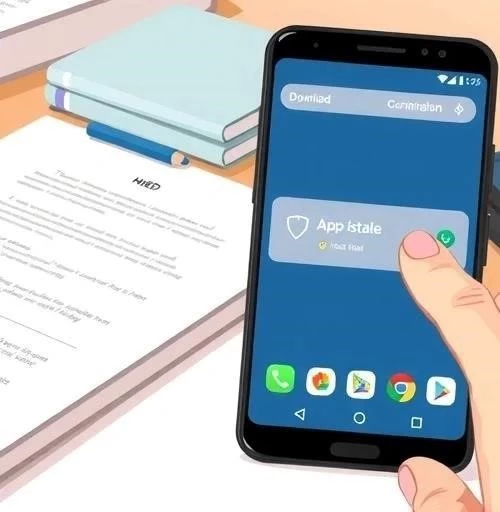
The Huawei P40 Lite does not include Google Mobile Services (GMS), so the Google Play Store cannot be installed on it in the same way as on a phone certified by Google. Downloading the Play Store app alone will not add the services it depends on. This guide explains the practical options, what to expect from them, and how to avoid risky installation methods.
Before you start: understand the limitation
The P40 Lite was released without Google’s licensing and service framework. As a result, Google Play, Google Play Services and Google’s setup components are not preinstalled. Some guides recommend installing packages manually or changing the phone’s software version. Those instructions may be outdated, specific to another model, or unsafe. A method that appears to work can stop working after an update, and apps that rely on Google services may still fail.
There is no universally supported, official procedure that turns the P40 Lite into a standard Google-certified Android phone. Before trying anything, back up your photos, contacts and important files. Check the exact model and software version in Settings > About phone, and install available system updates through the phone’s own update settings.
Option 1: Check AppGallery for a compatible Google-app environment
For many owners, the simplest approach is to look in Huawei’s AppGallery for a Google-app compatibility environment such as GBox. Availability and features can differ by country, device and AppGallery version. This is not the same as installing Google Mobile Services directly: supported Google apps run through an intermediary environment, and compatibility is not guaranteed.
- Open AppGallery and search for GBox or another Google-app environment that Huawei currently lists for your region.
- Check the developer, description and requested permissions. Install only a listing you can verify in AppGallery; do not follow advertisements that send you to unfamiliar download pages.
- Open the environment and read its prompts. If it offers a built-in catalog, search there for the Google app you need. Install it from that catalog rather than downloading a random Play Store APK from a website.
- If the environment provides a Play Store sign-in option, use your Google account only after reviewing the app’s privacy and security information. Follow the on-screen instructions and allow only permissions needed for the feature you are using.
- Test the required app. If it crashes, cannot sign in, or reports that Google Play Services are missing, the environment may not support that app on your phone.
Some environments may let you run selected Google apps without showing a normal, system-wide Play Store. Others may have a Play Store-like catalog or different setup steps. Menus change, so use the current instructions inside the verified app rather than relying on a video made for a different release. Do not enter account details if the publisher or source is unclear.
Option 2: Use Huawei’s alternatives
If your goal is simply to install apps, start with AppGallery. Search for the app by name and check the publisher before installing it. Huawei’s Petal Search may help locate official app pages or web versions, but always confirm that a result leads to the developer’s genuine site. For services that work in a browser, you can open the official website in your browser and use its “Add to home screen” option, if available.
Some third-party app stores provide access to Android apps, but they do not supply Google’s system services. An app can install successfully and still fail to open, send notifications, use Google Maps features, or process payments. Avoid stores or websites that promise a guaranteed “one-click Google installation” without clearly identifying the publisher and explaining the method.
What to avoid
- Unknown APK bundles: A Play Store APK by itself is not a complete GMS installation. Packages from unverified sites may be modified, malicious or incompatible.
- One-click installers and device-management profiles: Do not grant administrator access, accessibility control or broad file permissions to an installer you do not trust.
- Unverified firmware changes: Downgrading, unlocking or flashing the phone can erase data, weaken security, break the device or prevent future updates. Do not do this based on instructions for another Huawei model.
- Sharing account credentials: Never give your Google password or verification code to a helper, website or app that you cannot independently verify.
Troubleshooting
If an app environment will not open, first restart the phone and check for updates to AppGallery and the environment itself. Confirm that the phone has a stable internet connection and enough free storage. If sign-in repeatedly fails or an app says the device is not certified, do not keep installing additional system packages from random sources. Remove the environment if you no longer trust it, and change your Google password from a trusted device if you entered it into a suspicious app.
Bottom line
You can check whether AppGallery offers a reputable environment such as GBox and use it for compatible apps, but this does not install official Google Mobile Services on the Huawei P40 Lite. For the most reliable experience, use AppGallery, official developer websites and browser versions. If a particular app requires certified Google services, it may not work correctly on this model; check with the app’s publisher before relying on it.


3 Comments. Оставить новый
A clear and responsible guide. I appreciate the reminder that installing the Play Store alone does not provide the Google services it needs, and that unofficial methods can be risky.
The distinction between using a compatibility environment and installing Google Mobile Services directly is helpful. Checking the exact model and software version before trying anything is sensible advice.
Useful overview for P40 Lite owners, especially the emphasis on backups and verifying downloads through AppGallery. It would be helpful to include a short checklist for assessing whether a particular app works in an intermediary environment.