
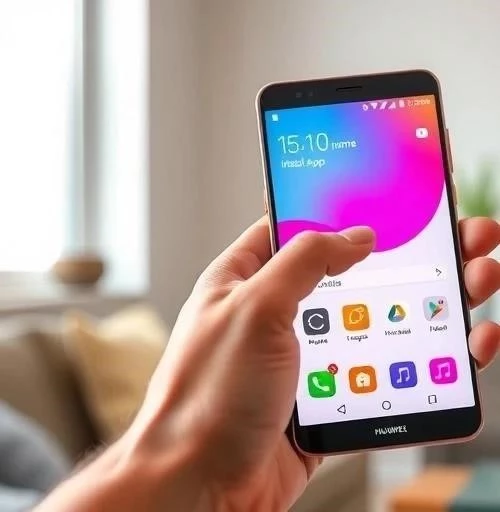
Installing apps on a Huawei device is usually straightforward‚ but the available services depend on the model‚ its software version‚ and the country or region where it is used; Many newer Huawei phones rely on Huawei Mobile Services (HMS) rather than Google Mobile Services (GMS). As a result‚ Google Play may not be available‚ and some apps may work differently or require alternatives. Before installing anything‚ identify your device and use an official source whenever possible.
Check your device and software
Open Settings and look for About phone or About tablet to check the model and operating-system version. Menu names can differ slightly between EMUI‚ HarmonyOS‚ and software versions. Also check that the device has enough free storage and a reliable internet connection. If an app is not offered for your model or region‚ it may be incompatible or unavailable rather than missing because of a settings problem;
Install apps from AppGallery
AppGallery is Huawei’s official app marketplace and is the recommended starting point for most users. It provides app listings‚ downloads‚ and updates. The precise layout can change‚ but the general process is similar:
- Open AppGallery. If prompted‚ sign in with a Huawei ID or create one. Read the displayed terms and privacy information before continuing.
- Use the search field to find the app‚ or browse the categories and recommendations.
- Open the app’s listing. Check the developer name‚ description‚ rating‚ permissions information‚ and whether it is available in your region.
- Tap Install or Get and wait for the download and installation to finish. Approve any confirmation shown on the device.
- Open the app from its listing or from the home screen. Grant permissions only when they are needed for a feature you intend to use.
AppGallery may show an app that is installed through a linked official provider rather than hosted directly by Huawei. Follow the on-screen explanation and confirm that the destination is a source you trust. Avoid listings that imitate a familiar app or have an unclear developer. If you are unsure‚ check the developer’s official website before proceeding.
Search for apps that are not listed
If an app does not appear in AppGallery‚ use Petal Search‚ where available‚ to look for availability information and official download options. Search results can include third-party pages‚ so a result is not automatically safe simply because it appears in the search tool. Prefer a link to the app developer’s own site or to a recognized store. Check the web address carefully‚ especially when signing in or entering payment details.
Some apps depend on Google services for sign-in‚ maps‚ notifications‚ payments‚ or other features. An app may install successfully but still have limited functions‚ show an error‚ or fail to receive notifications on a Huawei device without GMS. Check the app developer’s requirements and Huawei’s information for your specific model. A third-party compatibility tool cannot guarantee that every Google-dependent feature will work‚ and installing one may involve privacy or security trade-offs.
Installing an APK downloaded from a website
Android apps are often distributed as APK files. Installing one manually is sometimes called sideloading. It gives you more choice‚ but it also places more responsibility on you to verify the file. Download only from the app developer’s official website or another source whose authenticity you can independently confirm. Avoid modified‚ “cracked‚” or repackaged apps: they may contain malware‚ steal data‚ or interfere with updates.
- Open the trusted website in the device’s browser and download the app file. If possible‚ compare the file name and version with information published by the developer.
- Open the downloaded file from the browser’s download list or the Files app. Review the installation prompt and the app name before continuing.
- If Android blocks the installation‚ open the relevant settings prompt and allow the browser or file manager to install unknown apps. On many versions this is under Settings > Security or Apps‚ but the route varies.
- Return to the installer and tap Install. When it is complete‚ open the app and check that it behaves as expected.
- For safety‚ return to the same permission setting and turn off permission to install unknown apps for that source when you have finished.
An APK is not the same as every Android app package. Some developers provide bundles or files with extensions such as XAPK or APKS‚ which may require a separate installer. Do not install an unfamiliar package manager just to open a file unless the developer explains why it is necessary and the source is trustworthy. If the file cannot be installed‚ look for a standard version from the official provider rather than trying random conversion tools.
Updates‚ permissions‚ and removal
Apps installed through AppGallery can generally be updated from the store’s management or updates area. For apps installed from a website‚ check that same official source for updates and verify each new download before installing it. Do not assume that an app will update automatically when it was installed outside a store. Avoid update notices delivered through unexpected pop-ups or messages.
To review access granted to an app‚ open Settings and find Privacy‚ Security‚ or App permissions. The names and locations vary by software version. An app should not need access unrelated to its purpose. You can usually change permissions later‚ although disabling an essential permission may prevent a feature from working. To remove an app‚ press and hold its icon and choose Uninstall‚ or open its entry under Settings > Apps. System apps may not offer a full uninstall option.
Troubleshooting common installation problems
- “App not available” or no search result: Check the region‚ device compatibility‚ and developer’s official distribution options. Availability can change over time.
- Download is stuck: Check the internet connection‚ available storage‚ date and time settings‚ and whether AppGallery can access the network. Restarting the device may help.
- Installation fails: Confirm that the file is complete and intended for your device. Remove an older conflicting version only if you have secured any data stored in the app.
- The app opens but a feature fails: The app may rely on Google services or a service not supported on that device. Check its support information rather than installing unknown “fix” packages.
- Repeated security warning: Do not dismiss it automatically. Verify the source and file‚ and cancel if the developer or package cannot be confirmed.
Important safety practices
Keep the operating system and installed apps updated‚ use a screen lock‚ and back up important information. Review the developer‚ requested permissions‚ and privacy details before installation. Never share verification codes or account passwords with a download page. If an app asks you to disable security protections‚ install a certificate‚ or grant broad access without a clear reason‚ stop and verify the request with the developer. A legitimate-looking icon or familiar app name is not proof that a file is genuine.
Do not assume that instructions for one Huawei model apply to every other model. Store availability‚ settings menus‚ and compatibility differ by device‚ software release‚ and location. When possible‚ use AppGallery or the app developer’s official instructions. If a required app is unavailable or depends on unsupported services‚ contact the developer or choose a reputable alternative that clearly supports your device.


1 Comment. Оставить новый
This guide clearly explains how to check device compatibility and use AppGallery as a starting point. Its reminder to verify app details and permissions is useful, especially since availability can vary by model and region.