
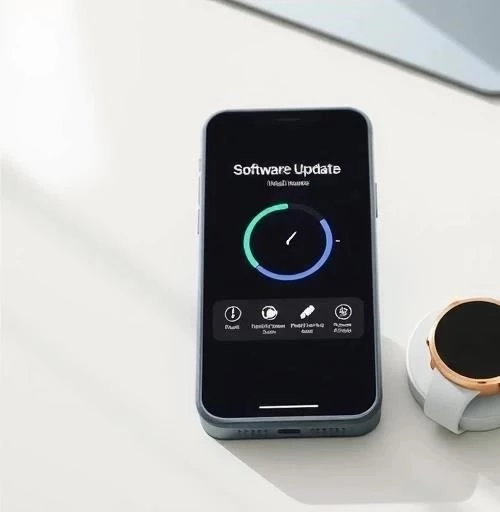
Important: watchOS 7 is an older Apple Watch operating system. Apple may no longer offer it for download, and an update screen normally provides the version currently available for your watch—not a choice of every past release. If watchOS 7 does not appear, install the latest version offered by Apple that your watch supports. Avoid unofficial files or downgrade tools: they can damage the watch or compromise your data.
Check compatibility first
At launch, watchOS 7 supported Apple Watch Series 3, Series 4, Series 5, and Apple Watch SE. It did not support the original Apple Watch, Series 1, or Series 2. The paired iPhone needed to be an iPhone 6s or later running iOS 14 or later. These are the original requirements; newer iPhones and software may be needed to use current services or updates.
To check your model, open the Watch app on the paired iPhone and tap My Watch > General > About. You can also find the model information in Settings on the watch. If your model is not supported, there is no official way to install watchOS 7 on it.
Before updating
- Back up your iPhone to iCloud or a computer. Apple Watch data is included in the iPhone backup when the devices are backed up together.
- Connect the iPhone to Wi-Fi and keep it near the watch. Make sure Bluetooth is on.
- Charge the watch to at least 50% and place it on its charger. Keep it there until installation finishes.
- Check that the iPhone and watch have enough free storage. Remove unwanted music, apps, or photos if the update reports that space is insufficient.
Install using the iPhone
- Open the Watch app on the iPhone and tap My Watch.
- Choose General > Software Update. Wait while the app checks for available software.
- If watchOS 7 is specifically offered and your devices meet its requirements, tap Download and Install. Enter the iPhone or watch passcode if asked, then agree to the terms.
- Leave the watch on its charger and within range of the iPhone. Keep both devices powered on; the watch may restart during installation.
The download and installation can take a while, depending on your connection and the watch. Do not remove the watch from its charger or restart either device while the progress indicator is moving. When the watch face returns, check Watch app > General > About to confirm the installed version.
If the update is missing or fails
Restart both devices, confirm the internet connection, and try again. If an error mentions storage, delete content from the watch and retry. If the iPhone asks you to update iOS before updating the watch, install the iOS version it requires first. Keep the devices close together throughout the process.
If watchOS 7 is not listed, that does not necessarily mean anything is wrong: Apple may offer only a newer compatible release, and older versions are not always available for manual installation. Do not erase the watch hoping to make an old update appear. For persistent errors, contact Apple Support or an authorized service provider.
After installation
Allow the watch a few minutes to finish setup and sync. Some apps may need updates, and battery use can temporarily increase while background tasks complete. If you are updating today, choose the official version shown in Software Update rather than seeking an obsolete installer.
4 Comments. Оставить новый
The preparation checklist gives practical steps to take before updating, including backing up and checking storage. Keeping the watch on its charger during installation is a useful reminder.
The compatibility section is especially helpful, since it makes clear that not every Apple Watch can install watchOS 7. I also appreciate the warning against unofficial downgrade tools.
I like that the article explains both the original device requirements and the possibility that newer software may now be required. It would be useful to include the remaining installation steps after the excerpt ends.
This is a clear guide for checking whether watchOS 7 is available through the official Watch app. The note that Apple may offer only a newer compatible version helps set realistic expectations.