
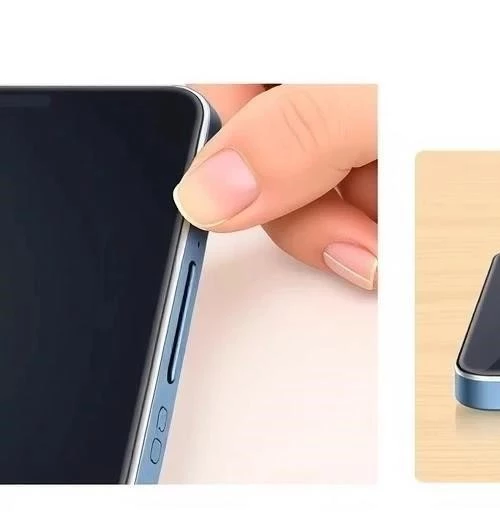
If your Xiaomi phone sounds quieter than expected, you can often improve its volume without installing risky apps or changing hidden system settings. Start with the simple checks below, then adjust sound settings and test the speaker again. Menu names vary between Xiaomi, Redmi, and POCO models, and between MIUI and HyperOS versions, so use Settings search if a path does not match your phone.
Check the volume controls and the sound source
Press the phone’s volume-up button while audio is playing. Xiaomi phones may show separate controls for media, calls, notifications, and alarms; turning up the ringtone does not necessarily increase music or video volume. Tap the three-dot menu or expand the volume panel, if available, and raise the Media slider. Also check the volume inside the app you are using. Some games, video players, and music services have their own sound controls.
Try a second recording or app. A quiet video may simply have been recorded at a low level, while a voice message may be quieter than music. Play a familiar track or system sound at a moderate-to-high setting to check whether the phone itself is the problem. If only one app is quiet, inspect that app’s audio settings, update it, or test another source before changing system settings.
Make sure sound is coming from the phone speaker
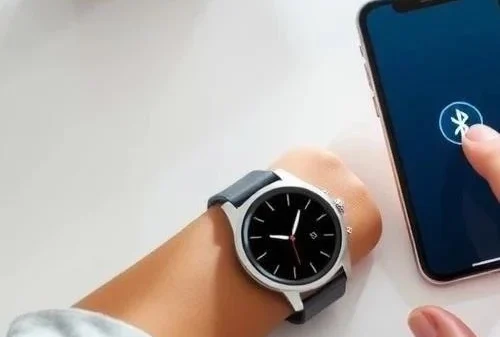
Your Xiaomi may still be connected to Bluetooth headphones, a speaker, a car stereo, or another audio device. Open the Bluetooth panel or the phone’s media output selector and choose the phone speaker. If necessary, temporarily switch Bluetooth off and play audio again. Disconnect wired headphones or a USB-C audio adapter as well; a faulty accessory or connector can make the phone route sound incorrectly.
During a call, the earpiece and the loudspeaker have separate controls. Raise the call volume while the call is active, then tap the speaker icon to use hands-free mode. The media-volume slider will not necessarily change call loudness. If you can barely hear calls even at maximum volume, test both the earpiece and loudspeaker: different results can help identify which component needs attention.
Review Xiaomi sound settings and the equalizer
Open Settings and search for terms such as “Sound effects,” “Equalizer,” “Dolby Atmos,” or “Audio.” On some models, options appear under Settings > Sound & vibration; on others, they are part of an audio-effects menu or the music app. The exact choices depend on the device, software version, region, and whether headphones are connected.
If an equalizer is available, try a preset designed for speakers or a modest adjustment to the midrange. Raising every frequency to its maximum can make the audio harsh or distorted rather than genuinely louder. Bass boost is especially likely to cause rattling on a small phone speaker. Make one change at a time, listen at a safe level, and return to the default profile if voices or music sound worse.
Some Xiaomi models offer Dolby Atmos, sound enhancement, or a customized audio profile. Turn the feature on or off and compare the same audio at the same volume. Processing may make certain content sound fuller, but it does not increase the speaker’s physical power. If an effect reduces clarity, disable it. If your phone offers a hearing or sound-personalization test, follow the on-screen instructions and compare the result with the standard profile.
Check accessibility and hearing options
Look in Settings > Accessibility for audio-related options. Depending on the software, you may find mono audio, balance controls, or other hearing adjustments. Make sure the left-right balance has not been shifted unexpectedly. Mono audio can help when content is difficult to hear through one channel, but it is not a volume booster. Settings intended for hearing aids or headphones may not affect the built-in speaker at all.
Remove anything blocking the speaker
Cases, stickers, dust, lint, and debris can obstruct a speaker opening. Remove the case and test the sound. Check the grille in good light, but do not push pins, needles, toothpicks, or other objects into it. A sharp tool can puncture the mesh or damage the speaker. Avoid pouring liquid, spraying cleaner into the opening, or using a hair dryer.
If there is loose surface dust, gently brush the grille with a clean, soft, dry brush, keeping the bristles on the outside. Follow Xiaomi’s care instructions for your specific model. Do not assume that water resistance makes the speaker safe to wash: seals can weaken over time, and liquid or pressure can cause damage. If the phone was recently wet, let it dry naturally in a safe, ventilated place and do not charge it until the charging port is dry.
Restart and update the phone
A temporary software issue can affect audio routing or an app’s playback. Restart the phone, then test the speaker again. Check for system updates under Settings > About phone or search Settings for “System update.” Install official updates when appropriate, and update the app that produces the quiet audio. Keep the phone’s battery and temperature in mind: performance or sound behavior may change if the device is overheating or running a power-saving mode.
If the problem started after changing audio settings, restore the sound effects or equalizer to their default values. You can also test in safe mode if your Xiaomi model supports it, to see whether a third-party app is interfering. Instructions for entering safe mode vary by model and software version; use Xiaomi’s official guidance rather than following an unfamiliar button sequence from an untrusted source.
Try a volume booster cautiously
Third-party “volume booster” apps may apply software processing, but they cannot make a small speaker produce unlimited sound. Some simply distort the signal, show intrusive advertising, or request permissions that are unnecessary for audio playback. If you decide to try one, choose a reputable app, review its permissions and privacy information, and begin with a small adjustment. Remove it if it causes crackling, unexpected behavior, or no useful improvement.
Avoid secret dialer codes, modified system files, unverified configuration profiles, and rooting instructions that promise a dramatic speaker increase. These changes may be intended for a different Xiaomi model or region, can destabilize the phone, and may compromise security or warranty support. Do not disable volume protection or force the speaker beyond its designed limits. Distortion is a warning that the sound is being pushed too hard, not a sign that the adjustment is working properly.
Test the speaker and identify hardware problems
Test a ringtone, a video, and a voice recording at the same setting. If one speaker opening sounds much quieter than another, remember that openings on some phones serve different purposes and are not all speakers. Do not cover the grille with your hand while testing. If available, use Xiaomi’s official diagnostics or support app and follow its instructions; diagnostic menus can differ, so avoid changing unfamiliar settings.
Arrange professional service if sound remains unusually quiet after these checks, is consistently distorted, cuts in and out, or changed after a drop, liquid exposure, or repair. A damaged speaker, clogged internal mesh, loose connection, or other hardware fault cannot reliably be fixed with an equalizer. Back up important data before service and use an authorized Xiaomi service center or a repair provider you trust.
Quick checklist
- Raise the media volume while audio is playing, and check the app’s own volume.
- Disconnect Bluetooth or wired accessories and select the phone speaker.
- Compare more than one app or audio file; raise call volume separately during calls.
- Test sound effects and equalizer settings with small changes, then keep the clearest profile.
- Remove the case and gently clean only the outside of the speaker grille.
- Restart and update the phone; seek service if the speaker is still quiet or distorted.
How to get the best result
For most Xiaomi phones, the safest improvement comes from correcting the media-volume setting, disconnecting an unintended audio device, removing a case that blocks the grille, or choosing a clearer sound profile. These steps cannot exceed the speaker’s physical limits, and maximum volume may still be modest by design. Keep the phone at a level that sounds clean, especially for long listening sessions. If you need substantially more volume, use a quality external Bluetooth speaker or headphones instead of forcing the built-in speaker beyond its safe operating range.

9 Comments. Оставить новый
This is a clear, sensible place to start before trying apps or complicated settings. The steps are easy to follow.
A helpful guide for narrowing down low-volume problems step by step, with advice that does not require changing hidden settings.
The Bluetooth and audio-output checks are practical. A phone can seem quiet simply because sound is going to another device.
The reminder to check the Media slider is useful, since the ringtone volume is easy to mistake for the audio volume.
The examples of quiet recordings and app-specific controls make the troubleshooting advice more useful and realistic.
I appreciate that the article recommends checking the audio source and connected accessories before assuming the speaker is faulty.
Good point about call volume and media volume being separate. That distinction can save a lot of unnecessary troubleshooting.
I like the suggestion to test another app or recording first. It helps identify whether the issue is with the phone or just one audio source.
The advice to use Settings search when menu names differ is especially helpful for people with different Xiaomi models and software versions.