
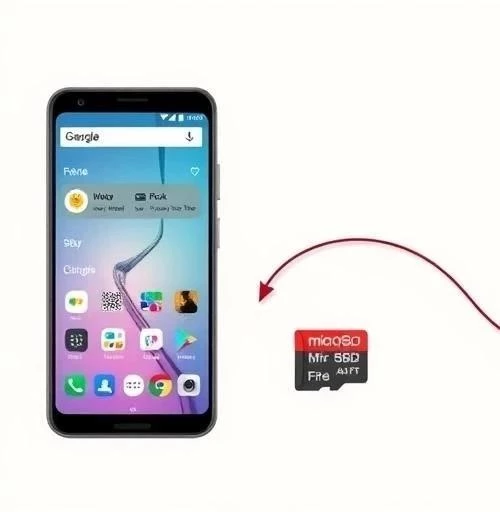
The Huawei Y6 2019 has a microSD card slot, but inserting a card does not automatically move applications off the phone’s internal storage. Whether an app can be transferred depends on the version of EMUI, the app itself and the available storage settings. Some apps can be moved; others must remain in internal memory. The steps below explain how to check what your phone supports and how to use the card safely.
Before you begin
- Back up important files. Copy photos, documents and other valuable data to a computer or cloud storage before changing storage settings.
- Use a suitable microSD card. Choose a reliable card with enough capacity and make sure it is properly inserted. If the phone cannot read it, remove and reinsert it while the device is switched off.
- Check available space. Open Settings > Storage to see how much internal memory and card space are free.
- Keep the phone charged. Do not remove the card or switch off the phone while a transfer or formatting operation is in progress.
Try moving an individual app
- Open Settings and tap Apps or Apps & notifications. The wording can vary by software version.
- Choose Apps or App management, then select the application you want to move.
- Tap Storage. If the app supports transfer, a Change or Move to SD card option may appear.
- Select the memory card as the destination and confirm. Wait for the process to finish before leaving the screen.
If there is no change or move option, the phone does not offer a supported transfer for that app. This is common: Android and EMUI restrict moving some applications, particularly system apps and apps whose developers require them to stay in internal storage. An app may also keep some data internally even after part of it has been moved. Do not try to force the transfer by deleting application files or changing system settings.
Check the storage destination setting
Depending on the Y6 2019 software version and region, the Storage menu may include a setting such as Default location. If it is present, open Settings > Storage, select the destination option and choose the SD card. Follow the on-screen instructions; the phone may ask to restart. This setting can direct supported new files or data to the card, but it does not guarantee that existing apps will move or that every future app will install there. If the option is absent, your software does not provide it.
Read any warning before confirming. If the phone offers to format the card, formatting erases its contents. Copy files elsewhere first. Menu names and available choices may differ after a software update, so use the options actually shown on your device rather than relying on instructions for another Huawei model.
What to do if an app cannot be moved
Free internal space by uninstalling apps you no longer use, clearing an app’s cache where appropriate, and removing downloaded files that you can replace. In Settings > Apps, check which apps use the most storage. Clearing cache is usually safer than selecting Clear data: the latter can remove saved settings, downloaded content or account information. Confirm that important data is backed up before clearing it.
The SD card is still useful even when apps remain in internal memory. In the Camera settings, look for a storage-location choice and select the card if available. You can also move photos, videos, music and documents using the built-in Files app: select the items, choose Move or Copy, then select a folder on the SD card; Check that the files open from their new location before deleting any original copies.
Important limitations and troubleshooting
Some cards can be configured as portable storage, while other Android devices offer an adoptable-storage mode that combines a card with internal memory. Do not assume the Huawei Y6 2019 supports adoptable storage. Use only the storage modes and instructions displayed by the phone. Formatting a card as internal storage, if that option is available, can make it unreadable in other devices and may require another format before reuse.
If the card is not listed, restart the phone and check Settings > Storage. If it still does not appear, power the phone off, reseat the card and inspect it in another compatible device. A damaged, incorrectly formatted or failing card may need replacement. Avoid removing a card while files are being transferred; doing so can corrupt data or make apps and files unavailable.
To move an app, open its Storage page in Settings and use Change or Move to SD card only when the option is offered. If it is unavailable, that app cannot be moved through the phone’s standard settings. Use the card for supported media and files, and manage internal storage by removing unnecessary downloads and apps. The exact options depend on the Y6 2019 software version, so check the menus on the device and back up data before making changes.


8 Comments. Оставить новый
The instructions are presented in a logical order, from preparation to checking an individual app. The advice to wait for a transfer to finish is also useful.
The article gives clear preliminary checks, including confirming available space and ensuring the memory card is properly inserted. These details can help prevent avoidable problems.
A concise and practical explanation of app storage on the Y6 2019. It correctly avoids suggesting that inserting a microSD card will automatically move applications.
The article clearly explains that moving an app to a microSD card depends on both the app and the phone’s software version. The reminder to check each app’s storage settings is useful.
The steps are easy to follow, and the distinction between moving apps and storing personal files on a memory card is important. It helps set realistic expectations for the available storage options.
The guidance to back up important files before changing storage settings is a sensible precaution. The article also appropriately advises against forcing unsupported transfers.
This provides a helpful overview for Huawei Y6 2019 users. Noting that menu names can vary by software version makes the instructions more practical.
The explanation of why some apps cannot be moved is useful, especially the point that an app may still keep some data in internal storage.