
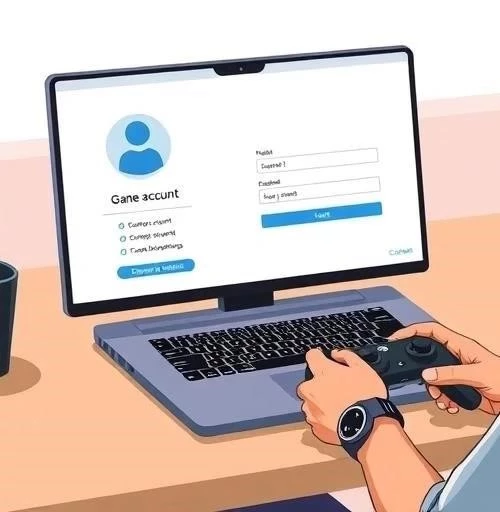
A PlayStation account can feel like a digital key ring: it opens the door to online play, purchased games, subscriptions, friends, cloud saves and years of activity․ If you are ready to leave, it is important to know that “deleting an account” can mean two very different things․ You might only want to remove a user from one console, or you might want Sony to permanently close your PlayStation Network (PSN) account․
Those actions are not interchangeable․ Removing a profile from a PS5 or PS4 does not close the online account․ Conversely, closing the online account is a permanent step that can affect purchases and services across every device․ This guide explains how to tell the difference, what to prepare, and how to request closure safely․
First, decide what you actually want to remove
- Remove a profile from your console: The user is removed from that particular PS5 or PS4․ This does not, by itself, delete the PSN account․ You can generally sign in again later․
- Sign out or stop using PlayStation: You can sign out, disable automatic sign-in, or simply leave the account inactive․ The account remains open․
- Close the PSN account permanently: You ask PlayStation Support to close the account associated with your sign-in ID․ This is the option to choose if you want the account itself ended․
- Recover an account you cannot access: If you have forgotten the password or lost access to the email address, try account recovery first․ An inaccessible account is not the same thing as a deleted account․
If your goal is simply to sell, give away, or troubleshoot a console, you probably do not need to close your PSN account; Sign out, remove the local user if appropriate, and reset the console using its system settings․ That keeps the account available for another PlayStation․
Important: permanent closure is not a routine console setting
PlayStation account closure is generally handled through PlayStation Support, rather than through a simple “Delete account” button on the console․ The exact support pages, contact methods and instructions can vary by country or region and may change over time․ Start at the official PlayStation Support website for your region, sign in if possible, and look for help with account closure or closing an account․ Follow the instructions provided there and ask the support agent to confirm that you are requesting permanent closure of the PSN account—not just removal from a device․
Use official PlayStation channels only․ Do not send your password, verification codes, payment details or identity documents to an unofficial website or to someone who contacts you unexpectedly․ A support agent should not need you to disclose your password or one-time security code․
Before you ask PlayStation to close the account
Think of closure as handing back a key that may not be replaceable․ Once the account is closed, you may lose access to content and services tied to it․ Make a deliberate check of the following items before contacting support․
Check purchases and subscriptions
Digital games, add-ons, virtual currency, media and other purchases are usually associated with the account that bought them․ They generally cannot be transferred to a different PSN account․ If you close the purchasing account, do not expect to keep using its library by signing in with another account․ Check your purchase history and decide whether you are willing to lose access to that account-linked content․
Review PlayStation Plus and any other active subscriptions․ Turn off automatic renewal or cancel subscriptions through the official account settings or the relevant service, and check the renewal date․ Cancellation and account closure are separate matters: cancelling a subscription does not close the PSN account, and asking to close an account is not a reliable substitute for checking the subscription’s renewal settings․ If you are uncertain about billing or refund eligibility, ask PlayStation Support before proceeding․
Consider wallet funds and stored payment details
Check whether the PSN wallet has a remaining balance․ Wallet funds may not be refundable or transferable simply because you close the account; rules can depend on local law and the circumstances; Ask support about your region’s policy before requesting closure․ Remove saved payment methods if you are concerned about future use, but remember that removing a card alone does not cancel a subscription or delete an account․
Save anything you want to keep
Review cloud saves, screenshots, video clips, messages, friends, trophies and other account-related information․ Download or copy items you can still access and want to preserve․ Some information may not have an export option, and a backup of console storage does not turn account-bound purchases into transferable files․ If you have a particular game save or record that matters to you, check how that game stores it before taking action․
Check family and child accounts
If the account is part of a family, is a child account, or manages child accounts, closure may have additional requirements․ The family manager may need to contact support, and child accounts may not be able to request changes independently․ Check the family settings and ask PlayStation Support how closure affects the other accounts before confirming anything․
Make sure you can identify the account
Support may ask for information to verify that you own the account․ Be ready to provide details through the official support process, such as the sign-in email address, online ID, console information or relevant transaction details․ The precise verification questions vary․ If you cannot access the account email, tell support that clearly and ask about the approved recovery or verification route․ Do not guess repeatedly or share sensitive details in a public forum․
How to request permanent closure
- Visit official PlayStation Support․ Use the support site for the country or region where the account was created or is registered․ Avoid sponsored lookalike pages and links in unexpected messages․
- Choose the account-help route․ Search the support site for account closure, closing an account, or contacting support about an account․ If the page offers a chat, phone or contact form, use the method shown for your region․
- State your request precisely․ Tell the agent that you want to permanently close the PSN account associated with your sign-in ID․ If you only want a user removed from a console, say so instead; that is a different request․
- Complete the ownership checks․ Provide only the information requested inside the official support channel․ Never disclose your password or a one-time verification code․
- Ask about consequences before confirming․ Confirm what happens to purchases, wallet funds, subscriptions, family accounts, online ID and any data you care about․ Ask whether any action is required to stop recurring charges․
- Read the confirmation carefully․ Make sure you understand whether the account will be permanently closed, whether there is a processing period, and whether the decision can be reversed․ Keep any reference number or written confirmation․
Support procedures can change, so treat the official instructions shown when you contact PlayStation as authoritative․ Do not rely on an old screenshot or a third-party guide for a specific button name or promised processing time․
How to remove a user from a PS5 without closing the account
If you are giving someone your PS5 or just want to remove a local profile, use the console’s user-management options․ Menu names can differ slightly with system software updates, but the general route is through Settings, then Users and Accounts, and the option to remove a user․ Read the on-screen warning before confirming․
Removing a user from the console is not the same as asking Sony to close the account․ It does not cancel a subscription, erase the account from PlayStation’s online systems, or transfer digital purchases․ If you are preparing the entire console for a new owner, back up anything you need, sign out where appropriate, and use the PS5’s reset or initialization feature․ A full reset erases local console data, so verify your backups first․
How to remove a user from a PS4 without closing the account
On a PS4, go to Settings and find the user-management options․ Choose the option to delete a user from the console, then review the confirmation screen․ The profile is removed from that PS4, but the PSN account itself remains․ As with a PS5, deleting the local user is not a substitute for cancelling a subscription, closing an online account, or preparing the console securely for a new owner․
If you are selling or giving away a PS4, back up saved data and other files you want to retain․ Then use the console’s initialization settings to erase personal data․ Make sure you select the appropriate reset option and understand that a full initialization can remove locally stored information․
What happens after an account is closed?
The exact effects depend on PlayStation’s current terms and your region, so ask support to explain the consequences for your account before you approve closure․ In general, plan as if you will no longer be able to sign in to that account or use services and content that depend on it․ This can include purchased digital content, subscriptions, online features, friends and account-linked records․ Content or progress may not be movable to a new account․
Your console may still contain local user data until you remove it or reset the device․ Closing an online account does not necessarily wipe a console’s hard drive․ Likewise, wiping a console does not necessarily close the online account․ Treat them as two separate jobs: account closure is handled through PlayStation Support; local data removal is handled on the device․
Do not assume that a closed online ID will immediately become available to another person—or even to you again․ Ask support what happens to the sign-in ID and online ID under the current policy․ If you mainly want a different public name, investigate changing your online ID instead of closing the entire account․ A name change and an account closure are very different decisions․
If you cannot sign in
Try the official password-reset or account-recovery process before requesting closure․ Check that you are using the correct sign-in email, look in spam or junk folders for recovery messages, and make sure you are on the official PlayStation site․ If you no longer control the email address, contact support and explain the situation․ They may need to verify ownership another way․
If you suspect that someone else has accessed your account, prioritize security: use the official recovery process, change the password if you regain access, review account and payment settings, and enable available security protections․ Contact PlayStation Support promptly if you see unfamiliar purchases or account changes․ Closing an account is not necessarily the quickest or best way to respond to a compromised account․
Common mistakes to avoid
- Deleting a console user and assuming the PSN account is gone․ It usually removes only the local profile from that device․
- Resetting a console and assuming purchases have been deleted from the account․ A console reset erases local data; it does not itself close the online account․
- Closing the account before checking subscriptions․ Confirm renewal and cancellation status directly rather than guessing how billing will be handled․
- Expecting games or wallet funds to move to a replacement account․ Account-linked purchases and balances are generally not portable; ask support about exceptions or local rules before closure․
- Using a third-party “account deletion” service․ Only PlayStation Support can guide you through the official closure process․ Never hand over your login credentials to someone promising to do it for you․
- Closing an account when you only need a break․ Signing out, disabling automatic sign-in, or removing a profile from a shared console may solve the problem without permanently losing access․
A quick decision checklist
- Do I want to remove the profile from one console, or permanently close the online PSN account?
- Have I checked purchases, subscriptions, wallet funds and cloud saves?
- Have I downloaded or backed up the data I can still access and want to keep?
- Are there child or family accounts connected to this account?
- Have I asked official support about the consequences and any region-specific rules?
- Am I using the official PlayStation Support channel and protecting my password and verification codes?
The safest way to leave
If you only want your name and profile off a particular console, remove the local user and, if you are handing over the device, reset it after backing up what matters․ Your PSN account can remain available for later․ If you truly want the account gone, contact official PlayStation Support and request permanent closure, then confirm the consequences before authorizing it․
The difference is simple but consequential: a console can forget a profile while the online account continues to exist; closing the online account can affect far more than one console․ Take a few minutes to identify which outcome you want, check what is tied to the account, and get the current instructions from PlayStation for your region․ That small pause can prevent a permanent goodbye to games, saves or services you meant to keep․

2 Comments. Оставить новый
The “digital key ring” image makes a dry account-management topic feel instantly clear. I especially like the distinction between removing a console profile and closing the PSN account—it’s the kind of small wording difference that can save someone from a very large regret.
This guide treats account closure less like tidying a screen and more like closing a door for good. The practical checklist-minded tone is reassuring, and the reminder to try account recovery first is a thoughtful pause before an irreversible choice.