
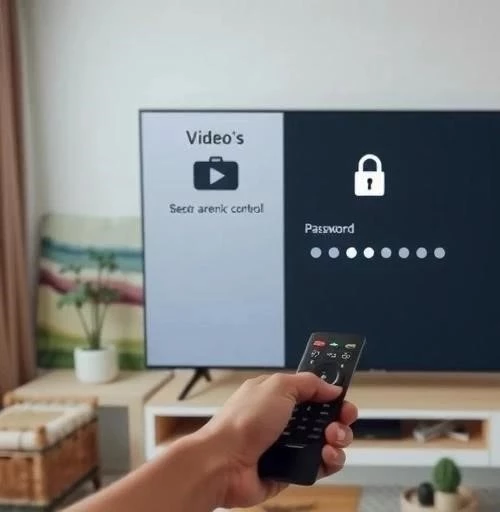
On most Xiaomi TVs, YouTube does not have a separate password that can be added to the app itself․ The available options depend on the TV’s operating system and model․ You can protect access to the TV, use parental controls, or limit what YouTube displays․ These measures are different: a device PIN may block apps or settings, while YouTube’s Restricted Mode filters some content but does not lock the app․
Option 1: Check for an app lock or parental control
- Press the Settings button on the Xiaomi remote, or open the settings from the home screen․
- Look for a section called Security, Privacy, Parental controls, Apps, or Device preferences․ The exact wording varies between Android TV, Google TV, and software versions․
- If you see App lock or a similar feature, open it, create a PIN, and select YouTube from the app list․
- If there is no app-lock option, check for a general parental-control setting․ Follow the on-screen instructions to create a PIN and choose which content, apps, or settings it restricts․
Not every Xiaomi TV includes a feature that can require a PIN before YouTube opens․ If the menus do not offer app locking, changing the YouTube app settings will not create a password prompt․ Avoid installing unknown “app locker” tools: they may not work reliably on a TV, and third-party apps can request unnecessary access․
Option 2: Use YouTube Restricted Mode
Restricted Mode is useful when the goal is to reduce the chance of seeing mature videos․ It is a content filter, not a password․ It does not prevent someone from opening YouTube, switching accounts, or changing the setting if they can access the relevant controls․
- Open the YouTube app on the TV․
- Open the side menu and select Settings․ Depending on the app version, this may be shown as a gear icon․
- Find Restricted Mode and turn it on․
- Return to the home screen and check that the setting is active for the account or app being used․
The menu layout can change after an app update․ If the option is not visible, check YouTube’s settings on the TV or consult the help information for the installed app version․ Restricted Mode may not filter every video, so it should not be treated as a complete parental-control solution․
Option 3: Set up a supervised Google account
For a child’s viewing, a supervised account managed with Google Family Link or an age-appropriate YouTube experience may provide more suitable controls than a shared adult account․ Set up supervision using Google’s current instructions, then add or select the child’s account in the TV’s YouTube app․ Available features depend on the child’s age, country, account type, and device․ Family Link does not necessarily create a PIN prompt every time YouTube is opened on a television․
Protect the TV’s settings
If your Xiaomi TV offers a system PIN, set one and keep it private․ Use the parental-control menus to restrict changes to settings or access to content where supported․ A system PIN may not lock YouTube specifically, so test what it protects: open the app, try switching profiles, and check whether settings can be changed without entering the PIN․ Do not share the PIN with people you are trying to restrict․
If the option is missing
- Check the TV’s model and operating system under Settings > About․
- Install available system and YouTube app updates, then review the menus again․
- Search the TV’s built-in help using terms such as “parental controls,” “PIN,” or “app lock․”
- If no app lock is supported, use a supervised account or restrict access through the router or another parental-control system, if available․
In brief: A direct password for YouTube is not available on every Xiaomi TV․ First check for an app lock or parental controls; otherwise, use Restricted Mode to filter some content or set up an appropriate supervised account․ These options offer different levels of control and should not be mistaken for one another․

2 Comments. Оставить новый
The article clearly distinguishes between an app lock and YouTube’s Restricted Mode, which helps set realistic expectations. The reminder that menu names vary by TV model and software version is useful.
The step-by-step guidance is easy to follow, and the warning about unknown third-party app lockers adds a practical safety note. Including the differences between Android TV and Google TV is also helpful.