
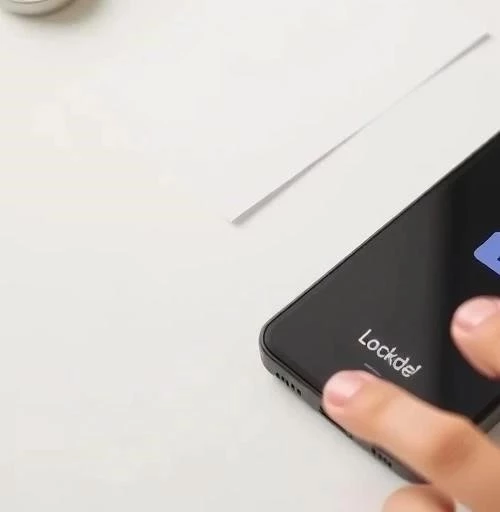
If you cannot remember the screen-lock PIN‚ password‚ or pattern on a Huawei P20 Lite‚ the safest approach is to identify what kind of lock is blocking access and then choose a recovery option. On most software versions‚ there is no supported way to reveal or remove a forgotten screen password while keeping the phone’s encrypted data intact. A factory reset can restore access to the device‚ but it erases data stored on the phone. Before resetting‚ check whether you can still make a backup or recover important information from a cloud account.
First‚ identify which password is being requested
Several different credentials can appear on a Huawei phone‚ and they are not interchangeable:
- Screen-lock PIN‚ password‚ or pattern: protects access to the phone itself.
- SIM PIN: protects the SIM card. If the prompt mentions a SIM PIN‚ do not reset the phone; contact your mobile carrier if you have forgotten it. Repeated incorrect entries may require the SIM’s PUK code.
- Google Account or Huawei ID password: used for online services and may be requested after a reset. Recover it through the relevant account service rather than trying to change the screen lock.
Read the wording on the screen carefully. A factory reset is not a solution for a SIM PIN‚ and changing an online account password does not unlock the phone’s existing screen lock.
Try safe checks before erasing anything
- Pause before trying more guesses. Repeated incorrect entries can cause longer waiting periods. Enter only a PIN‚ password‚ or pattern you are reasonably sure is correct. There is no benefit in cycling through random guesses.
- Check whether the phone is asking for the full password after a restart. Android normally requires the primary PIN‚ password‚ or pattern after the phone reboots‚ even if fingerprint or face recognition was previously enabled. Biometrics generally cannot replace that first unlock.
- Consider whether the phone is already accessible. If it is unlocked and you can navigate to Settings‚ back up important files immediately. Changing the screen lock normally requires entering the current lock credential‚ so an unlocked session may not let you replace a password you have forgotten.
- Check existing backups from another device. Look for photos‚ contacts‚ and documents in the Google account‚ Huawei Cloud‚ or another service you used. Availability depends on whether syncing or backup was enabled before the lockout.
Do not rely on old instructions that promise to unlock the P20 Lite with an emergency-call trick‚ a computer program‚ or a hidden code. Such methods are not reliable‚ may put your data or account at risk‚ and can be scams.
Before a factory reset
A reset removes the screen lock by returning the phone to its initial setup state. It also deletes local user data‚ including files and app data that were not backed up. A reset does not decrypt or recover the previous contents of the phone. If your photos or documents exist only in internal storage‚ resetting will normally make them unavailable.
Make sure you understand the account-verification requirement as well; After a reset‚ Android may ask for a Google Account that was previously synced to the device. This security feature‚ often called Factory Reset Protection‚ is intended to prevent unauthorized use of a lost or stolen phone. You may also need your Huawei ID for Huawei services. A reset does not remove these account checks.
- Confirm that you know the Google Account and password previously used on the phone‚ if possible.
- If you recently changed an account password‚ allow time for the change to become available for device verification; follow the instructions shown by the account provider.
- Charge the phone sufficiently‚ preferably to at least 50%‚ or connect it to a reliable charger before starting.
- Remove a microSD card before resetting if it contains files you want to protect. A reset may not erase the card‚ but removing it avoids accidental changes or confusion.
Reset the Huawei P20 Lite with the recovery menu
The exact labels can differ slightly depending on the installed EMUI version. These steps use the phone’s physical buttons and erase the device’s local data.
- Turn the P20 Lite off. If the screen is unresponsive‚ hold the Power button until the phone switches off or restarts‚ then try again. If it keeps restarting‚ begin holding the required buttons as soon as the display goes dark.
- Press and hold Volume Up and Power together. Keep holding them until the Huawei logo or recovery screen appears. If the phone starts normally‚ power it off and repeat‚ making sure Volume Up is pressed rather than Volume Down.
- In the recovery menu‚ use the volume buttons to move through the options and the Power button to select. On some versions‚ the screen is touch-enabled.
- Select Wipe data/factory reset. The menu may ask you to type “yes” or confirm the action. Read the warning‚ then confirm only if you accept that local data will be erased.
- When the wipe is complete‚ choose Reboot system now or the equivalent restart option. The first start may take several minutes; do not interrupt it.
If the recovery menu offers an online recovery or eRecovery option instead‚ do not assume it will preserve personal data. Read the prompts on screen and use only an official recovery route. Menu wording and available features can vary by model version and region.
Another option: erase the phone remotely
If a Google account was added to the phone and the relevant remote service was enabled‚ Google’s Find My Device may offer an option to erase it. Sign in to the Google account associated with the P20 Lite from another device and check the available device actions. The phone generally needs to be online and meet the service’s requirements. The remote erase permanently deletes local data‚ just like a recovery-menu reset‚ and will not bypass Google’s post-reset account verification.
Huawei’s device-finding services may also have offered remote actions‚ depending on the phone’s software‚ region‚ account settings‚ and whether the feature was enabled beforehand. Check Huawei’s official account or support pages for current availability. Do not share account passwords with a third-party unlocking service.
Set up the phone after resetting
After the restart‚ follow the setup screens and connect to a trusted Wi-Fi network if needed. When asked‚ enter the Google Account that was previously synced to the phone and the Huawei ID associated with it‚ if requested. If you cannot remember an account password‚ use the official account-recovery process on a separate device. A new account may not satisfy the previous-device verification check.
Once setup is complete‚ restore data from a backup if one is available. Restore only from accounts and backups you recognize. Then set a new screen lock and choose a code you can remember without making it easy for someone else to guess. Store it in a reputable password manager or another secure place; do not keep an unprotected note beside the phone.
If the buttons or recovery process do not work
Check that the phone has charge and that the buttons are not stuck or damaged. Try the button combination again with the phone fully powered off. If recovery cannot be opened‚ an error appears‚ or the phone remains stuck after a reset‚ stop repeating the process. Contact Huawei support or an authorized service center in your region and ask what proof of ownership they require. Service staff may be able to diagnose a hardware or software problem‚ but they cannot necessarily recover data protected by a forgotten lock.
How to reduce the risk of another lockout
- Use a screen-lock credential you can recall‚ and update it if you deliberately change it.
- Keep Google and Huawei account recovery details current and make sure you know which accounts are linked to the phone.
- Enable automatic backup or photo syncing‚ and occasionally confirm that the backup completed successfully.
- Keep a record of important account recovery information in a secure location separate from the phone.
In short: first distinguish a screen lock from a SIM or account password and check for existing backups. If the screen-lock credential is truly forgotten and the phone cannot be accessed‚ the usual supported way to regain use of a Huawei P20 Lite is a factory reset; Expect local data loss‚ and be prepared to verify the Google Account or Huawei ID previously associated with the device afterward.

3 Comments. Оставить новый
The article clearly distinguishes between a screen lock, SIM PIN, and account password, which helps readers avoid choosing the wrong recovery method.
The explanation of why a phone may request its primary password after restarting provides helpful context about biometric unlock limitations.
The warning that a factory reset erases data is useful. Checking for backup options before resetting is a practical recommendation.