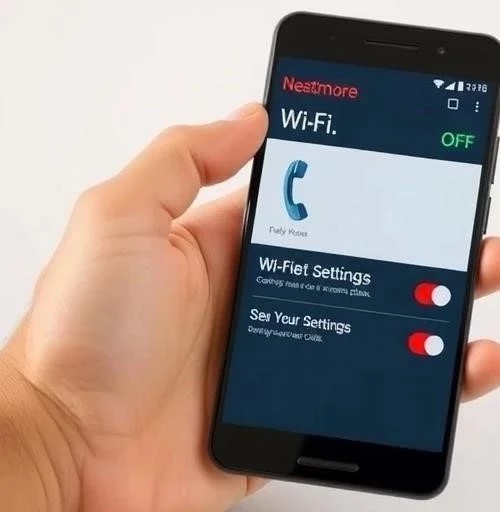
On Xiaomi phones, “Wi-Fi calling” can appear in more than one place: as a Quick Settings tile, as a status-bar indicator, or as an option in the Phone app. These are not always the same control. To remove the button without changing unrelated network settings, first identify where it appears. The right solution is usually to remove the tile or switch off Wi-Fi calling for the relevant SIM.
Remove the Wi-Fi Calling tile from Quick Settings
If the button appears when you swipe down from the top of the screen, it is probably a Quick Settings tile. Removing it from this panel hides the shortcut; it does not necessarily turn off Wi-Fi calling.
- Swipe down from the top of the screen to open Control Center or Quick Settings; On some versions, swipe down from the right side; on others, swipe down anywhere at the top.
- Tap the edit icon, often shown as a pencil, or tap Edit. If needed, expand the panel first.
- Find Wi-Fi Calling or a similarly named tile.
- Drag it out of the active tiles, or tap its minus/remove symbol. The precise gesture depends on the MIUI or HyperOS version.
- Tap Done or the confirmation check mark, then close the panel.
This is the best choice if you want to keep the service available but do not want its button in the panel. If the tile is not listed, your phone, software version, or mobile carrier may not provide a removable tile. In that case, check the SIM settings below.
Turn off Wi-Fi calling for a SIM
If you want to disable the feature itself, turn it off in the settings for the SIM that uses it. The menu names vary between Xiaomi models and software releases, so use the closest matching path:
- MIUI: Open Settings > SIM cards & mobile networks, select the relevant SIM, and switch off Make calls using Wi-Fi or Wi-Fi calling.
- HyperOS: Open Settings > Mobile networks, choose the SIM, and look for Wi-Fi calling or Calling.
- Alternative: Open Settings and search for Wi-Fi calling. Search is often the quickest way to find a setting whose location has changed.
For a dual-SIM phone, check each SIM separately. Disabling the option on one line does not necessarily disable it on the other. After changing it, wait a moment or restart the phone if the status-bar indicator remains. A reboot can refresh the displayed network state, but it will not make an unavailable carrier option appear.
If the button is inside the Phone app
A call-screen control or Wi-Fi calling label may be part of the dialer’s interface rather than a Quick Settings shortcut. First switch Wi-Fi calling off in the SIM settings. If the control remains, check the Phone app’s settings for a calling or Wi-Fi calling option, then restart the app or phone.
Some Xiaomi and carrier dialers do not let users hide this control separately. In that situation, it may only disappear when the service is disabled, or it may remain as an inactive label. Avoid installing an unfamiliar dialer or system-modification app just to hide it: such apps can request access to contacts, call history, and other sensitive information, and may not work after an update.
Why the option may be missing
Wi-Fi calling is supported through the mobile operator as well as the phone. Availability can depend on the carrier, SIM, country, device model, and software build. If the switch is absent, greyed out, or turns back on, check that the SIM is active and contact the carrier to ask whether Wi-Fi calling is enabled for your line. A carrier may manage the feature remotely or require compatible network settings.
Also distinguish Wi-Fi calling from VoLTE (4G calling). They are separate services. Turning off Wi-Fi calling should not require turning off VoLTE, mobile data, or Wi-Fi itself; Do not reset network settings as a first step: a reset may remove saved Wi-Fi networks and Bluetooth pairings without solving a carrier-side restriction.
Quick checklist
- Want to hide only the panel shortcut? Edit Quick Settings and remove the tile.
- Want calls to stop using Wi-Fi? Disable Wi-Fi calling for the correct SIM.
- Still see a label? Restart the phone and check the Phone app and carrier settings.
- Cannot find the switch? Search Settings, then ask the carrier whether the service is available for your SIM.
In short: removing a Quick Settings tile changes what is displayed; switching off Wi-Fi calling changes how calls may be routed. Choose the action that matches your goal, and avoid disabling unrelated network features.