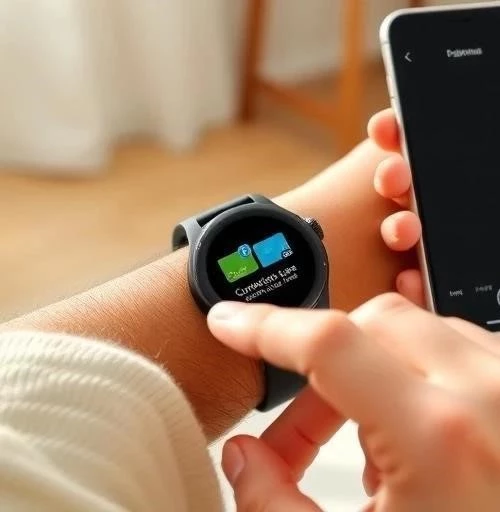
Apple Pay lets you make contactless payments with a compatible Apple Watch at supported payment terminals. You do not need to have your iPhone with you for an ordinary purchase once a payment card has been added to the watch. Setup is completed through the Apple Watch app on the paired iPhone, and your bank or card issuer may require verification before the card can be used.
Before you begin
Check that Apple Pay is available in your country or region and that your card issuer supports it. You will need an Apple Watch set up with an iPhone, an Apple Account, and a supported debit, credit, or prepaid card. Keep both devices nearby and make sure they have an internet connection during setup. The exact menu names can vary slightly according to the iOS and watchOS versions installed.
Your watch must have a passcode enabled to use Apple Pay. If you have not set one, the Wallet setup process will prompt you to create it. A passcode helps protect payment information and is required because the watch is worn on your wrist. If you remove the watch, it locks and requires the passcode before it can be used again.
Add a payment card
- Unlock the iPhone paired with your Apple Watch and open the Apple Watch app.
- Tap My Watch if that tab is not already selected.
- Scroll down and tap Wallet & Apple Pay.
- Choose Add Card. Depending on your software version, you may see options for a debit or credit card, transit card, or a card already used on another Apple device.
- Follow the on-screen instructions. You can scan the card with the iPhone camera or enter its details manually. Check the information for accuracy.
- Review the issuer’s terms, then complete any requested verification, such as a text message, email, banking app confirmation, or call to the issuer.
Adding a card to an iPhone does not necessarily add it to the Apple Watch. Select the watch as the destination when prompted, or add the card from the Wallet & Apple Pay section of the Watch app. Each device uses its own device-specific payment credentials, so a card may need to be set up separately on the watch even when it is already available on the iPhone.
Wait for confirmation that the card is ready. If verification is pending, follow the instructions shown in the Watch app or contact the card issuer. Some issuers do not support every card type, and a card can be declined for enrollment even if it works for regular purchases. Apple cannot approve a card on behalf of the bank.
Choose a default card
If you add more than one card, you can select which one the watch presents first. On the paired iPhone, open the Apple Watch app, tap My Watch, then Wallet & Apple Pay. Tap Default Card and choose the card you want to use by default. You can still select a different card at the payment terminal each time you pay.
Pay in a store
- At a contactless payment terminal, double-click the side button on the Apple Watch. Do not press the Digital Crown.
- If the default card is not the one you want, swipe to another card or turn the Digital Crown to select it, depending on your watchOS version.
- Hold the watch display near the contactless reader. Keep it there until you feel a tap and hear a sound, or see a confirmation on the screen.
The terminal must accept contactless payments, and the merchant must accept the card network used by your card. Follow any instructions on the terminal, such as entering a PIN or confirming the amount. A purchase may be declined by the issuer or payment terminal; Apple Pay does not override the merchant’s or bank’s normal payment checks.
Remove or manage a card
To remove a card from the watch, open the Apple Watch app on the iPhone, tap My Watch, then Wallet & Apple Pay. Select the card and tap Remove Card. Removing it from the watch does not necessarily remove the same card from Wallet on the iPhone or from other Apple devices. Review the device shown in the app before confirming.
If your watch is lost, mark it as lost or erase it using Find My as soon as practical. You can also suspend or remove Apple Pay cards through your Apple Account or by contacting the card issuer. A lost watch that has a passcode and is locked cannot be used for payments without authentication, but promptly disabling payment access is a sensible precaution.
If setup does not work
- Check compatibility and availability. Confirm that Apple Pay is supported in your region and that the bank supports the specific card.
- Update and reconnect. Install available iOS and watchOS updates, keep the iPhone and watch close together, and check their network connections.
- Confirm the passcode. Apple Pay on Apple Watch requires a watch passcode. If it was turned off or the watch was unpaired, you may need to set it up again.
- Contact the issuer. If a card cannot be verified or is rejected, the bank or card issuer can explain its enrollment requirements and resolve account-related restrictions.
Transit cards and express travel settings may have additional requirements and availability varies by location. Check Wallet & Apple Pay settings for the options offered for your card and region. Once the card appears as ready in the Watch app, Apple Pay is set up on the watch and can be used at supported contactless terminals.