
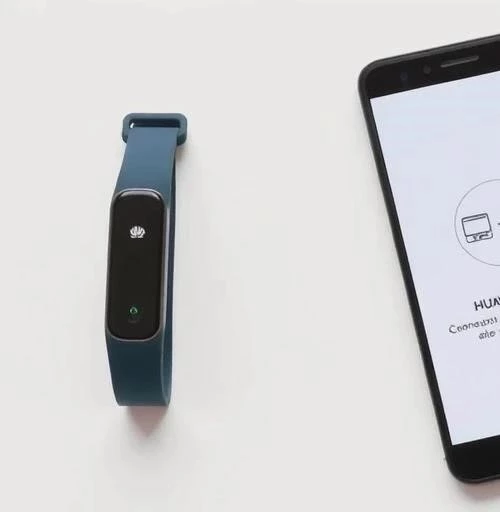
The Huawei Band 8 is a fitness band, not a standalone watch with a separate operating system to install. To start using it, charge and power on the band, pair it with a phone through the Huawei Health app, and complete the initial settings. You can then choose a watch face and install available updates or additional features. The exact app screens may vary depending on the phone, app version, and region.
Prepare the band and phone
Before beginning, check that your phone is compatible with the current version of Huawei Health. The app is available for supported Android and iPhone models, although some features and download methods differ by region. Make sure the phone has an internet connection, Bluetooth is enabled, and its operating system is up to date. Keep the band close to the phone while pairing.
Unpack the band and identify its charging cable. Connect the cable to a suitable USB power source and attach the magnetic connector to the charging contacts on the back of the band. Align the contacts so the connector holds in place. Allow the device to charge before setup, particularly if it does not respond when you press or touch the screen. Charging time depends on the power source and the band’s battery level.
Install Huawei Health
Download Huawei Health from an official source available for your device and location. On some Android phones, the app may be offered through Huawei AppGallery or Huawei’s official website; availability through other app stores can vary. On an iPhone, check the Apple App Store. Avoid unofficial download sites and modified app files, which may be unsafe or fail to provide updates.
- Open the relevant official app store or Huawei’s official download page.
- Search for Huawei Health and confirm that the publisher is Huawei.
- Download and install the app, then open it.
- Read the requested permissions and allow those needed for the features you intend to use.
Depending on the phone and app version, Health may request access to Bluetooth, nearby devices, notifications, location, or background activity. Bluetooth and nearby-device access are needed for connection. Location access can be required on some Android versions for Bluetooth discovery or route-related features. Notification access is needed only if you want alerts from the phone to appear on the band. You can review or change permissions later in the phone’s settings.
Pair the Huawei Band 8 with your phone
- Wake the band by connecting it to power or pressing its side button, if necessary. Select a language when prompted.
- Open Huawei Health and sign in to a Huawei account if the app asks you to do so. Follow the on-screen steps to create or access an account.
- In the app, open Devices, tap the add-device icon, and choose the option to add a device. The labels may differ slightly between app versions.
- Select Huawei Band 8 from the list. You can also use the app’s scan function if it is available.
- Keep the band beside the phone and wait for it to appear. Confirm the pairing request on both screens when prompted.
- Allow the connection to finish. Do not close the app or move the band far from the phone during this step.
If the band is already linked to another phone or Huawei account, it may need to be disconnected or reset before it can pair again. A reset removes data stored on the band, so sync any information you want to keep first. If a pairing code appears, check that the code on the phone matches the one on the band before confirming.
Complete the initial settings
After pairing, follow the setup prompts in Huawei Health. Set your preferred units, personal information, activity goals, and health-related options as appropriate. Check the phone’s date, time, and time zone: the band generally synchronizes its time from the connected phone. Review privacy notices and feature descriptions before enabling data collection or sharing.
To receive phone alerts, open the device settings in Huawei Health and enable notifications for the apps you choose. The phone may also require notification access or permission to run the app in the background. If alerts stop arriving, check both the app’s device settings and the phone’s battery-management settings. Do not enable permissions you do not need.
Update the band and choose a watch face
With the band connected, open its page in Huawei Health and look for a firmware or software update option, often found under device settings or a menu labeled Updates. Install an update only when the phone and band have sufficient battery, and keep them near each other with a stable internet connection. Follow the prompts until the band restarts and the update is complete. Avoid disconnecting it or shutting down the phone during installation.
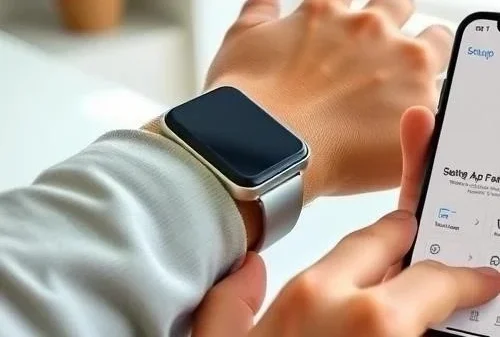
To change the display, open the band’s device page in Huawei Health and select Watch faces or Face gallery. Browse the available designs, select one, and tap the install or apply option. Some faces are stored directly on the band, so the app may need to transfer data before they appear. The available designs, downloads, and customization options can vary by region and app version. You can also change the face directly on the band if its menu offers that option;
Troubleshooting common setup problems
- The band does not appear: Charge it, keep it close to the phone, and check that Bluetooth is on. Close and reopen Huawei Health, then try scanning again.
- Pairing fails: Confirm that the band is not connected to another phone. Restart both devices and retry. If it was previously paired, remove the old connection in Bluetooth settings and Huawei Health before starting again.
- The app cannot find the band: Check the phone’s Bluetooth or nearby-device permissions. On some Android phones, location permission may also be required for discovery.
- The connection drops: Keep Huawei Health allowed to run in the background and review battery restrictions. Bluetooth range and interference can affect the connection.
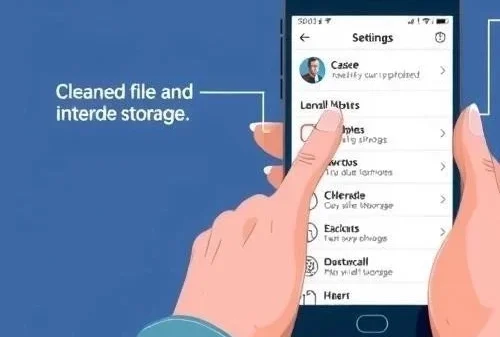
- A watch face will not download: Check the internet connection, available storage, and the band’s connection status. Try again after updating Huawei Health.
- The band is unresponsive: Place it on its charger and allow time for the screen to respond. If the problem continues, consult Huawei support or the device’s official user guide.
After setup
Once the band is paired, Huawei Health is used to manage many settings, review synchronized activity, and install supported faces or updates. Keep the app and band software current, charge the device as needed, and periodically verify that synchronization is working. Feature availability depends on the phone, software version, account, and region. For persistent faults or questions about warranty and compatibility, use Huawei’s official support resources for your country.
1 Comment. Оставить новый
The guide clearly outlines the basic preparation and pairing steps for the Huawei Band 8, while noting that app availability can vary by region. The article appears to end mid-sentence, so the final section may be incomplete.