
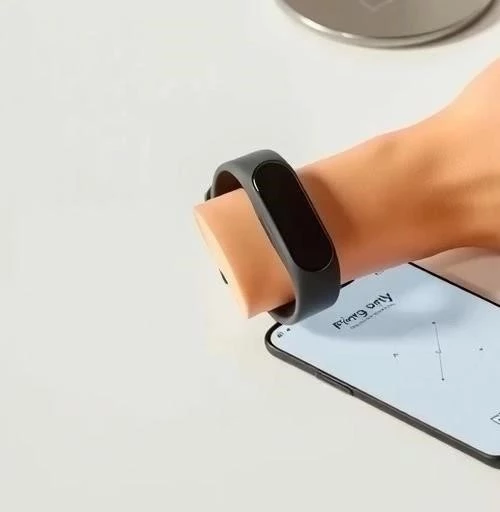
The Xiaomi Mi Band 4 is configured through a companion app on a smartphone. Setup involves charging the band, installing the app, pairing the devices, and choosing which features to use. Menu names may differ slightly by app version, phone operating system, and region.
Charge the band
Remove the capsule from the wrist strap and place it in the supplied charging cradle. Connect the cradle to a USB power source. Wait until the display indicates that the band has charged, then remove it and refit it in the strap. The tracker cannot be paired while it is charging.
Install the companion app
On your phone, install Xiaomi’s supported fitness app from the official Google Play Store or Apple App Store. The Mi Band 4 is commonly paired through Mi Fit, now called Zepp Life in many regions. App availability and compatibility can vary, so check the current store listing for your location. Avoid unofficial downloads;
Open the app and sign in to an existing account or create one. Allow Bluetooth access when requested. Location permission may also be required during Bluetooth discovery, particularly on some Android phones. Enable it for setup if prompted; the exact permission requirements depend on the phone’s operating system.
Pair the Mi Band 4
- Turn on Bluetooth on the phone and keep the band nearby.
- In the app, open the device section and choose the option to add or pair a band. Select Mi Smart Band 4 if asked to choose a device type.
- Wait for the app to find the tracker, then select it. When the band vibrates and displays a pairing prompt, tap its screen to confirm.
- Keep the app open until pairing and any initial synchronization are complete. If the app offers a firmware update, keep the band close to the phone and charged, and do not close the app during installation.
Pair the band from within the companion app rather than using the phone’s Bluetooth menu alone. If it was previously linked to another account or phone, it may need to be unpaired or reset before it can be connected again.
Set preferences and permissions
Open the device settings in the app to configure the features you want. You can usually choose a watch face, set a screen brightness or timeout, and enable options such as raise-to-wake. Available controls may vary. A shorter screen timeout and fewer active features can help conserve battery.
For call, message, or app alerts, enable the relevant notification options in the companion app. Then grant notification access in the phone’s system settings if requested. Select individual apps where supported, and check that the phone allows the companion app to run in the background. Do not grant permissions that are not needed for the features you plan to use.
To use activity or sleep tracking, wear the band securely, but not so tightly that it is uncomfortable. Review the app’s profile and health settings, such as units and personal details. These settings can affect displayed measurements. The Mi Band 4 is a fitness tracker, not a medical device.
Check that setup is complete
Sync the band once and confirm that its time matches the phone. The time is generally synchronized automatically. Try changing a watch face or enabling one notification to verify that app settings have taken effect. You can later adjust preferences from the same device-settings screen.
Troubleshooting
- The band does not appear: Charge it, move it closer to the phone, turn Bluetooth off and on, and retry discovery in the app. Check that the app has the permissions it requests.
- Pairing fails: Restart the phone and band if possible. If the tracker is linked to an old phone, remove it from that app or account first. A factory reset from the band’s settings may be needed; it can erase locally stored data.
- Notifications do not arrive: Check app notification settings, phone notification access, and background restrictions. Confirm that the phone itself receives the alerts.
After setup, keep Bluetooth enabled when you want automatic synchronization. Open the companion app periodically to review activity data, manage settings, and check for supported updates.



2 Comments. Оставить новый
The instructions appropriately emphasize pairing through the companion app and keeping the band nearby during synchronization. The compatibility and firmware-update reminders add useful context.
The guide presents the setup process in a clear sequence, from charging the band to confirming the pairing. Its notes about app naming and permission differences help set realistic expectations.