
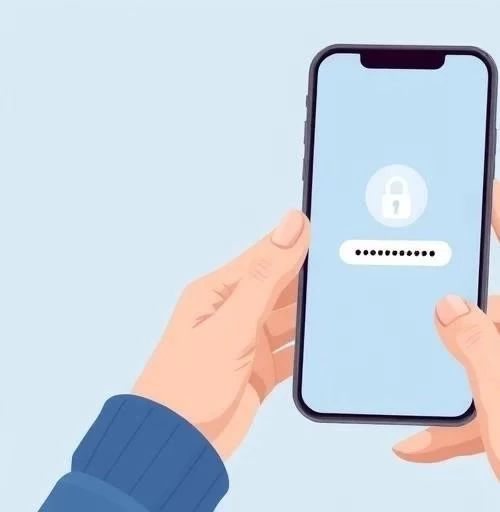
If you are signed in to a Huawei ID but cannot remember its password, the safest approach is to recover the password first and then sign out through the device settings․ Huawei may ask for the current password to confirm that you own the account․ This is a security measure, not an error․ The exact menu names and available recovery options can vary by device, software version, country, and account settings․
A Huawei ID may be connected to services such as AppGallery, Cloud, Find Device, themes, and device backups․ Before removing it, consider whether you need access to any data stored in those services․ Do not use unofficial unlocking tools or attempt to bypass account protection․ Such methods can expose personal information, damage the device, or leave it unusable․
Try to recover your Huawei ID password
- On a phone or computer, open the official Huawei account website: https://account․huawei․com․ Check that the address is correct and that the connection is secure․
- Choose the option to sign in, then select the link such as Forgot password or Reset password․ Wording may differ by region․
- Enter the phone number or email address associated with the Huawei ID․ If the account page offers a country or region selector, choose the one used when the account was registered․
- Complete the verification step using an available method, such as a code sent by text message or email, or another recovery option shown on the official page․
- Create a new password and save it in a secure place․ Use a password that you do not use for other accounts․
If a verification code does not arrive, check that the phone number or email address is entered correctly, including its country code․ Look in spam, junk, or filtered folders, and wait briefly before requesting another code․ Repeated requests may cause a temporary limit, so follow any instructions displayed on the page․ Never share a verification code with another person, even if they claim to be providing technical support․
Sign out on the Huawei device
After successfully changing the password, connect the device to the internet and open the account settings․ On many Huawei phones, the path is similar to one of these:
- Settings > Huawei ID
- Settings > Sign in with Huawei ID
- Settings > Account centre
Open the account page, scroll if necessary, and select Log out, Sign out, or a similarly named option․ The phone may ask you to enter the Huawei ID password or verify your identity․ Enter the new password and confirm the prompt․ Read any message about Cloud data, synchronisation, or Find Device before proceeding․ Some devices also ask whether to keep particular data on the phone; make a deliberate choice rather than dismissing the prompt automatically․
If the menu differs, use Settings search and look for “Huawei ID,” “Account centre,” or “Log out․” On some versions, the account page is available near the top of Settings; on others, it may be within a user or account section․ The labels can change with EMUI, HarmonyOS, device model, and software updates․
If you cannot use the registered phone or email
If the recovery page offers no method you can access, look for an account recovery or identity-verification option on Huawei’s official account site․ You may be asked for information that helps verify ownership․ Provide accurate details and submit the request only through an official Huawei channel․ The available process and required information differ between regions․
If you no longer control the recovery phone number, contact the mobile provider to ask whether the number can be restored or transferred to you․ If the registered email address is inaccessible, first use that email provider’s official recovery process․ Recovering the original contact method can make Huawei account verification simpler․
When self-service recovery is unavailable, contact Huawei Customer Service or an authorised service centre in your country․ Use contact details found on Huawei’s official regional website․ Be prepared to provide proof of purchase or other ownership information if requested․ Support cannot necessarily remove an account without verification, and processing times vary․
If the phone is offline, damaged, or unavailable
Try to recover the password from another trusted phone or computer․ If you can access the account online, review the account’s device and security settings for available options․ The website may let you manage sessions or devices, but removing a device from an online list does not always sign it out locally or remove all data from it․
If the phone is damaged, do not assume that a factory reset will solve the account problem․ A reset can erase local data, and the device may still require the previously linked Huawei ID during setup․ If the screen is unusable, ask Huawei or an authorised repair provider about safe repair and account recovery options before wiping the phone․
Before selling or giving away the device
Recover the password, sign out of Huawei ID in Settings, and check that any other accounts you use on the phone have also been removed․ Back up important information first․ Confirm that you can access your photos, contacts, documents, and other data before deleting anything․ If you use Huawei Cloud, check what is synchronised and whether a separate copy is needed․
Only after signing out and checking your backup should you use the device’s built-in reset option, if you intend to erase it․ Follow the on-screen instructions․ Afterward, check that the phone starts the initial setup process without asking for the previous owner’s account․ If it still requests that account, stop and resolve the issue with the account owner or Huawei support․ A reset should not be used to evade ownership checks․
Common problems and practical checks
- The password is rejected: Confirm that you are entering the password for the Huawei ID shown on the device, not a Google, email, or screen-lock password․ Check the keyboard language, capitalisation, and saved-password entries;
- The account appears unfamiliar: Check the displayed email address or masked phone number․ If it is not yours, do not attempt to remove or access someone else’s account․ Contact the person who owns the device or Huawei support․
- The sign-out button is missing: Search Settings, review the account page, and check for a software update when appropriate․ Menu availability depends on the model and system version․
- Verification fails repeatedly: Stop making repeated attempts, check the recovery details, and follow the waiting period or instructions shown by Huawei․ Contact official support if the account remains inaccessible․
- You are worried about losing data: Do not reset the phone as a first step․ Review backup and synchronisation settings, and confirm that important files are available elsewhere before signing out or erasing the device․
What not to do
Avoid websites, applications, or videos that promise to remove Huawei ID without the owner’s credentials․ Do not give strangers your password, verification code, identity documents, or remote access to your phone; Avoid installing unknown software or paying an unofficial service to bypass account protection․ These approaches can lead to fraud, malware, privacy loss, or permanent device problems, and they may violate local rules or the device’s terms․
In most cases, the correct sequence is to recover the Huawei ID password through Huawei’s official account service, return to the phone’s Huawei ID settings, and confirm sign-out with the new password․ If you cannot access the registered recovery method, use Huawei’s official recovery process or contact regional customer support․ Back up important data first, and do not rely on a factory reset to remove account protection․

1 Comment. Оставить новый
The article gives a clear overview of the official password recovery process and explains why account protection should not be bypassed. Its reminders about verification codes and account-linked services are useful, though the available steps may vary by region and device.