
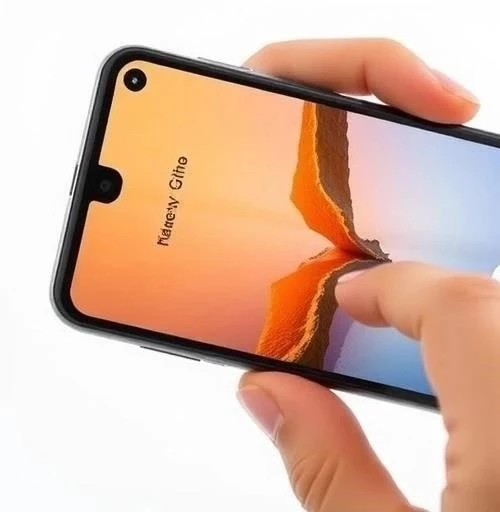
Taking a screenshot on a Huawei phone is usually quick: you can press the physical buttons, use a gesture, or select the screenshot command in the notification panel. The exact options depend on your phone model and its version of EMUI or HarmonyOS, so a feature described below may have a different name—or may not be available—on your device.
Use the power and volume buttons
This is the most widely supported method and works on many Huawei phones and tablets.
- Open the screen you want to capture.
- Press the Power button and the Volume Down button at the same time.
- Release both buttons promptly. You should see a brief animation or hear a capture sound if your sound settings allow it.
Try a short, simultaneous press rather than holding the buttons down. Holding them for too long may open the power menu or change the volume instead. On some models, the buttons are on the same side of the phone; on others, their positions differ. If the shortcut does not work, check that both buttons respond normally and try again while the phone is unlocked.
Take a screenshot from the notification panel
If pressing two buttons is awkward, use the on-screen shortcut:
- Swipe down from the top edge of the display to open the notification or quick settings panel. Depending on your software version, you may need to swipe down again to see all shortcuts.
- Look for Screenshot or a similarly named tile, then tap it.
- If you cannot see the tile, edit the quick settings shortcuts and add it, if your device offers that option.
The layout and tile names can vary. On some versions, swiping down from the left and right sides opens different panels, so try the area where your notifications or quick settings normally appear. You can also search Settings for “Screenshot” to find available controls.
Capture the screen with a knuckle gesture
Some Huawei phones support knuckle gestures. When enabled, a light double tap with one knuckle can capture the display. This is convenient when your hands are occupied, but it is not supported on every model.
- Open Settings and search for Knuckle gestures, Motion control, or Shortcuts & gestures.
- Open the relevant menu and turn on the screenshot gesture, if it is listed.
- Tap the screen twice quickly with a knuckle, using a light touch.
If a double tap does not work, confirm that the setting is enabled and that your phone supports the feature. A finger tap may not be recognized as a knuckle gesture. Avoid hitting the glass hard; the gesture should not require force.
Use a three-finger swipe
Some Huawei models offer a three-finger swipe-down gesture. To check for it, search Settings for Three-finger screenshot or Screenshot gestures, then enable the option if it appears. Place three fingers on the screen and slide them down together to capture the current display.
This shortcut may not be available on all phones or in every app. If it fails, check the gesture setting, make sure all three fingers touch the display at the same time, and try swiping from the middle of the screen. If your model does not include the option, use the button shortcut or the quick settings tile.
How to take a scrolling screenshot
A scrolling screenshot captures more than the part of a page currently visible. It is useful for long articles, settings pages, and conversations that allow screen capture.
- Take a normal screenshot using the buttons or another supported method.
- When the screenshot preview or toolbar appears, tap Scrollshot, Scrolling screenshot, or the scrolling icon.
- Let the page move automatically, or tap to control where the capture stops, depending on the interface.
- Tap the stop or finish control when you have captured the section you need.
Scrolling capture works only in compatible screens and apps. Some pages may stop scrolling at a particular point, and protected content may not be capturable. If the scrolling option does not appear, try another capture method or check whether the app supports it.
Where Huawei screenshots are saved
After capture, a thumbnail may appear briefly on the screen. Tap it to review, crop, mark up, or share the image. If you do not tap the preview, the screenshot is normally saved automatically.
To find it later, open Gallery or Photos and look for the Screenshots album. You can also browse the phone’s internal storage using Files; the folder is commonly named Pictures/Screenshots, although the exact location may vary by software version. From the image viewer, use the share button to send the screenshot to a contact or another app.
Editing and sharing a screenshot
The preview toolbar often includes basic editing tools. Use crop to remove unwanted borders or personal details, and use the pen or markup tool to highlight an area. Some versions let you add text, blur or cover parts of an image, or create a longer capture. Available tools differ between devices.
Before sharing, check the full image. A screenshot may show message previews, account names, notifications, location details, or other private information. Crop or cover anything you do not want the recipient to see. If you edit the image, save a copy when you want to keep the original unchanged.
How to record the screen instead
A screenshot is a still image. If you need to show a sequence of taps or a moving video, look for Screen recording in the quick settings panel. On supported Huawei devices, you can open the panel, tap the recording tile, and follow the on-screen prompts. Some models also provide a recording shortcut through their gesture settings.
Screen recording may capture microphone audio, device sounds, or neither, depending on the options you choose. Check the recording controls before starting, and remember that apps may block recording of protected content. Stop the recording from the on-screen control or notification; the video is generally saved in Gallery.
Troubleshooting: the screenshot shortcut is not working
- The buttons open a different menu: Press Power and Volume Down together, then release quickly. Do not hold them.
- No screenshot tile appears: Expand or edit the quick settings panel, or search Settings for “Screenshot.”
- A gesture does nothing: Check whether your model supports it and whether the relevant option is enabled. Gesture names and locations vary.
- The screen flashes but no image is visible: Check Gallery’s Screenshots album and the Files app. Allow a moment for the image to save, and confirm that storage is not full.
- Only part of a page is captured: Use the scrolling screenshot option after taking the first image, if the app supports it.
- An app refuses to capture: Banking, streaming, work, and other protected apps may block screenshots for security or copyright reasons. This restriction may be intentional.
If the problem continues, restart the phone and test the shortcut on the home screen or in Settings. You can also install available system updates, but do not reset the device just to fix a screenshot shortcut unless you have backed up your data and considered other support options.
Quick recommendation
For most Huawei phones, press Power + Volume Down briefly. For a hands-free alternative, check the quick settings panel. If you want to use knuckle or three-finger gestures, first confirm that your model supports them and enable the relevant setting. After capturing, open Gallery to review the image, make edits, and share it safely.

9 Comments. Оставить новый
I found the suggestion to search Settings for “Screenshot” useful, since menu layouts can change between software versions.
I like that the notification panel method is included as an alternative for anyone who finds button shortcuts awkward.
The step-by-step instructions are easy to follow, especially for someone who has not used a Huawei phone before.
This is a practical guide with clear instructions and sensible troubleshooting advice for when the usual button shortcut does not work.
The model-specific caveat is important. Huawei menus and gestures can differ, so it is good that the article does not present every option as universal.
A concise and helpful overview. Including both physical buttons and on-screen controls gives readers more than one way to capture their display.
Mentioning that the quick settings tile may need to be added is a helpful detail that could save readers some searching.
The tip about pressing Power and Volume Down briefly is useful. Holding the buttons too long can definitely trigger other controls.
The article explains the main screenshot methods clearly, and I appreciate the reminder that options can vary by model and software version.