
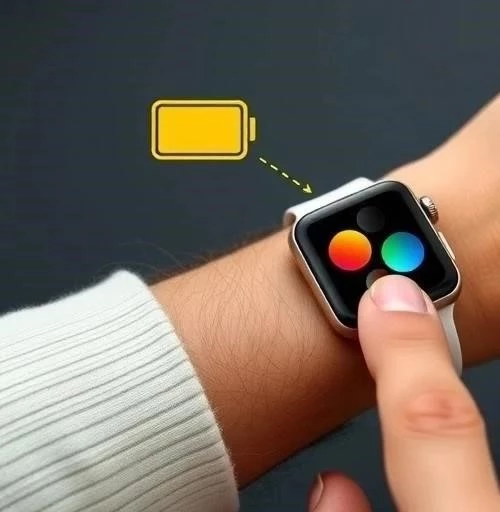
Low Power Mode helps an Apple Watch last longer when its battery is running low or you are away from a charger. It reduces power use by limiting or slowing some features. If you no longer need the extra battery life, you can switch the mode off from Control Center or Settings. The steps are similar on Apple Watch models that support Low Power Mode.
Turn it off in Control Center
- Press the side button once to open Control Center. On watchOS 9 and later, Control Center opens with the side button; pressing the Digital Crown takes you to the app view or watch face.
- Tap the battery percentage button. If you do not see it immediately, scroll through Control Center to find it.
- Tap Low Power Mode.
- If a screen explains what the mode does, scroll down and tap Turn Off. If you see an on/off control, switch it off.
The watch should return to its usual settings. Some features that were limited may take a short time to become available again, especially if the watch needs to reconnect to your iPhone or a network.
Turn it off in Settings
You can also change the setting directly on the watch:
- Press the Digital Crown to open the app list or app grid.
- Open Settings, then tap Battery.
- Tap Low Power Mode.
- Tap Turn Off or switch the setting off, depending on the screen displayed.
If you use the paired iPhone, open the Watch app and look for the battery or Low Power Mode controls in the watch settings. The menu layout can differ between watchOS versions, so using Settings on the watch is often the simplest option.
What changes when Low Power Mode is off?
Low Power Mode is not the same as turning off the watch. It is a battery-saving setting: the watch continues to work, but some functions may be reduced. Depending on your model, software version, connection, and use, this can affect background activity, notifications, cellular or Wi-Fi connections when the iPhone is not nearby, and measurements or alerts that update less frequently. Turning the mode off restores normal operation where conditions allow.
Switching it off does not charge the battery or improve its health. If the battery is nearly empty, connect the watch to its charger. You can check the charge from Control Center or in Settings under Battery.
If Low Power Mode turns on again
Apple Watch may offer to enable Low Power Mode when the battery reaches 10%. If you accept, it can also be set to turn off automatically after the watch is charged to 80% or more. If it seems to return unexpectedly, check the battery setting again and consider whether you accepted a low-battery prompt. Charging the watch and restarting it can help if the display appears stuck or the setting does not respond.
Low Power Mode versus Power Reserve
On older Apple Watch software, you may encounter Power Reserve, a more restrictive mode that mainly displays the time. It is different from Low Power Mode. If the watch only shows the time and does not respond normally, connect it to its charger and restart it: press and hold the side button until the Apple logo appears. Do not force a restart while the watch is updating. The exact steps and available features can vary by model and watchOS version.
Quick recap
For most users, the fastest route is side button → battery percentage → Low Power Mode → Turn Off. Alternatively, open Settings → Battery → Low Power Mode. If the option is missing, update watchOS if appropriate, check that you are looking at the watch’s battery settings, and consult Apple Support for instructions specific to your model.

2 Comments. Оставить новый
A helpful guide that explains both how to turn Low Power Mode off and why some features may take a little time to return. The reminder that menu labels can vary by software version is a nice touch.
The instructions are clear and practical, especially the note that Control Center access changed in newer watchOS versions. The Settings alternative is useful if the battery control is hard to find.