
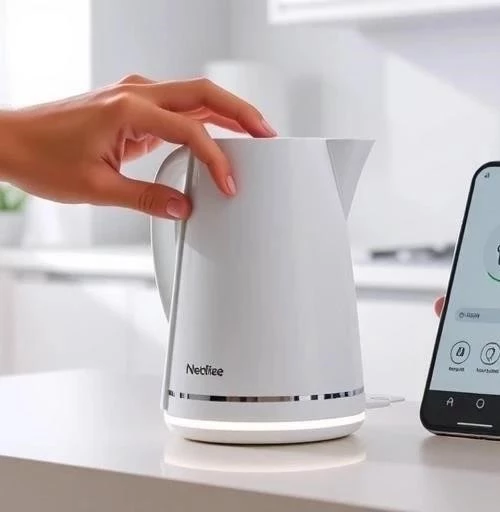
Whether a Xiaomi kettle can be switched on from a phone depends on its exact model. Some models connect to Xiaomi Home (also called Mi Home) but offer only temperature settings, status information, or keep-warm controls. Others may support additional app controls. Connecting a kettle to the app does not necessarily mean that the app can start boiling remotely. Check the model name and its manual before following the steps below.
Check that the kettle supports the required control
Find the model number on the kettle, its base, packaging, or documentation, and look up the instructions for that specific version. Xiaomi sells kettles with different connection types and features. A Bluetooth model may need the phone to be nearby and may not support control over the internet. A Wi-Fi-enabled model may offer broader remote functions, but its available commands still depend on the model, firmware, app version, and region.
Also check what “turn on” means for the particular kettle. The app might let you select a target temperature or manage the keep-warm function without being able to start the heating element from a cold kettle. If the app displays settings but has no start button, this may be a model limitation rather than a connection problem.
Prepare the kettle and phone
- Install or update Xiaomi Home (Mi Home) from the official app store.
- Sign in to your Xiaomi account. If prompted, choose the region where the device is supported.
- Place the kettle on a dry, level surface and connect its base to power.
- Fill the kettle within the minimum and maximum marks, close the lid, and check that the base and electrical contacts are dry.
- Enable Bluetooth, Wi-Fi, and any requested location or nearby-device permissions on the phone.
Permission names vary by phone and operating-system version. Location access can be requested because some systems use it when scanning for nearby Bluetooth devices; granting it does not mean the kettle needs your location to boil water. For Wi-Fi setup, use the network band and security settings specified in the model’s manual. Many smart home devices require a 2.4 GHz network during pairing.
Add the kettle to Xiaomi Home
- Open Xiaomi Home and sign in if necessary.
- Tap the plus sign or the option to add a device.
- Look for the kettle in the nearby-device list, or search for its exact model name.
- Select the device and follow the on-screen pairing instructions. Keep the phone close to the kettle during setup.
- If asked, press and hold the kettle’s designated control to enter pairing mode. The button, indicator, and reset procedure vary by model, so use the manual rather than trying an undocumented button sequence.
- For a Wi-Fi model, select the correct network and enter its password. Wait for the app to finish connecting before leaving the setup screen.
- Give the device a name and assign it to a room if desired.
After setup, open the kettle’s device page. Read the displayed controls and prompts to determine which functions are available. Depending on the model, these may include a temperature selection, a keep-warm setting, operating status, or a heating command. If the app offers a start control, use it only under the conditions described in the manual.
Starting heating from the app
If the device page includes an explicit heating or start button, first make sure the kettle contains enough water, the lid is closed, and the kettle is correctly seated on its powered base. Select the desired setting, then tap the on-screen control once. Allow the app a moment to update the status. Do not repeatedly tap the control if the display appears slow; check the kettle itself for an indicator or other sign that heating has begun.
Some models require a physical button press to begin heating, even after they have been added to Xiaomi Home. In that case, the app may still be useful for adjusting supported settings or viewing status, but it cannot replace the physical start action. If there is no start control in the app, do not assume that a hidden menu or automation will make remote boiling possible. Consult the manual or the manufacturer’s support information for the exact model.
For models that support remote operation, confirm whether the phone must remain on the same local network or whether the device can be reached through an internet connection. Bluetooth-only control normally requires the phone to be within range. Cloud-based access may also depend on the device being online, the account’s region, and the Xiaomi Home service being available.
If the kettle does not appear or respond
- Check compatibility: Confirm that the exact model supports Xiaomi Home in your region. Similar product names do not guarantee identical app features.
- Check power and placement: Verify that the outlet works, the base is connected, and the kettle is seated properly.
- Check permissions: Allow Bluetooth or nearby-device access, and enable Wi-Fi if the setup process requires it.
- Check the network: Confirm the password, signal strength, and required Wi-Fi band. Temporarily move the kettle closer to the router if needed.
- Check the app region: The device may be listed only when the app is set to a supported region. Changing regions can affect access to other devices, so note the current setting first.
- Restart carefully: Close and reopen the app, restart the phone, and power-cycle the kettle only as directed by the manual.
- Pair again only if needed: Remove the device from the app and reset its network connection only when the model instructions explain how. Resetting may erase saved settings.
- Update software: Install available Xiaomi Home updates and any firmware update offered for the kettle. Keep the device powered during a firmware update.
If pairing succeeds but commands fail, check that the kettle is online and that the app is signed into the account used to add it. A Bluetooth device may not respond when the phone is out of range. For a Wi-Fi device, router changes, a weak signal, or a temporary service issue can interrupt app access. If the physical controls also fail, stop using the kettle and follow the manufacturer’s troubleshooting guidance.
Safety and practical limitations
Use the kettle on a stable, dry surface and never operate it without water or above its maximum fill line. Keep the base and plug away from water. Do not leave the appliance unattended if its instructions advise against it, and do not try to defeat automatic shut-off or other protective features. Keep children away from hot water and steam.
Remote control can be convenient, but it should not be treated as a substitute for checking the appliance. Before starting a supported function, make sure the kettle is properly assembled and safe to operate. If the app offers only temperature or keep-warm controls, use the physical switch for boiling. The most reliable answer for any individual Xiaomi kettle is the feature list and operating instructions for its precise model and regional version.
Quick checklist
- Identify the exact kettle model and confirm Xiaomi Home compatibility.
- Add it through the app’s device setup and follow the model-specific pairing instructions.
- Check the kettle’s device page for an actual heating control.
- If no start control is available, use the physical button as instructed.
- Before heating, check the water level, lid, base, and surrounding area.
1 Comment. Оставить новый
The article clearly explains that app features vary by kettle model and distinguishes remote temperature settings from starting a boil. Checking the model’s manual before troubleshooting is a practical recommendation.