
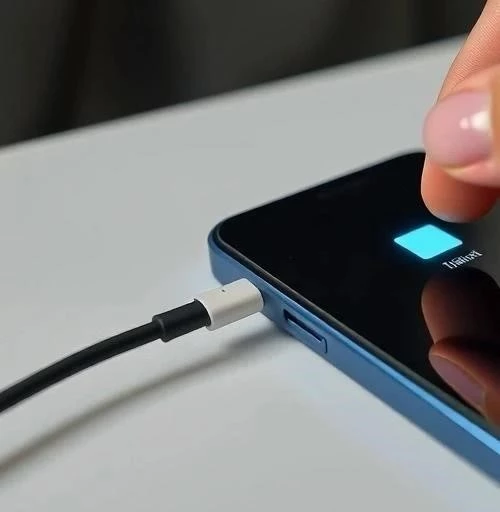
A faulty power button can make a Xiaomi phone difficult to use, but the right solution depends on whether the phone is currently on or completely switched off. Start with the least risky options: charge the device, use settings or accessibility features if the screen still works, and avoid opening the phone. Button-free methods are not universal, so do not assume that a procedure for one Xiaomi model will work on another.
If the phone is switched off
- Check the battery and charger. Connect the phone to a reliable wall charger and cable for at least 20–30 minutes. A deeply discharged battery may not show a charging icon immediately. If possible, try another compatible charger and inspect the cable and charging port for damage. Do not insert metal objects into the port.
- See whether charging starts the phone. Some Xiaomi models boot when connected to power; others only display a charging screen. Leave it connected for a few minutes, then check the screen. This is safe to try, but it is not a guaranteed way to start every model.
- Try a computer connection only as a diagnostic step. Connect the phone with a known-good USB cable. A computer may detect it or provide enough power for it to start, but plugging it in does not reliably replace the power button.
- Check for a previously configured schedule. Some Xiaomi software versions or models offer scheduled power-on and power-off settings. If you enabled a power-on schedule before the button failed, wait for the configured time while the phone has sufficient charge. This cannot usually be set up while the phone is off.
Button combinations involving Volume Up or Volume Down are often suggested online. They may open Recovery or Fastboot on certain devices, but usually require the power button as well, and the behavior differs by model. Do not repeatedly try random combinations or select unfamiliar Recovery options: some actions can erase data. If the display shows a Fastboot screen, do not assume the phone is broken; seek model-specific guidance or professional help rather than choosing an unknown command.
If the phone is on and the screen works
First, keep the phone charged and avoid restarting it until you have a reliable way to switch it back on. Back up important photos, contacts, and files while the device is accessible. Then consider these options:
- Use on-screen controls. Open Settings and search for “Accessibility menu,” “Quick ball,” or similar features; names and availability vary across MIUI and HyperOS versions. An accessibility shortcut or floating menu may provide screen controls, though it may not include a true power-on function.
- Use the screen to lock or wake the device. If already enabled, double-tap to wake, raise-to-wake, or an always-on display can help you use the phone without pressing the button. Look under Lock screen or Always-on display settings. These features do not start a fully powered-off phone.
- Keep the display awake temporarily. Change the screen timeout in Settings while arranging repair, if appropriate. This is only a short-term workaround; leaving the screen on can drain the battery and does not fix the switch.
- Consider ADB only if it was set up earlier. Android Debug Bridge may restart or control a device in some circumstances, but USB debugging must already be enabled and that computer generally must have been authorized. ADB cannot reliably turn on a phone with a fully discharged battery or replace hardware repair. Avoid tools from unknown websites.
What to avoid
Do not pry open the handset, press hard on a stuck button, bridge contacts with a wire, or apply heat. Xiaomi phones contain delicate parts and lithium-ion batteries; accidental short circuits or battery damage can cause injury or fire. Avoid “factory reset” instructions unless you have a backup and deliberately intend to erase the phone. A reset is not a normal fix for a defective physical button.
When repair is the best option
If the phone will not start after charging, the button is physically loose or jammed, or the device only works when the button is pressed at an angle, arrange service with Xiaomi or a reputable repair shop. The fault may be in the button flex cable rather than the external button itself. Tell the technician whether the phone was dropped or exposed to liquid, and ask about data preservation before authorizing work. If the phone becomes unusually hot, swells, smells, or shows battery damage, unplug it if safe and stop using it.
In brief: charge the phone, try a normal USB connection, and use accessibility or wake features only if it is still running. These are temporary possibilities, not guaranteed substitutes for the power switch. Back up data while you can, and have a failed button repaired instead of risking the phone with improvised electrical or disassembly tricks.

5 Comments. Оставить новый
I like that the article discourages opening the phone or inserting objects into the charging port. Those safety reminders are important, especially for readers who might otherwise attempt a risky repair.
The advice is measured and appropriately warns that connecting a computer or charger may not start the device. It could be improved by emphasizing that users should seek professional repair if the button remains faulty and the phone cannot be powered on.
The distinction between a phone that is switched off and one that is still running makes the advice easier to follow. A model-specific reference to official Xiaomi support would make the guidance even more actionable.
This is a useful guide because it starts with low-risk steps, such as charging the phone and checking the cable, before discussing less certain options. It also sets realistic expectations rather than promising that one workaround will work on every Xiaomi device.
The article gives sensible, cautious advice for a frustrating problem. I especially appreciate the warning that button combinations vary by model and that unfamiliar Recovery options could erase data.