
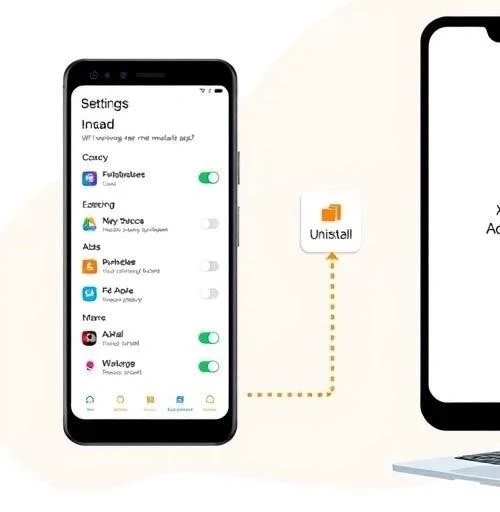
GetApps is Xiaomi’s app store, used to discover and update applications. Depending on the phone model, Android version, and region, it may be installed as a regular app or included as a system app. That difference determines whether it can be fully uninstalled through Settings. Before changing anything, check whether you simply want to stop notifications, prevent updates, or remove the app from the device: the least disruptive option is usually best.
Try the standard uninstall option
- Open Settings and go to Apps or Apps > Manage apps. Menu names vary between MIUI, HyperOS, and software versions.
- Search for GetApps, then open its app information page.
- If Uninstall is available, tap it and confirm. If the page offers Uninstall updates instead, that removes updates but keeps the built-in version.
You can also press and hold the GetApps icon in the app drawer and choose App info. Some Xiaomi software versions show an uninstall option there. If the option is missing or unavailable, the app is probably protected as a system component. Do not assume that a greyed-out button means the phone is malfunctioning.
Disable or restrict GetApps
If full removal is not offered, open GetApps under Settings > Apps > Manage apps. Depending on the device, choose Disable or Turn off. If neither option is present, use the controls that are available to limit its activity:
- Under Notifications, switch off GetApps notifications or disable individual notification categories.
- Under Autostart, turn off automatic startup if that setting is shown.
- Under Data usage, restrict background mobile data or background activity where available.
- Under Battery, select a restricted background-use option if your phone provides one.
- In GetApps itself, turn off automatic app updates and promotional notifications, if those controls are available.
To clear stored information, open the app’s information page, select Storage, and use Clear cache or Clear data. Clearing data resets the app; it does not uninstall it. The exact labels and available controls depend on the model and system version.
Remove it for your user with ADB
For an app that cannot be uninstalled in Settings, Android Debug Bridge (ADB) can remove it from the current user profile on many Xiaomi devices. This is an advanced method. It usually removes the app for the active user rather than deleting its files from the system partition, and the result can differ by software version. A factory reset or system update may restore it.
- Back up important information. On the phone, open Settings > About phone and tap OS version or MIUI version repeatedly until Developer options are enabled.
- Open Settings > Additional settings > Developer options and enable USB debugging. The menu path may differ.
- Install Google’s official Android Platform Tools on a computer, connect the phone by USB, and approve the debugging prompt on the phone.
- In a terminal or command prompt, check that the device is detected with
adb devices. Then identify the exact GetApps package name withadb shell pm list packages. Search the output for names containing terms such asgetapps,mipicks, orxiaomi.market. Package names vary; do not guess. - After verifying the package name, run
adb shell pm uninstall --user 0 PACKAGE_NAME, replacingPACKAGE_NAMEwith the exact result. For example, usecom.example.packageonly if that is what your own device reports.
Keep USB debugging enabled only while needed, and turn it off afterward. Do not run commands that you do not understand, remove unrelated Xiaomi or Android packages, or use a bulk debloating script without reviewing its package list. Removing a component relied on by another service may cause errors or interfere with app installation and updates.
How to restore GetApps
If ADB removed GetApps for user 0, reconnect the phone and try adb shell cmd package install-existing PACKAGE_NAME. On some Android versions, adb shell pm install-existing PACKAGE_NAME is used instead. Replace the placeholder with the package name you recorded. If you disabled the app through Settings, return to its app information page and select Enable. A system update or factory reset may also bring back a built-in app, but should not be used solely for this purpose.
Which option should you choose?
Start with notification and background restrictions if your main concern is interruptions or data use. Use the regular uninstall option when the phone provides it. ADB is appropriate only if you are comfortable identifying packages and accepting that system updates or resets can change the result. Rooting the phone is not necessary for these options and can introduce additional security and stability risks. Because Xiaomi changes menus and bundled apps across regions and versions, check the exact app name and available settings on your device before proceeding.


6 Comments. Оставить новый
The guidance appropriately notes that menu names and settings can vary across Xiaomi software versions.
The article clearly explains why GetApps may not offer a standard uninstall option on some Xiaomi devices.
The suggestions for limiting notifications, data use, and background activity offer practical alternatives to removal.
The distinction between uninstalling an app and uninstalling its updates is useful for understanding the available options.
The explanation is straightforward and gives readers options that depend on the controls available on their device.
The article recommends checking the app information page before making changes, which helps avoid unnecessary steps.