
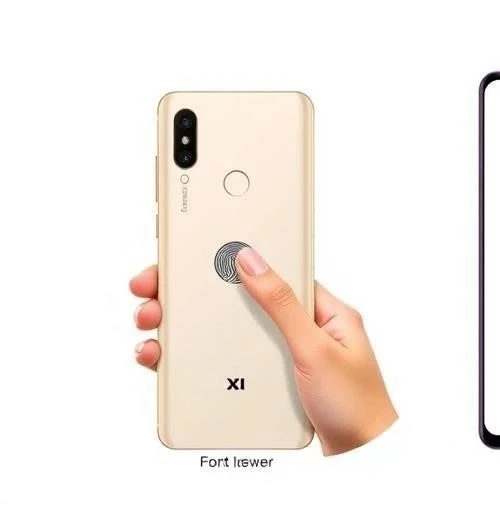
“Unlock” can mean several different things on a Redmi Note 8: opening a phone that is protected by a forgotten screen lock, removing a SIM or carrier restriction, recovering access to a Xiaomi account, or unlocking the bootloader for software development. The correct method depends on which lock is involved. Start by identifying the message on the screen and use the relevant steps below. Methods that erase or modify the phone can permanently remove data, so read the warnings before continuing.
Before you begin
- Charge the phone, preferably to at least 50%, and use a reliable charger.
- Confirm the exact model and variant. Redmi Note 8 versions and installed MIUI or Android software may differ, so menus and button behaviour are not always identical.
- If the phone still accepts a fingerprint or face unlock, use it to access the device and back up important files before changing settings. After a restart, Android normally requires the PIN, password, or pattern before biometrics can be used again.
- Make sure you know the Google account and Xiaomi account previously used on the phone. A factory reset does not necessarily remove their activation protections.
- Do not use unofficial “unlock” utilities, unknown firmware files, or services asking for passwords or one-time codes. They may steal account details, damage the phone, or leave it unusable.
If you forgot the screen PIN, password, or pattern
Modern Android phones generally do not provide a safe way to reveal or remove a forgotten screen credential while preserving the encrypted data. If you cannot authenticate, the usual supported option is to erase the phone and set it up again. This removes locally stored data that has not been backed up. Photos, contacts, and other information may be recoverable from Google, Xiaomi Cloud, or another backup if synchronisation was enabled before access was lost.
Option 1: Erase the phone with Google Find My Device
If the phone is powered on, connected to the internet, signed in to a Google account, and has Find My Device enabled, Google’s device-finding service may offer an erase option. From another trusted phone or computer, sign in to the Google account associated with the Redmi Note 8 and select the device. Check the displayed device carefully, then choose the erase or factory-reset action if it is available.
The command may not run until the phone connects to the internet. Erasing deletes data stored on the phone; it is not a way to discover the old screen code. After the reset, Android may ask for a Google account that was previously synced with the device. This is Factory Reset Protection (FRP). Enter the correct account details to continue. If you recently changed the Google password, a security waiting period may apply; follow the on-screen instructions rather than repeatedly attempting setup.
Option 2: Factory reset from Recovery mode
Use Recovery only if you accept that the reset will erase local data. The button sequence and menu labels can vary by software version. A common procedure for Redmi Note 8 is:
- Turn the phone off. If it is unresponsive, hold the Power button until it restarts or shuts down.
- Press and hold Volume Up and Power together. Release the buttons when the Mi or Redmi logo appears, or when Recovery starts.
- Navigate using the volume buttons and confirm with the Power button if touch input is unavailable. Select the option labelled Wipe Data or Factory Reset, then confirm the choice.
- When the process finishes, select Reboot or Reboot to System. Initial startup can take several minutes.
Menu wording may differ. Do not select options to install a package or modify partitions unless you understand the procedure and have verified that the file is intended for the exact model. If the phone does not enter Recovery, the buttons are damaged, or an error appears, stop and contact Xiaomi support or an authorized service provider. A service centre may request proof of ownership.
If the phone asks for the previous Google or Xiaomi account
A reset and an account lock are separate issues. After erasing the phone, Google FRP may require the Google account that was previously used on it. A Xiaomi device may also request the Xiaomi account linked to the phone, particularly if Find device was enabled. These protections are intended to prevent unauthorised use of a lost or stolen device.
Recover the account through the relevant official recovery process. For a Xiaomi account, use the Xiaomi Account sign-in and recovery pages; for Google, use Google Account Recovery. Check that the email address or phone number is the one associated with the device, and make sure the phone has a stable internet connection during setup. If the account belongs to a previous owner, ask that person to remove the device from their account using Xiaomi’s official account or device-management options. A seller’s receipt or other proof of purchase may help an authorized support team assess an ownership issue.
Do not attempt to bypass FRP or Xiaomi activation protection with modified firmware, paid “remote unlock” offers, or instructions that require disabling security safeguards. Such methods can expose personal information, fail after an update, or violate ownership protections. If you are the legitimate owner but cannot recover the account, contact Xiaomi support through its official website and provide the requested evidence. Xiaomi’s account services and Xiaomi Cloud are available through the official Xiaomi domains, including account.xiaomi.com and i.mi.com.
If a SIM card or network is locked
A SIM PIN is set on the SIM card, not on the Redmi Note 8’s screen. Enter the correct SIM PIN if you know it. Avoid guessing: after a limited number of incorrect attempts, the SIM will request its PUK code. Obtain the PUK from the mobile operator that issued the SIM, using its official app, account portal, customer service, or original SIM documentation. Too many incorrect PUK entries can permanently block the SIM, in which case the operator may need to replace it.
A carrier or network lock is different from a SIM PIN. If a SIM from another provider produces a message asking for a network unlock code, contact the carrier that originally sold or locked the phone. The carrier decides whether the device is eligible and supplies any authorised unlock procedure. Xiaomi generally cannot provide a carrier’s network code. Do not enter random codes or pay an unknown website: repeated failures may create further restrictions, and some devices are not eligible for unlocking.
If the phone is frozen or will not respond
A frozen screen does not necessarily mean the phone is locked. Hold the Power button for approximately 10–15 seconds to force a restart. If that does not work, connect the phone to a known working charger for at least 30 minutes and try again. Check the cable, adapter, and charging port for visible damage, but do not insert metal objects into the port. A restart normally does not erase data. If the phone repeatedly freezes, will not charge, or remains on the logo screen, seek service before attempting a reset or reinstalling software;
Bootloader unlocking: a different procedure
Bootloader unlocking is intended for advanced users who need to install or test software. It does not remove a forgotten screen PIN, Google FRP, a Xiaomi account lock, or a carrier restriction. The process may erase all user data, reduce device security, affect some applications, and create a risk of making the phone unusable if incompatible software is installed.
Use only Xiaomi’s current official instructions and tools for the exact device and region. Requirements and availability can change. Do not rely on old tutorials that promise an immediate unlock or ask you to use another person’s account. Back up data first, understand the effect on warranty and security, and proceed only if you can verify the software and accept the risks. If your goal is simply to use the phone normally, bootloader unlocking is not the appropriate solution.
After regaining access
- Set a new PIN or password that you can remember, and store it securely. A longer PIN is generally harder to guess than a short one.
- Confirm that recovery email addresses and phone numbers for Google and Xiaomi accounts are current.
- Enable backups and check that contacts, photos, and other important files are actually synchronising.
- Keep a record of the device’s purchase documentation and do not share account passwords or verification codes.
- If a reset was necessary, install updates through the phone’s built-in system updater and restore data only from accounts you trust.
For a forgotten screen code, the supported route is usually to erase the Redmi Note 8 through Google’s device service or Recovery, then sign in with the Google and Xiaomi accounts previously associated with it; For a SIM PIN or carrier restriction, contact the mobile operator. For a frozen phone, try a forced restart before considering data-erasing steps. If ownership or account recovery cannot be verified, Xiaomi’s official support or an authorized service provider is the safest next step. The right approach depends on the specific lock message; no single reset procedure removes every type of restriction.
Official resources
- Xiaomi Global
- Xiaomi Account sign-in and recovery
- Xiaomi Cloud


4 Comments. Оставить новый
The guidance is practical and appropriately cautious, especially its recommendation to avoid unofficial unlocking tools and unknown firmware.
The introductory checklist sets helpful expectations about device variants, battery level, and the limits of biometric access after a restart.
The article clearly distinguishes screen-lock, SIM, account, and bootloader issues, which helps readers identify the right approach before taking action.
The warnings about data loss and activation protections are useful. Checking for backups and confirming account details before a reset is sensible advice.