
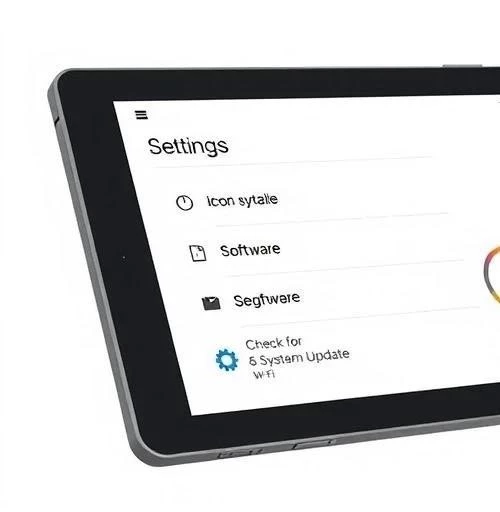
Updating an older tablet can feel like opening a tiny time capsule: menus look familiar, but the software world has moved on. The Huawei MediaPad T1 8.0 is a veteran device, so the safest update is not necessarily the newest Android version you can find online. It is the latest compatible, trustworthy software available for your exact model.
Important: Huawei released different T1 8.0 versions for different markets and network types. Their model numbers and firmware are not interchangeable. Before downloading anything, identify your tablet and check whether an official update is actually available.
Identify your exact model
On the tablet, open Settings and look for About tablet, About device, or a similarly named page. Note the model number, current Android version, and build number. Depending on the variant and region, the model code may resemble a T1-8.0 series number; the precise code matters more than the name printed on the front.
Also check the label on the back of the tablet or its original box if the settings screen is hard to reach. Do not assume that a firmware file for a Wi-Fi model will work on a cellular model, or that a package for one country suits another. A similar-looking name is not proof of compatibility.
Prepare before you update
- Back up important files. Copy photos, documents, and downloads to a computer, memory card, or trusted cloud account. An update normally aims to preserve data, but a failed installation or later reset can erase it.
- Charge the tablet. Start with at least 50% battery, preferably more, and keep the charger connected during a long installation.
- Use a stable connection. Wi-Fi is preferable for an over-the-air download; Avoid interrupting the download or switching the tablet off while it is installing.
- Make room. Remove unneeded downloads if storage is nearly full. The update needs space to download and unpack its files.
- Write down your Google account details. If you later perform a factory reset, you may need the account previously used on the device.
Check for an update on the tablet
- Connect to Wi-Fi and open Settings.
- Find About tablet or About device, then tap System update, Software update, or the closest equivalent. Menu wording varies with the installed Android version.
- Choose Check for updates or Online update; If an official update is offered, read the prompt, make sure the battery is charged, and follow the on-screen instructions.
- Allow the tablet to restart and finish. The first boot after an update can take longer than usual; do not force it off simply because the logo remains on screen for a while.
If the screen reports that the system is up to date, that means no update is currently being offered to that device through its update service. It does not mean the tablet has the newest Android release available today. The MediaPad T1 8.0 is an older product, and official software support may have ended. Its final version can differ by region, carrier, and model.
Try Huawei’s computer software cautiously
Huawei’s official support site is the sensible place to check for product support and current software tools. Huawei has offered HiSuite for managing some phones and tablets from a computer, but compatibility with an older MediaPad T1 8.0 is not guaranteed. A modern HiSuite version may not recognize the tablet, and a computer tool cannot create an update that Huawei never released for that model.
If you try this route, download HiSuite only from an official Huawei website, install it on a trusted computer, and connect the tablet with a good USB cable. Unlock the screen and accept any connection prompt. If the program identifies the device and presents an update specifically for its model, read the details before proceeding. If it does not recognize the tablet, stop rather than installing drivers or firmware from random download pages.
Manual firmware: only with a verified match
Some Huawei devices can be updated using a local package or a recovery method, but the steps and supported package format depend on the exact model and software build. Do not treat generic “dload” instructions as universal. A package meant for another T1 variant can cause a boot loop, disable cellular functions, or make the tablet unusable.
Only consider manual installation if you have a complete, authentic package intended for your exact model and region, plus reliable instructions from Huawei or a source you can independently verify. Check the package name, version, and integrity where possible. If any detail is uncertain, do not flash it. A file-hosting link, forum post, or video is not proof that a firmware file is safe.
Avoid unofficial Android upgrades advertised as a quick way to install a much newer system. Custom ROMs can require an unlocked bootloader, specialized recovery, and model-specific files. They may break Wi-Fi, cameras, mobile data, or security features, and can leave you without a practical way back. For a tablet used for personal accounts or sensitive information, an unsupported ROM also carries security risks.
If the update fails or the tablet feels slow
If an official update will not download, restart the tablet, check the Wi-Fi connection, free some storage, and try again later. If installation stops repeatedly, note the exact message and model number. Do not keep testing firmware packages at random.
If the tablet is sluggish after a successful update, restart it and give it time to finish background tasks. Remove unused apps and files, and update applications only through a store that still supports the device. A factory reset may help with persistent software problems, but it deletes local data: back up first, then use Settings and search for Factory data reset. A reset returns the tablet to its installed system; it does not upgrade Android.
Before you begin: a quick safety check
- Have I written down the exact model number and build?
- Is the update offered by the tablet or an official Huawei channel?
- Are my important files backed up and the battery charged?
- Does the firmware explicitly match this model and region?
- Am I prepared to stop if the source or instructions are unclear?
The practical answer
For most owners, the best first move is Settings → About tablet → System update. If the tablet finds an official compatible update, install it with a backup and sufficient charge. If no update appears, check Huawei’s official support information for your exact model. Because the MediaPad T1 8.0 is an older generation, there may be no newer official release to install. In that case, keeping the existing system stable, removing unnecessary apps, and avoiding unverified firmware is often the smartest upgrade of all.
3 Comments. Оставить новый
A refreshingly cautious guide in a world that often treats “newest” as automatically “best.” I like its practical checklist; backing up files and checking the model number are humble steps, but they are the seatbelts of old-device tinkering.
This is the kind of tablet-update advice that saves people from turning a weekend project into a very small, very expensive brick. The reminder to match the exact model is especially valuable—firmware names can look like twins while behaving like strangers.
The time-capsule image sets the mood nicely, and the advice keeps nostalgia from outrunning common sense. One useful next step would be pointing readers toward Huawei’s official support channels, so they can verify whether a compatible update exists before downloading anything.