
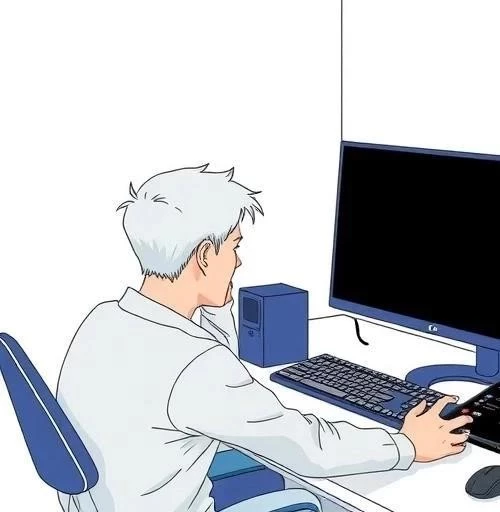
A black screen at launch does not automatically mean the game is broken. Watch Dogs 2 may be starting on the wrong display, struggling with a graphics driver, blocked by an overlay, or loading damaged files. The best approach is to change one thing at a time, testing the game after each step. That makes it easier to identify the cause and avoids risky fixes that can create new problems.
Give the game a moment, then check whether it is running
After launching, wait for a minute or two: the first startup after an update can take longer than usual. Listen for game audio and check whether the game appears in Task Manager (press Ctrl+Shift+Esc). If it is still using CPU or disk, let it finish loading. If it is marked “Not responding” for several minutes, close it through Task Manager, restart the PC, and try again. Avoid repeatedly launching multiple copies, which can leave stuck processes behind.
Try switching display mode
Press Alt+Enter once to switch between fullscreen and windowed mode. If the picture appears, open the game’s video settings and choose a resolution and refresh rate supported by your monitor. A resolution mismatch is especially plausible after changing displays or graphics hardware. You can also temporarily disconnect extra monitors, docks, or capture devices, then launch on the primary screen. Reconnect them after testing.
Restart and check for updates
Restart Windows rather than only closing the game; this clears many temporary driver and launcher problems. Install pending Windows updates and restart again if required. Then check for a current graphics driver from NVIDIA, AMD, or Intel, depending on your GPU. Prefer the manufacturer’s official software or website. If the black screen began immediately after a driver update, consider rolling back to the previous stable driver instead of installing updates repeatedly.
Verify the game files
A patch, interrupted download, or storage error can leave essential files damaged. Use the repair or verification option in the launcher where you own the game: for example, Steam’s Properties → Installed Files → Verify integrity, or the equivalent option in Ubisoft Connect or Epic Games Launcher. The wording can vary by version. Let the check finish, allow it to replace missing files, and then relaunch. Do not delete the installation folder as a first step; verification is safer and usually much faster.
Disable overlays and recording tools
Temporarily turn off overlays from Ubisoft Connect, Steam, Discord, GeForce Experience, Xbox Game Bar, or other recording and monitoring software. These tools can conflict with fullscreen presentation or hook into the game at startup. Close them fully—not just their overlay—and test again. If this fixes the issue, re-enable them one at a time to find the conflict. Keep only the overlay you actually need enabled.
Make sure the correct graphics card is being used
On a laptop or a PC with both integrated and dedicated graphics, Windows may launch the game on the less capable adapter. Open Settings → System → Display → Graphics, add the game’s executable if necessary, and set it to High performance. You can also select the preferred GPU in your graphics-control panel. Connect a laptop to power before testing, since battery-saving modes can restrict performance. Menu names differ between Windows and GPU-driver versions.
Check security software and permissions carefully
Security software can sometimes quarantine or block a game component, but disabling protection entirely is not a good routine fix. Check its quarantine and notification history first. If a trusted game file was blocked, restore it only after confirming that it belongs to the official installation, then add a narrow exception for the game or launcher if needed. You may also test launching the game or launcher as administrator. Avoid changing permissions for the whole drive.
Reset display settings without losing the installation
If the problem began after changing graphics settings, the saved configuration may request an unsupported mode. Look for the game’s configuration or settings files in its user-data folders, and back them up before renaming or moving them. On the next launch, the game may recreate default settings. Folder locations can vary, so consult official Ubisoft support if you cannot identify the correct file. Do not remove unrelated save files: configuration data and saved progress are not necessarily the same thing.
Check system requirements and background conflicts
Confirm that your PC meets the game’s minimum requirements and has enough free storage. Close unnecessary background applications, especially other games, screen recorders, and performance-tuning utilities. If the game works after a clean boot, a startup service or application is likely interfering; restore services gradually to identify it. Do not install unofficial “black screen fix” files or random DLLs. They can contain malware or destabilize Windows.
Use the symptoms to choose the next step
- Black screen with sound: investigate fullscreen mode, resolution, monitor selection, and overlays first.
- Black screen followed by a crash: prioritize file verification, graphics drivers, and system requirements.
- The issue started after an update: verify files and check whether a driver or launcher update is available.
- Only this game is affected: focus on its files, settings, and launcher. If other games also fail, investigate the driver or hardware.
When to contact support
If none of these steps works, note your Windows version, CPU and GPU, driver version, launcher, and the exact point at which the screen goes black. Check Windows Reliability Monitor or Event Viewer for a crash entry, and include its details when contacting Ubisoft Support. Mention which fixes you tested and whether audio continues. A clear report is more useful than repeatedly reinstalling the game, and it helps support distinguish a game-specific fault from a wider system problem.
Recommended order: wait and restart, try Alt+Enter, verify files, disable overlays, update or roll back the graphics driver, and then check GPU selection and saved display settings. Test after each change. This sequence starts with reversible, low-risk fixes and reserves deeper troubleshooting for cases that genuinely need it.
9 Comments. Оставить новый
This takes a measured approach rather than jumping straight to reinstalling the game. The reminder not to launch multiple copies is also a helpful detail.
The driver advice is balanced, especially the suggestion to consider a rollback if the problem began after an update. That is more useful than assuming newer is always better.
I like the distinction between a game that is still loading and one that has stopped responding. It helps readers avoid ending a process that may only need more time.
I appreciate that this explains why a black screen can have several causes. Checking whether the game is still active before closing it is a sensible first step.
This is a useful troubleshooting guide for a frustrating problem. It covers common possibilities without promising that one fix will work for every computer.
The article gives readers a reasonable order for troubleshooting, starting with simple checks and moving on to drivers and game files. That makes the process less intimidating.
The advice to change one setting at a time is practical. It helps narrow down the cause instead of making several changes that could create more confusion.
The instructions are straightforward and avoid risky system changes. Testing after each step should make it easier to see which fix actually helped.
The display-mode suggestions are clear and easy to try. Mentioning extra monitors and docks is useful because those setups can complicate which screen the game uses.