
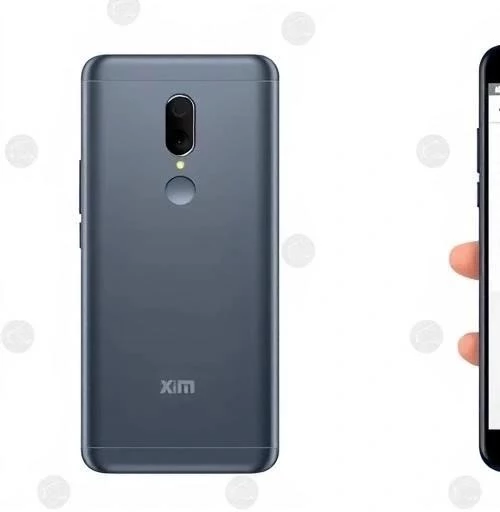
The Redmi Note 12 may be able to flash its camera light for incoming calls‚ but the setting’s name and location depend on the MIUI or HyperOS version and the Phone app installed on the device. Try the built-in options below. Menu labels can differ slightly by software version or region.
Method 1: Check the Phone app settings
- Open the Phone app used for calls.
- Tap the three-dot menu or the settings icon‚ then open Settings.
- Look for Incoming call settings‚ Call settings‚ or a similarly named section.
- If you see Flash when ringing or Flash for calls‚ switch it on.
- Ask someone to call your phone to confirm that the rear flash blinks when the call comes in.
If the Phone app does not offer this option‚ check the phone’s accessibility settings instead.
Method 2: Look in Accessibility settings
- Open Settings on the phone.
- Tap Additional settings‚ then Accessibility. On some versions‚ Accessibility is listed directly in Settings.
- Open the Hearing section and look for Flash notifications or Camera flash notifications.
- Enable the camera-flash option. If available‚ choose whether it should work for calls‚ notifications‚ or both.
On some Android versions‚ flash notifications are a system-wide accessibility feature rather than a call-only setting. The phone may blink for other alerts as well. If you only want a flash for calls‚ use a separate call option if your software provides one.
If you cannot find the option
First‚ search Settings for terms such as flash‚ flash notification‚ or ringing. Settings search can reveal options whose location has changed after an update. Check that the Phone app and system software are up to date‚ then restart the device and search again. The feature may not be included in every Redmi Note 12 software or regional configuration.
Some versions use Google Phone‚ while others may use a Xiaomi dialer. Their menus are different‚ so instructions for another Redmi model may not match your screen. If a setting is absent from both the Phone app and Accessibility‚ it may not be supported by the installed software. A third-party app may offer a workaround‚ but review its permissions‚ developer information‚ and privacy policy before installing it. Avoid granting access that is not necessary for the feature.
Check that the flash can be seen
Test with the phone locked and placed face down or where the rear camera is visible. Make sure the camera flash is not covered by a case‚ and check that the ringer or notification settings do not prevent the call alert. Flash notifications can be difficult to notice in bright sunlight and may be disruptive in dark rooms. They can also use additional battery‚ particularly when alerts arrive frequently.
To turn the feature off‚ return to the same menu and disable the switch. If the light does not blink after setup‚ test again with an ordinary incoming call‚ confirm the correct Phone app is being used‚ and check for a system update. Menu names and available controls vary‚ so the options displayed on the device are the best guide.



7 Comments. Оставить новый
It is helpful that the article notes menu names can vary by software version and region.
Searching Settings for related terms is a straightforward suggestion when menu locations differ.
The two methods are presented in a practical order, starting with call-specific settings.
The troubleshooting steps are concise and help set realistic expectations about feature availability.
The instructions clearly distinguish between settings in the Phone app and accessibility options, which should make troubleshooting easier.
The article appropriately points out that the available options may depend on the dialer app installed.
The reminder that system-wide flash notifications may affect other alerts is useful.