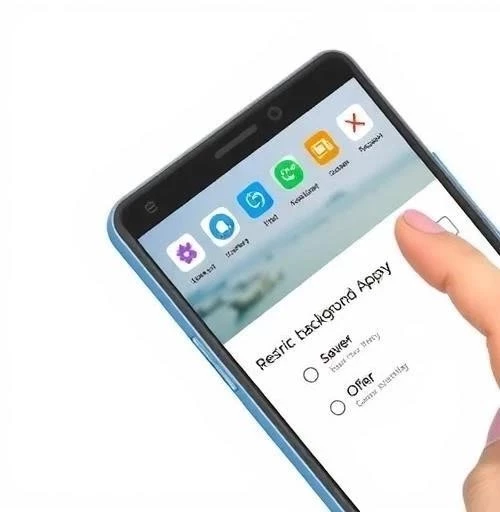
Apps running in the background can use battery, mobile data and memory. Xiaomi phones let you limit their activity, although menu names differ between MIUI and HyperOS versions. Restrict only apps you do not rely on: messaging, email, health and smart-home apps may need background access to deliver alerts or sync.
Turn off automatic startup
Autostart can launch an app after a reboot or when another app triggers it.
- Open Settings and go to Apps > Permissions > Autostart. On some versions, look under Security > Permissions > Autostart.
- Switch off autostart for apps you do not need running automatically.
The list and wording vary by model. If you cannot find the setting, search Settings for “Autostart.” Turning this off does not uninstall the app; you can still open it normally.
Restrict background battery use
For a specific app, open Settings > Apps > Manage apps, select it, then tap Battery saver or Battery. Choose Restrict background activity or the most restrictive available option. Another route on some phones is Settings > Battery > App battery saver.
Repeat for apps that consume power when you are not using them. The “No restrictions” option allows more background activity and should be reserved for apps that need reliable, timely updates. If a setting offers “Restrict background activity,” note that delayed notifications and syncing are possible.
Stop an app temporarily
To close an app you are finished with, open the Recent apps screen and swipe its card away. To stop it immediately, go to Settings > Apps > Manage apps, choose the app and tap Force stop. This is temporary: the app can start again when you open it or when the system or another app launches it. Force-stopping does not erase its data.
Limit background data
If data use is the concern, open the app’s details page and find Data usage or Restrict data usage. Disable mobile data or Wi-Fi access as appropriate. You can also use Settings > SIM cards & mobile networks > Data usage to identify heavy users. Restricting data may prevent updates until you open the app or connect to an allowed network.
Keep notifications working
After changing restrictions, test the apps you depend on. If alerts arrive late, allow background activity or autostart for that app, and check that its notifications are enabled. Avoid restricting system components or apps you do not recognize; this can cause missing features, sync problems or instability. Menu labels differ across Xiaomi models, regions and software versions, so use Settings search if the paths above do not match.
Check whether it helped
Use the phone for a day, then review Settings > Battery and Data usage. Change restrictions gradually rather than disabling everything at once. This makes it easier to spot which app caused the drain while preserving the services you actually need.