
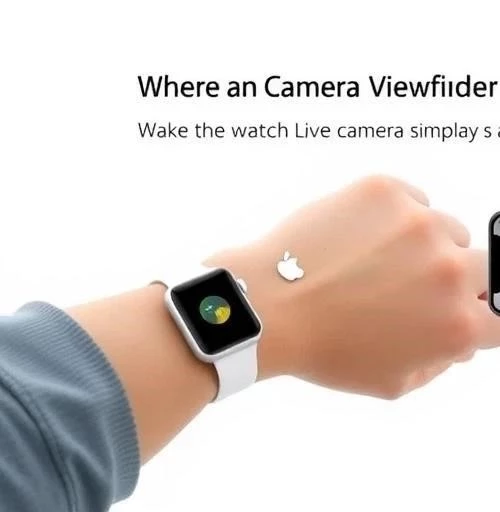
Looking for a tiny camera lens hidden somewhere on your Apple Watch? Here’s the twist: the watch has no built-in viewfinder camera․ Instead, its screen can become a live window onto your iPhone’s camera․ The feature lives in Apple’s Camera Remote app, sometimes called Camera Control in casual conversation․ Your iPhone does the seeing and shooting; your watch helps you frame the moment and trigger the shutter․
Find the viewfinder
- Keep your iPhone nearby, unlock it, and make sure Bluetooth and Wi-Fi are on․
- Press the Digital Crown on your Apple Watch to open the app screen․
- Tap the Camera Remote icon—the small camera symbol․
- Wait a moment for the watch to connect․ A live preview from the iPhone camera should appear on the watch face․
That preview is the viewfinder․ Point your iPhone toward the scene, then glance at your wrist to check the composition․ The watch can be especially useful when the phone is propped on a shelf, balanced on a tripod, or placed just beyond arm’s reach․ You can step into a group photo without asking a stranger to take it—or use the rear camera for a self-portrait while still seeing how the shot is framed․
Take a photo without touching your phone
Once the preview appears, tap the shutter button on the watch to take a picture․ Need time to get into position? Set the timer in Camera Remote, then press the shutter and walk into the frame․ The countdown gives you a few seconds to arrange your smile, straighten a collar, or persuade everyone to look in the same direction․
Depending on your watchOS and iPhone setup, the remote screen may offer controls such as switching between the front and rear cameras, adjusting flash or Live Photo settings, and choosing other camera options․ Tap the preview or look for the on-screen controls to explore what is available․ Options can differ across devices and software versions, so a missing button does not necessarily mean anything is broken․
Can the watch record video?
Yes․ Camera Remote can also help you start and stop video recording on a compatible iPhone․ The phone remains the camera: it captures and stores the video, while the watch acts as a remote control and monitoring screen․ This makes hands-free clips easier to create, whether you are filming a quick demonstration, a family moment, or a dramatic entrance that deserves its own soundtrack․
If the viewfinder is missing
- Check the right device․ Camera Remote controls the iPhone camera; it is not a camera app that works independently on the watch․
- Bring the devices closer․ A connection can fail if the iPhone is out of Bluetooth range or the devices have lost their wireless connection․
- Open the iPhone Camera app․ If the preview does not load, close Camera Remote and reopen it, or open Camera on the iPhone first․
- Restart and update․ Restart both devices and install available iOS and watchOS updates if the app keeps refusing to connect․
- Look for the app again․ Press the Digital Crown and search your watch’s app list․ If Camera Remote is unavailable, check that the paired iPhone and watch are set up and working normally․
A small screen with a useful job
The watch viewfinder is not meant to replace the large display on your iPhone․ It is more like a pocket-sized director’s monitor: a convenient way to check framing, pose, and timing from a distance․ For the sharpest preview and the easiest adjustments, compose the shot on your phone first; use the watch when you need to be in the picture or keep your hands free․
So, where is the viewfinder on Apple Watch? Open Camera Remote, connect to your iPhone, and look at the live preview on the watch screen․ No hidden lens, no secret camera—just your iPhone’s eye, relayed to your wrist, ready for the moment you press the button․

6 Comments. Оставить новый
This makes the Apple Watch feel less like a clock and more like a discreet film-set assistant. The practical steps are clear, and the tripod tip is a keeper.
A useful guide with a refreshingly grounded reminder that menus vary by device. No mysterious missing-button panic required; sometimes technology simply has different wardrobes.
A wrist-sized window into your phone’s camera—such a neat trick. I especially like the image of a watch acting as a tiny director’s monitor while the iPhone waits across the room.
A small feature, explained with big usefulness. I can already picture using the watch preview to line up a shot like a tiny director calling “action” from my wrist.
I came looking for a lens and found a clever little partnership instead. The watch doesn’t take the picture—it gives you a front-row seat to the iPhone’s view.
The best part is the hands-free group photo: no more sprinting back to the camera before the timer expires. Just frame, tap, and join the moment.